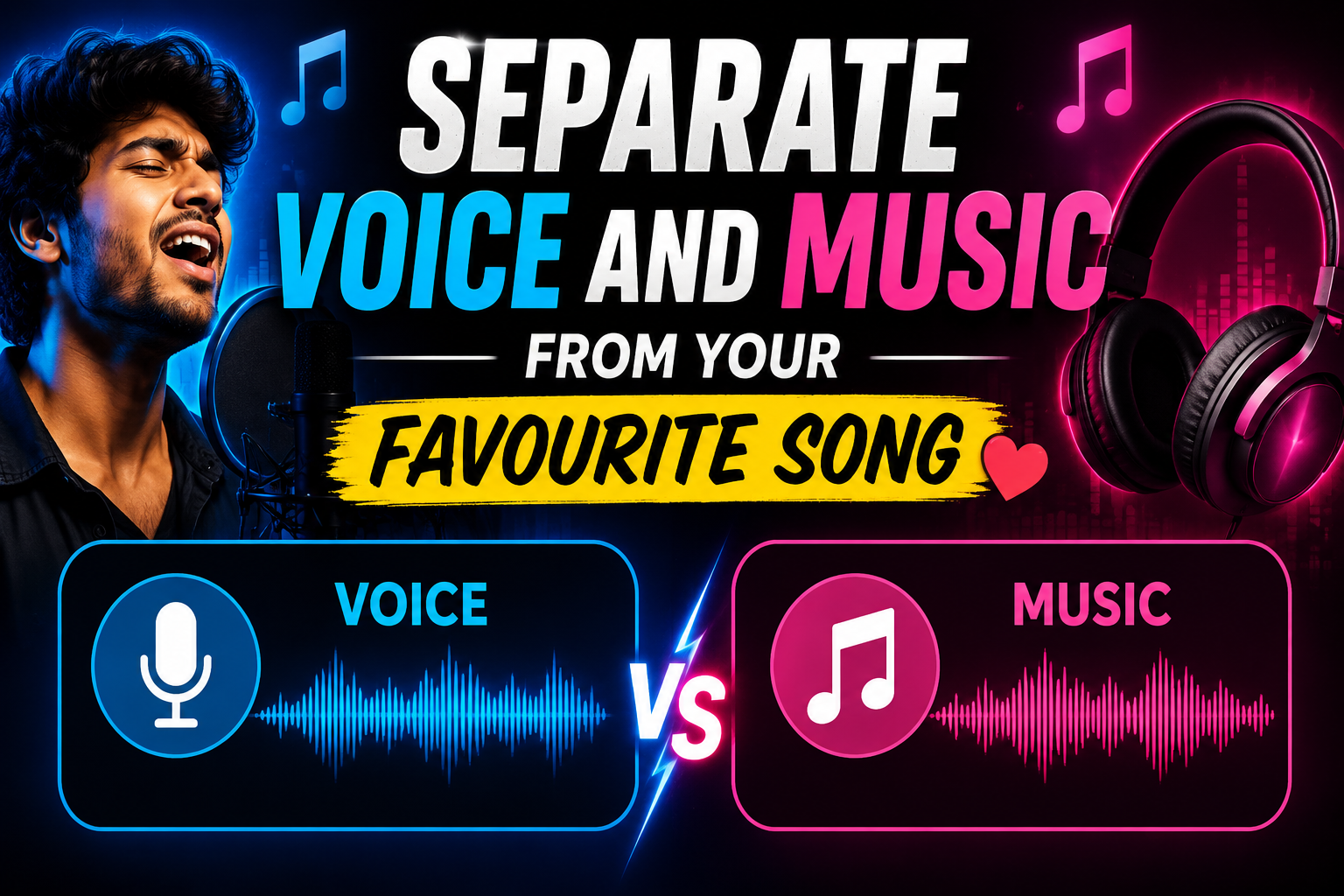
Hello friends, today we are going to try something useful with a common music problem. Many people want to remove vocals for karaoke or isolate the singer for remixes, but the original track only has everything mixed together. This guide will walk you through practical ways to separate voice and background music from almost any song.
You will see how to do this with simple mobile apps, free web tools, and more serious desktop software. We will talk about what actually works, what usually sounds messy, and what to avoid. The goal is not magic, the goal is to get a clean enough result that is good for fun projects, covers, and social content.
This article is for casual listeners who want karaoke versions, YouTube creators who need instrumentals, and beginner producers who want to study how a singer performs on a track. You do not need deep audio engineering skills. If you can download an app and upload a song, you can follow these steps and understand the trade offs.
Along the way, we will mention a few well known vocal remover tools that use modern AI models for stem separation. Most of them have free tiers with some limits, so you can test different options before paying. Read carefully and choose the method that matches your device, budget, and sound quality expectations.
Related Resource
The Website Link button above opens the related resource for Separate Voice And Music From Your Favourite Song. It is included so readers can reach the mentioned page directly.
Before You Start: What Vocal Separation Can And Cannot Do
When you separate voice and music from a song, the software tries to guess which frequencies belong to vocals and which belong to instruments. This is an estimation process, not a perfect reversal of mixing. Expect some leftover echo of the singer in the instrumental and sometimes a bit of music leaking into the vocal track.
Old or heavily compressed songs tend to be harder to process. Tracks with many background vocals, choir sections, or strange effects also confuse the algorithm. Modern AI models are much better than the old simple methods, but even the best paid tools can sometimes create metallic artefacts or watery sounding parts.
Method 1: Use Free Online AI Vocal Remover Tools
Online tools are the easiest way to start. You open a site, upload your song, wait for processing, then download separated files. This is ideal for occasional use and for people who do not want to install heavy software.
Typical steps
- Open a trusted vocal remover website in your browser.
- Upload an MP3 or WAV file of your song. Larger files take more time.
- Wait while the AI model processes stems like vocals and instrumental.
- Preview the output, then download the tracks you want.
Real world example. A vlogger wants to reuse a famous pop song as a soft piano background under their voice. They upload the track to an online splitter, download only the instrumental, and then lower its volume when editing the vlog so any small vocal echo is not noticeable under the narration.
Be cautious about copyright. Uploading commercial songs to online tools is usually acceptable for personal use, but using the results in monetized or public content may require licenses. Also avoid sites that ask for strange permissions, bundled downloads, or force shady browser extensions.
Method 2: Mobile Apps For Quick Karaoke And Reels
If you mostly listen and create content on your phone, mobile apps are very handy. Many karaoke and audio editing apps now include vocal removal or stem separation powered by cloud AI. These are great for Instagram reels, TikTok, and short covers.
How it usually works on Android or iOS
- Install a vocal remover or karaoke app from the official app store.
- Import a song from your files or streaming service where allowed.
- Tap the vocal remover or separate stems feature.
- After processing, save the instrumental or vocal track locally.
Case study style scenario. Imagine a home singer who wants to record a Hindi cover for YouTube Shorts. They use a mobile app to remove vocals from the original track, connect cheap earphones, and record their voice over the instrumental. The audio is not studio grade, but because social platforms compress sound anyway, the result is perfectly fine for casual viewers.
Check each app for processing limits, watermarks, and privacy policy. Some free tiers limit song length or daily conversions. Others upload your file to their server for analysis, so avoid sending any private recordings or unreleased material that must stay confidential.
Method 3: Desktop Software For Better Control
If you want more control and slightly better quality, desktop programs are still the most flexible option. There are classic editors like Audacity and full digital audio workstations that support external stem separation plugins.
Typical desktop workflow
- Install an audio editor on Windows, macOS, or Linux.
- Import your song into a new project and save the project file.
- Use a built in vocal reduction tool or an AI plugin to split stems.
- Fine tune levels, apply EQ and noise reduction if needed.
- Export separate vocal and instrumental files as WAV or MP3.
The big advantage is that you can treat the separated tracks like any other multitrack project. You can cut sections, change pitch slightly, or add reverb to hide artefacts. This approach is better if you are preparing a backing track for a live performance or long form content like full cover songs.
Quick Comparison Of Common Options
Here is a simple comparison to help you decide which direction to try first. Names are examples of tool types, not a full list.
| Option type | Typical use | Cost level | Main pros | Main cons |
|---|---|---|---|---|
| Online AI vocal remover | Occasional karaoke and quick instrumentals | Free with paid upgrades | No install, easy interface, runs on any device with a browser | Upload limits, privacy questions, quality varies by site |
| Mobile karaoke or vocal remover app | Short covers, reels, and social content | Free with in app purchases | Convenient, all in one record and share, good enough quality | Ads, time limits, battery use, some features locked behind subscription |
| Desktop audio editor with AI plugin | Serious covers and remix practice | Often paid or one time license | More control, batch processing, higher quality for careful users | Learning curve, larger files, needs a reasonably powerful computer |
Tips To Get Cleaner Separation
Start with the highest quality source you can find. A lossless WAV or a high bitrate file gives the AI more detail to work with. Low bitrate MP3 files introduce compression artefacts that become more obvious after separation, especially on cymbals and vocal sibilance.
If your tool lets you choose between more stems like vocals, drums, bass, and others, try that instead of just vocal and instrumental. Sometimes splitting into multiple stems and then recombining only what you need gives a cleaner instrumental than the basic vocal removal mode.
After separation, do some light editing. Simple equalizer cuts around harsh frequency bands and a gentle noise gate can hide many small leftovers. Even free plugins inside a basic editor can improve the sound enough for YouTube and social media use.
Common Mistakes To Avoid
- Expecting studio master quality from a random free site. Results are usually good for fun and practice, not for professional release.
- Uploading songs over public Wi Fi without thinking about privacy. Use secure connections and avoid sending unreleased projects.
- Converting the same song many times between formats. Each lossy conversion reduces quality and creates more artefacts.
- Ignoring platform rules. Using a famous track instrumental in a monetized video can still trigger copyright claims.
Real Use Cases Where This Workflow Helps
Example one, a dance teacher wants instrumental versions of Bollywood hits for class without vocals distracting students. They separate voice and music from each track, then create a playlist of instrumentals that keep the rhythm but remove lyrics.
Example two, a beginner producer wants to study how a singer phrases lines in a favourite RnB song. They isolate the vocal stem, slow it slightly in their editor, and practice matching timing and vibrato as a training exercise, without other instruments hiding details.
Conclusion
To separate voice and music from a song today, you do not need expensive studios, you just need the right type of tool for your situation. Online AI vocal removers are the fastest way to get karaoke tracks, mobile apps are great for quick covers, and desktop software offers deeper control when you care about polish.
Start with a free online or app based option, listen carefully to the artefacts, and only move to paid plans or desktop plugins if you really need the extra quality. Always respect copyright rules, keep an eye on privacy when uploading files, and remember that practical use is more important than perfect separation in most real projects.
FAQ
Is it legal to separate vocals and music from commercial songs
For personal listening and practice, it is usually fine. Using the result in public videos, performances, or monetized content can require licenses, so always check local copyright laws and platform rules.
Which gives better quality, online tools or desktop software
Serious desktop plugins often sound cleaner, especially on complex songs, but many modern online tools come very close. For most casual use, a good online or app based solution is enough.
Can I separate voice and music from streaming services directly
Most streaming apps do not allow direct file export for legal reasons. You normally need a local audio file that you legally own or downloaded from a licensed store.
Why does the instrumental still have faint vocals
Because separation is based on estimation, not perfect unmixing. Some vocal frequencies overlap with instruments, so the tool has to choose which part is more likely to be voice, which always leaves some leftovers.
What format should I use when saving the separated tracks
If you plan more editing, save as WAV for better quality. If you only need a small file for sharing or listening, a high bitrate MP3 around 256 kbps is a practical choice.
Thank you for reading this guide. If you enjoyed it, stay connected with our blog for more practical tech tips, useful apps, AI tools, and the latest updates from the world of digital audio and mobile gadgets.








