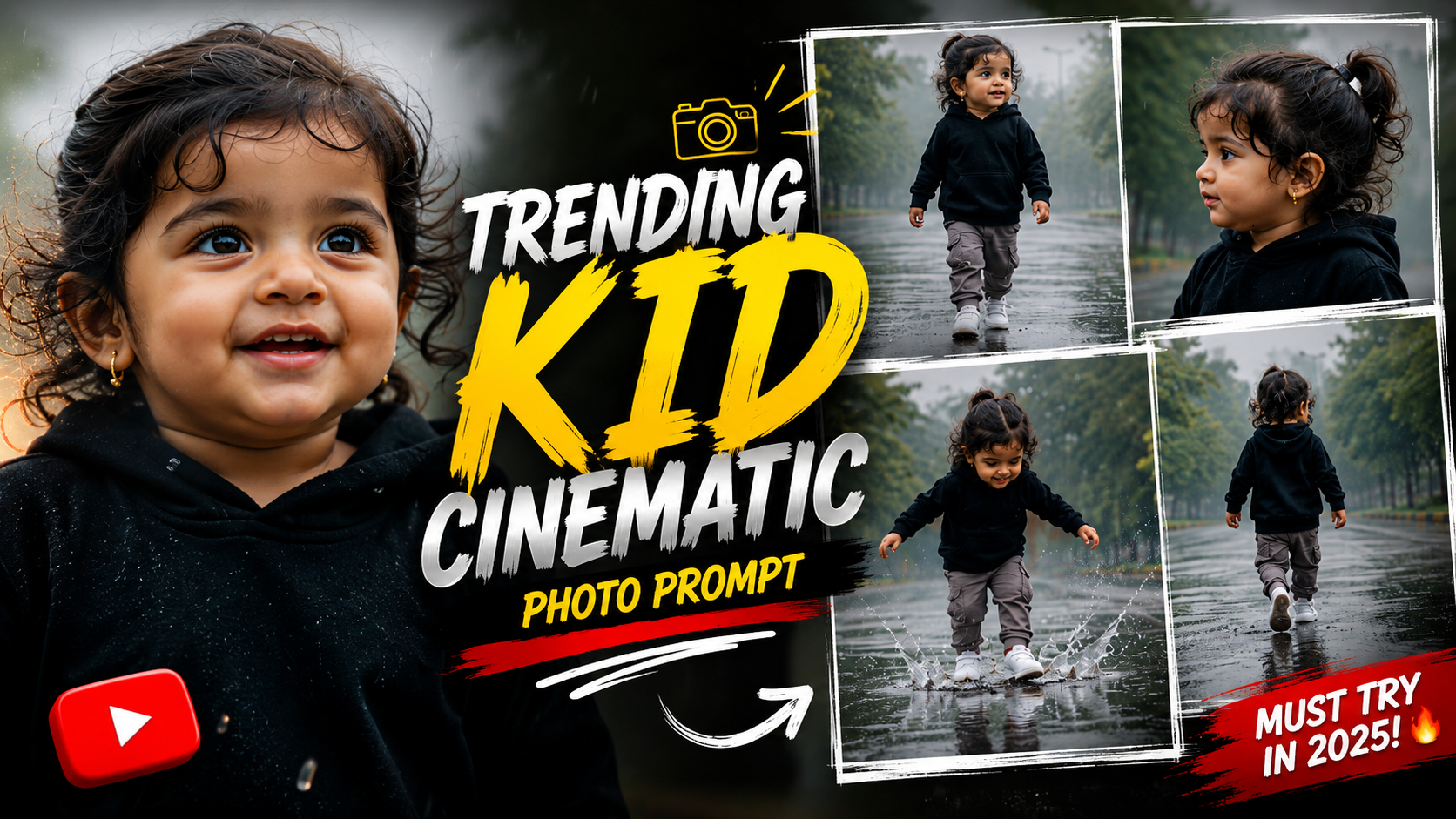
Hello friends, today we are going to try something useful with this topic of kid photo trending cinematic style editing. Many parents and new creators see cinematic baby portraits on Instagram or Reels and feel their own photos look flat or noisy. This post will show you a realistic way to turn simple phone shots into soft movie like kid portraits without making them look fake
This article will help you understand what gives photos a cinema mood, which mobile apps work best, and a safe editing workflow for children images. You will see how to control light, color, and background blur, and how to avoid common mistakes like over smoothing skin or using harsh filters that break the natural child look.
The guide is written for parents, hobby photographers, and short video creators who shoot on Android or iPhone and do not want to spend hours learning complex software. If you are using free apps like Snapseed, Lightroom Mobile, VN, CapCut, or PicsArt, you will find practical settings and example values you can try right away. Small differences between devices and app versions are possible, so treat the numbers as starting points.
We will also look at privacy and safety, since kid pictures are sensitive content. You will see where cinematic kid photos work well, for example family albums and private groups, and where they may create risk or unwanted attention. By the end, you should have a clean step by step routine that you can repeat for birthday photos, park portraits, or casual home shots, and share them confidently.
Related Resource
The Download Now button above opens the related resource for Kid Photo Trending Cinematic Style Editing. It is included so readers can reach the mentioned page directly.
What Makes A Kid Photo Look Cinematic
Cinematic photos borrow ideas from movies. The frame often has stronger contrast, moody color balance, and a clear subject in the center of attention. For kid portraits the challenge is to keep that dramatic mood while still feeling soft, safe, and child friendly, not dark or scary.
Most trending edits include three parts. First is lighting with gentle highlights on the face and slightly darker background. Second is color grading with warm tones in the skin, cooler or muted tones in the environment, and sometimes a teal and orange style. Third is the format, such as a wider aspect ratio with black bars at top and bottom and soft blur or grain to mimic film.
Apps And Tools For Cinematic Kid Portraits
You can create this style on nearly any modern phone. Below is a quick comparison of popular mobile tools people often use for kid photo trending cinematic style editing. Features can change with updates, so use this table as a general guide.
| App | Platform | Best Use | Key Strength | Possible Drawback |
|---|---|---|---|---|
| Snapseed | Android, iOS | Free manual photo editing | Precise control, selective edits | Interface feels old for some users |
| Lightroom Mobile | Android, iOS | Color grading and RAW photos | Powerful color and light tools | Some features need subscription |
| PicsArt | Android, iOS | Creative filters and overlays | Fast cinematic presets and text | Free version has ads and watermark |
| CapCut / VN | Android, iOS | Short video with cinematic look | Ready made cinematic LUTs | More focused on video than photos |
If your goal is only photos, Snapseed or Lightroom Mobile is usually enough. If you also post reels, try combining Lightroom color grading with CapCut for video frames so your feed looks consistent.
Step By Step Workflow For Cinematic Kid Photos
This workflow uses free tools and works on most phones. You can adapt it to any editor that has similar sliders.
1. Start With A Clean Base Photo
- Shoot near a window or outside in shade, not in harsh midday sun.
- Use portrait mode if the phone has it, but keep the subject at least one meter from the background so the blur looks natural.
- Avoid clutter like bright toy boxes or laundry behind the child, those break the cinema mood.
2. Basic Adjustments
Open the photo in Snapseed or Lightroom Mobile and fix the base first.
- Exposure: keep it slightly lower rather than too bright, often between minus 0.2 and minus 0.4 is enough.
- Contrast: add a bit, for example plus 10 to plus 20.
- Highlights: reduce by minus 20 or more if the face is shiny.
- Shadows: lift gently, plus 10 to plus 25, so eyes and hair keep detail.
3. Cinematic Color Grading
This is where most of the trending look comes from.
- Temperature: add a small warm tone, around plus 5 to plus 10, for healthy skin.
- Tint: a tiny move toward magenta can correct greenish indoor light.
- HSL or Selective Color: keep reds and oranges gentle so skin does not look over saturated.
- Split Toning or Color Grading: try warm highlights (around orange) and cooler shadows (blue teal) at low intensity.
Always zoom in on the face while changing color. If the lips look unnatural or teeth turn yellow, reduce saturation or shift the hue slightly.
4. Add Subtle Depth And Detail
- Clarity or Structure: small value only, plus 5 to plus 10, applied more to clothing than skin.
- Vignette: darken the corners a bit to center attention. Do not overdo it or it will feel like a cheap filter.
- Selective blur: if the background is distracting, some apps let you blur it more. Blend carefully near hair so it does not look like a cutout.
5. Crop To A Cinema Frame
Many trending edits use a wider ratio such as 16 by 9 or 2.35 by 1 with black bars at top and bottom.
- Crop the photo horizontally and place the eyes around the upper third line.
- Use overlays or frames in PicsArt or similar apps to add black bars if your editor does not support custom crops.
- Check that no important part of the child face or hands is cut off by the bars.
Real World Examples
Example 1: Indoor Window Portrait
Imagine a child sitting on a sofa near a window with soft afternoon light. The original phone shot looks fine but flat, and the background shows random pillows. Using the workflow above you lower exposure slightly, warm the temperature, add a gentle vignette, and crop to a wide frame that leaves the window on one side. The result feels like a quiet movie scene but still natural enough for a family album.
Example 2: Park Evening Shot
You shoot a kid running in a park at sunset. The sky is bright and the face is dark. You pull down highlights, lift shadows, and add a soft teal tone in the shadows. Then you mute the greens a little so the grass does not dominate. With a small vignette and a 16 by 9 crop, the picture suddenly matches the cinematic trend you see in reels, even though it started as a casual phone capture.
Mini Case Study: Fixing An Over Edited Kid Portrait
A common problem with kid photo trending cinematic style editing is going too far with filters. Suppose a parent uses a strong Instagram filter that adds heavy orange color and deep contrast. The child skin turns almost orange, hair detail disappears, and the background bands badly on older phones.
To rescue this, export the original if possible, or open the filtered version in a better editor. First, reduce saturation and orange hues so skin returns closer to its real color. Next, lower contrast a bit and open shadows to bring back eye detail. Finally, add only a mild color grade with split toning. The final image will not be as perfect as a fresh edit, but it usually becomes shareable again and less harsh.
Privacy And Safety Tips For Kid Photos
Cinematic editing often tempts people to share kid portraits more widely. Before posting, think about where and how the image will live. Public social networks can copy and compress files, and some regions have strict child privacy rules. Avoid posting school logos, home addresses, or geotags that reveal regular locations.
When you test new apps, download only from trusted stores like Google Play or the Apple App Store. Be careful with apps that require unnecessary account permissions or upload every photo to the cloud. For family archives and printed albums, keep full resolution originals backed up in private storage before heavy editing so you can always go back.
Conclusion
Kid photo trending cinematic style editing is mostly about good light, gentle color control, and a thoughtful crop, not about extreme filters. With a simple workflow and free apps, you can quickly turn everyday snapshots into portraits that feel closer to movie scenes while still respecting the natural innocence of a child.
Start with one or two favorite photos and follow the steps in this guide, saving your edits as presets where your app allows. Over time you will build a consistent style for birthdays, festivals, and daily moments without spending extra money on premium packs that you may not even need.
FAQ
Which app is best for cinematic kid photos on a budget
For most people Snapseed and the free version of Lightroom Mobile are enough. They give you strong control over light and color without forced subscriptions, and you can always add final touches in PicsArt if you want frames or text.
Should I use AI filters for kid portraits
AI filters can help with quick backgrounds and skin clean up, but for children it is safer to avoid heavy face reshaping or age changing effects. Keep edits light and always review app privacy policies before allowing cloud processing.
What resolution should I export for Instagram
For most feeds, exporting around 2048 pixels on the long side with medium to high JPEG quality is a good balance. It keeps details for zooming without making file sizes too heavy for mobile data or platform compression.
How can I avoid grain and noise in low light kid photos
Try to shoot near a light source, lower ISO if your camera app allows manual control, and avoid heavy shadow lifting in editing. A tiny amount of added film grain can disguise unavoidable noise better than aggressive noise reduction.
Is it safe to add name tags or school badges in cinematic edits
For public sharing, it is better to blur or crop out badges and remove clear name tags. Keep more identifying details for private family albums or encrypted messaging groups where you can control who sees the images.
Thank you for reading. If you found this helpful, stay connected with our blog for more latest tech news, useful apps, creative AI tools, and practical editing updates tailored for everyday users.








