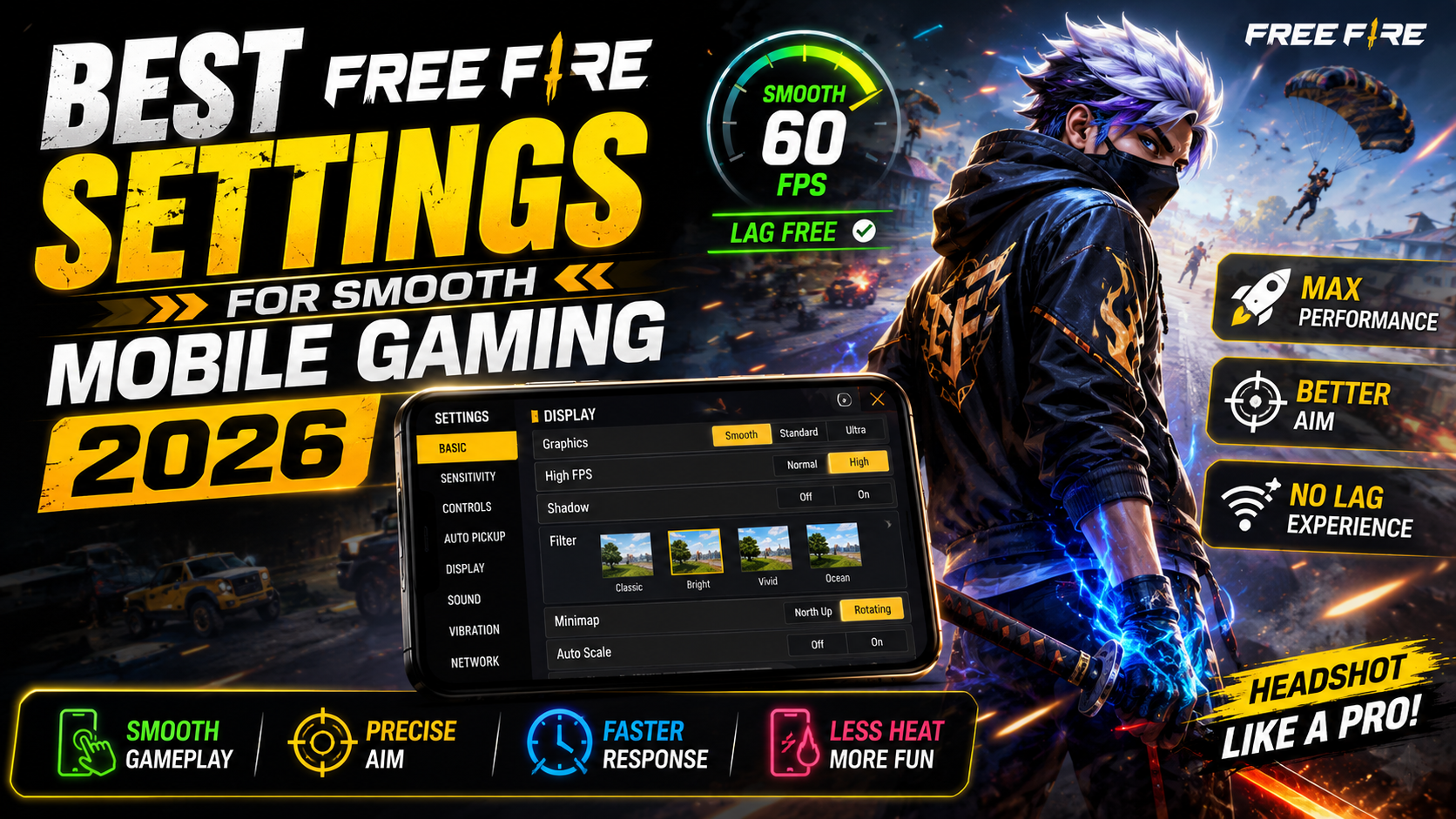
Hello friends, today we are going to try something useful with this topic that almost every Free Fire player struggles with at some point, settings. You install the game, jump into a match, and suddenly your crosshair feels slow, the graphics stutter, and you keep losing close fights you should win. Most of the time the problem is not your skills, it is your configuration.
This guide will help you tune your Free Fire mobile settings so matches feel smoother and aiming becomes more predictable. We will look at graphics, sensitivity, controls, HUD, and a few Android tweaks that many players ignore. The idea is not to copy some pro’s numbers blindly, but to set a solid base that you can slowly adjust to your own play style.
The article is mainly for players who use budget or mid range Android phones, but the same logic also helps if you are on a flagship device and want consistent performance rather than flashy visuals. If you play ranked, Clash Squad, or custom room tournaments, having stable settings is a real advantage over just having high FPS for one or two rounds.

You will also see real examples, such as what to change if your phone heats up in long sessions, or how to tweak the HUD for fast glue wall placement. Whenever something depends on device model or game version, this guide will mention it clearly so you know what to test and what to skip for your own setup.
Related Resource
The Settings Link button above opens the file page related to Mobile Gaming Free Fire Useful Settings. It is placed here so you can access the mentioned resource directly from the article.

1. Start With Device Friendly Graphics Settings
Open Free Fire, go to Settings, then Graphics. The names may vary slightly with updates, but the core options stay similar. For most mid range phones, Ultra graphics and high resolution look nice but often cause random frame drops, especially during squad fights and in areas with many textures such as Bermuda houses or factories.
A safe starting point for smoother gameplay is:
- Graphics: Standard or Smooth
- High FPS: On
- Brightness: Slightly above middle for better visibility
- Shadow: Off if your phone stutters, On only if your device stays cool
- Anti aliasing: Off on budget devices, On only for stronger phones
If your device heats up or the battery drains quickly after two or three matches, lower graphics to Smooth and turn off extra effects. A steady 40 to 60 frames with simple visuals usually feels better than beautiful scenes with lag when enemies push.
2. Sensitivity Settings That Actually Help Aim
Many players copy random sensitivity codes and expect instant headshots. Sensitivity is tightly linked to your screen size, finger speed, and phone touch response. Think of the default values as a rough base and then adjust step by step rather than making huge jumps.
A balanced starting point for most phones is:
- General: 90 to 100
- Red Dot: 85 to 95
- 2x Scope: 75 to 85
- 4x Scope: 65 to 75
- Sniper Scope: 45 to 55
- Free Look: 80 to 90
Spend at least ten to fifteen minutes in training ground after each small change. Practice quick sprays on moving targets and long distance tap fire. If your crosshair always crosses the target when you pull down during recoil, reduce sensitivities in steps of five. If you struggle to drag fast enough for close range HS, increase them slowly.
3. Custom HUD Layout For Faster Fingers
The custom HUD is where a lot of players gain or lose speed. Out of the box, the fire button may sit too low or too small for your thumb, and the jump, crouch, and glue wall buttons can be crowded. That is a problem when you try quick movements like jump plus crouch plus shot in one second.
Go to Controls then Custom HUD. Switch to three finger or even four finger layout if your screen size allows. Make your main fire button 60 to 70 percent larger so you never miss it in panic. Move the glue wall button near your movement thumb, not near reload, so you can place walls faster when you get third partied.
A practical example for a common phone size is to keep movement joystick in the bottom left corner, sprint button just above it, and glue wall slightly right side of the joystick. Keep jump, crouch, and prone on the right side in a simple line so you can chain them without looking down.
4. Aim Precision, Auto Pickup, And Other Useful Toggles
Inside Controls you will see options like Aim Precision, Left Fire Button, and Quick Weapon Switch. These look small, but they change your gameplay flow in every fight.
| Setting | Recommended Option | Why It Helps |
|---|---|---|
| Aim Precision | Default or Precise on scope | Default assists beginners, Precise gives more control for ranked pushers |
| Left Fire Button | On | Lets you shoot while adjusting camera with right thumb |
| Quick Weapon Switch | On | Faster switch between AR, SMG, and shotgun in rush fights |
| Quick Reload | On for most players | Auto reload saves taps, but watch out when peeking corners |
| Auto Pickup | On, but limit items | Reduces looting time, customize so bags do not fill with useless ammo |
For Aim Precision, many serious players prefer Precise on scope because hip fire becomes more manual but scoped shots feel more exact. Test it in training before jumping into ranked so you do not get surprised by different crosshair behavior during recoil control.
5. Case Study: Fixing Lag And Missed Shots On A Budget Phone
Imagine a player using a two year old budget phone with 4 GB RAM. They keep graphics on High, FPS on Normal, and sensitivity at default. In Clash Squad they notice frame drops whenever close to the final zone and their aim feels delayed. This is a classic mismatch between Free Fire mobile settings and actual hardware capacity.
After reducing graphics to Standard, turning High FPS On, disabling shadows, and lowering background apps in Android settings, frame stability improves immediately. Next, they increase General and Red Dot sensitivity by 15 points each, then practice for thirty minutes in training ground. Headshot rate improves and close fights feel under control even with some ping variations.
This simple mix of visual and control changes often brings better results than trying paid boosters or untrusted config files. It respects device limits instead of forcing it to behave like a flagship.
6. Helpful Android Tweaks Outside The Game
Free Fire settings alone cannot fix everything. If your phone is full of background apps, notifications, and heat, you will still get lag. There are a few safe steps that usually help without risky modifications.
- Close social apps before launching Free Fire, especially video platforms and browsers.
- Disable unnecessary floating windows or bubbles that sit on top of the game.
- Use Game Mode or Game Space if your phone brand offers it, and lock Free Fire inside it.
- Keep at least three to four GB free internal storage for cache and updates.
- Avoid third party performance tools that ask for strange permissions or promise instant rank push.
Also check for system software updates when possible. Sometimes a brand update improves touch response or GPU stability, which indirectly helps Free Fire performance.
Conclusion
You do not need a top level device to play Free Fire comfortably, but you do need sensible settings that match your phone and your fingers. Start from safe graphics values, then shape your sensitivity and HUD slowly instead of copying random numbers. Test every change in training ground long enough to understand how your gun and camera behave.
From there, combine in game controls with basic Android clean up so your matches stay stable even in late zones. Small experiments each week usually give better long term results than chasing the latest viral setting code. Save your layout once you like it, and back it up with your account so you can restore it after updates or phone changes.
FAQ
What are the best Free Fire mobile settings for low end phones?
Use Smooth graphics, High FPS On, shadows Off, and anti aliasing Off. Keep background apps closed and brightness at a moderate level. Then adjust sensitivity upwards a bit to compensate for slower touch response.
Should I copy a pro player sensitivity code?
You can use it as a starting reference, but do not expect magic results. Screen size, finger speed, and device latency differ, so always tweak a few points up or down after testing.
Is high graphics good for rank push in Free Fire?
Only if your phone handles it without frame drops or heating. For most rank pushers, stable FPS with Standard or Smooth graphics is safer than Ultra graphics with random lag.
Which aim precision setting is best for beginners?
Default is easier for beginners because it gives more assist, especially with red dot. Once you get used to recoil control, try Precise on scope for better control in ranked.
How often should I change my Free Fire settings?
Not very often. Find a comfortable base and stick with it for at least one or two weeks. Change only when you switch device or clearly feel a problem such as over sensitive aim or constant lag.
Thank you for reading this guide. Stay tuned to our blog for more latest tech news, useful apps, AI tools, and practical gaming updates that help you play smarter every season.