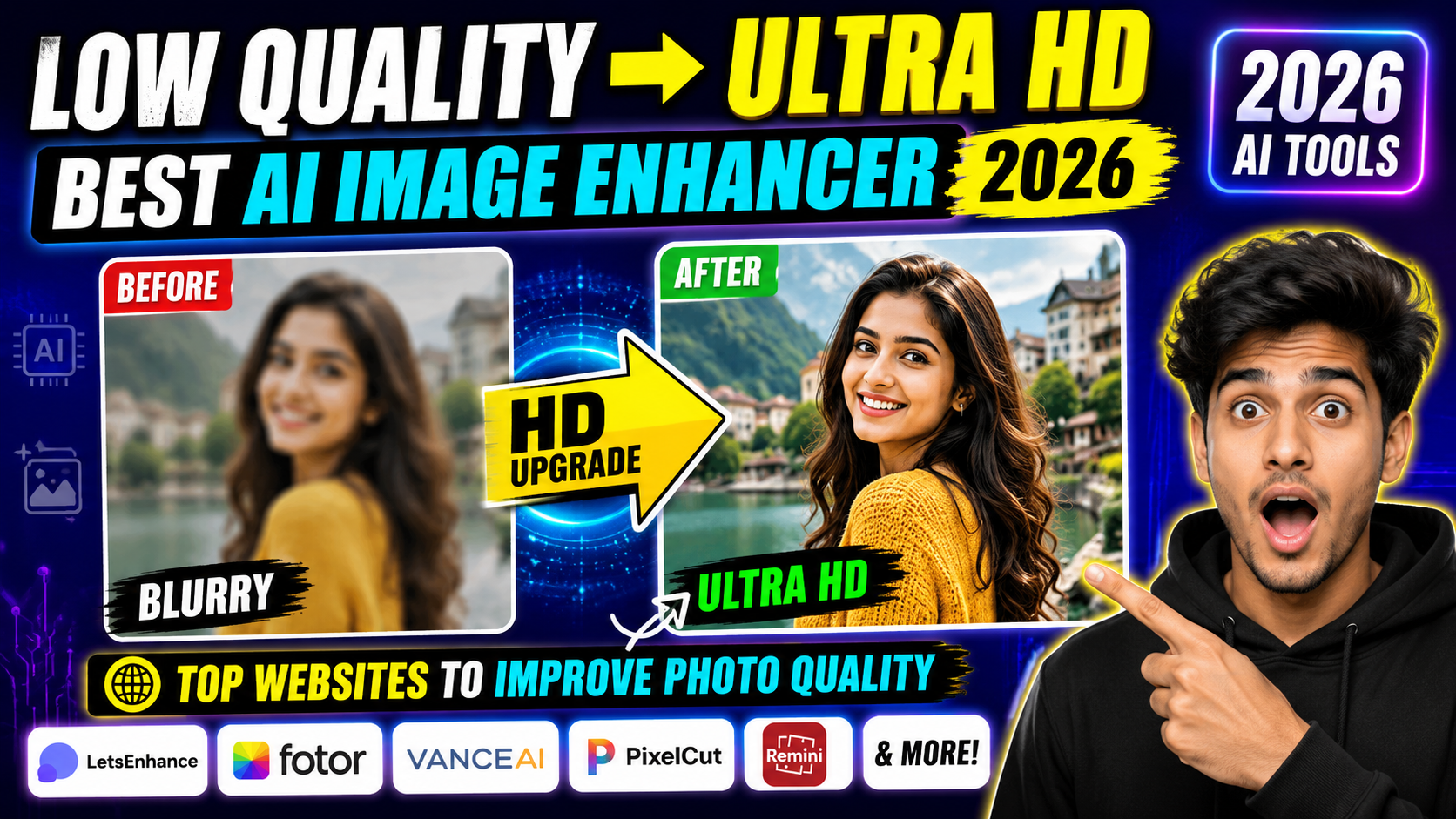
Hello friends, if you keep finding old, blurry or low resolution photos on your phone and wish they looked cleaner, this guide is for you. Image enhancing websites in 2026 use smart AI to sharpen faces, remove noise, and upscale tiny images so they look good on modern displays without you learning complicated editing software.
In this article we will walk through the best image enhancing websites available right now, what each one does well, and where you should be careful. You will see which tools are better for portraits, which are better for product shots, and which ones avoid that strange plastic skin look that many AI tools create.
This guide is written for casual users, creators, small business owners, and anyone who shares photos on social media or marketplaces. If you sell items online, restore family photos, or prepare thumbnails for YouTube, choosing the right online enhancer can save a lot of time and frustration compared with manual editing.

We will also look at limits of free plans, upload privacy, file size caps, and how aggressive each site is with advertising. That way, you can pick a site that actually improves your photo quality without drowning you in watermarks, pop ups, or unclear data practices when you upload personal images.
Related Resource
The Website Link button above opens the related resource for Best Image Enhancing Websites To Improve Photo Quality In 2026. It is included so readers can reach the mentioned page directly.

Quick comparison of the top image enhancing sites
| Website | Best for | Max free resolution | Watermark on free | Notable strengths | Key drawback |
|---|---|---|---|---|---|
| Remini Web | Portraits, selfies | Varies by plan, often up to 2K | Sometimes | Very strong face recovery | Can over smooth details, ads on free |
| LetsEnhance | Product and print images | Up to 4x upscale | No, but limited credits | Good for ecommerce shots | Credits burn quickly for large batches |
| Upscale.media | Fast upscaling, everyday use | Up to 4x on web | No | Simple interface, quick results | Few fine tuning controls |
| Fotor AI Enlarger | Social media and collages | Depends on subscription | Often on free | Integrated editor tools | Sign up friction, paywall for HD |
| VanceAI | Flexible control, power users | Up to 8x with credits | No on paid, limited free | Many AI models, batch mode | Interface can feel busy to beginners |
1. Remini Web: powerful portrait enhancer
Remini started on mobile and now also offers a browser version that focuses heavily on faces. It attempts to reconstruct eyes, hair, and skin details from very low resolution or old photos. This can rescue small profile pictures or scanned family portraits that look noisy and soft on new screens.
Real world example, if you have a 2010 era 640 by 480 party photo that you want to use on LinkedIn, Remini can usually pull out a sharper version of your face so it does not look heavily pixelated as a profile picture.
Practical notes, its AI sometimes invents details that were not there at all. For personal memories, that is usually fine, but for legal, medical, or news contexts you should avoid reconstructed images. Free users will see ads and may hit daily limits, so plan to enhance only your best shots instead of entire albums.
2. LetsEnhance: ideal for product photos and prints
LetsEnhance focuses on clean upscaling for product shots, interior photos, and marketing images. It lets you pick presets such as photos for ecommerce, prints, or digital art. That makes it easier to avoid over sharpening when you just want a natural larger copy of your original image.
A small case study style scenario, imagine a small Etsy seller who has old 1200 pixel product images that now look soft on 4K monitors. By running the original files through LetsEnhance with a product preset, the seller can upscale to 4 times the resolution, reduce compression artifacts from old uploads, and prepare cleaner photos for new listings without reshooting everything.
Free use comes with a few credits, so you should first test different presets on one or two key images before processing your whole catalog. The site stores processed images in your account for a while, which is handy, but remember to remove anything sensitive and read its data retention policy if you upload client work.
3. Upscale.media: quick everyday image improvement
Upscale.media is a simple site that works well if you just want to make an image larger and a bit clearer without dealing with advanced sliders. You upload a file, pick the scale factor, and the AI generates an enlarged version with cleaner edges and reduced blocky pixels.
This is useful for quick social media graphics. For example, if you found an old meme template or logo that is too small for Instagram Stories, you can run it through Upscale.media, then add text overlays in your favorite editing app. The tool preserves overall look while improving sharpness enough that it does not fall apart on taller phone screens.
The downside is limited control. If the AI over sharpens or creates halos around text, you cannot tune fine settings like radius or noise strength. In that situation, keep your original and try a smaller scale factor, such as 2 times instead of 4 times, to reduce artifacts.
4. Fotor AI Enlarger: enhancement plus editing toolkit
Fotor combines an AI enlarger with a full browser based editor. If you want to crop, add text, and tweak color in the same session, this can save time. The enlarger tries to keep edges clean and faces readable when scaling up for collages, posters, or cover images.
Free accounts often see watermarks on high resolution exports and some templates are locked, so it works best if you only need occasional enhancements or if you decide a subscription fits into a wider content workflow. Always check the export resolution before finalizing print material, because some free exports are capped at lower sizes.
One common beginner mistake is to apply too many filters after enlarging. Each extra effect can re introduce noise or banding. A safer approach is to upscale first, apply only a few gentle color fixes, then export and keep a backup copy before you try more creative filters.
5. VanceAI: detailed control for advanced users
VanceAI offers several AI tools in one place, including an image upscaler, denoiser, dehazer, and separate model for anime or art. For people who work with a mix of photos and illustrations, this flexibility is valuable, because one algorithm rarely fits every style.
For instance, a YouTube creator who designs both face thumbnails and illustrated backgrounds can use VanceAI to upscale screenshots for sharp text, then switch to the art model for clean line work on illustrations. Using the wrong model here would either blur art lines or create unnatural skin textures on real faces.
The interface has many options, which is good for control but a bit confusing at first. Start with default settings and compare results to your original at 100 percent zoom. Only then adjust intensity or noise removal if you still see grain or softness. This slow approach avoids destroying subtle texture in skin, fabric, or hair.
How to choose the right image enhancing website in 2026
First, decide what your main use case is. Portrait restoration, product photos, screenshots, and digital art all benefit from different algorithms. Using a portrait heavy tool on logos or UI often creates fuzzy edges. The reverse also happens, where text focused upscalers make skin look harsh and aged.
Second, check upload rules. Some sites compress your original before enhancing, which limits final quality. Others keep copies of uploaded images to train models. If you handle client photos, medical records, or anything sensitive, read the privacy policy and avoid uploading such content to services that clearly say they use data for training.
Third, be realistic with free plans. They are good for testing and occasional use, but batch work, very large prints, and watermark free exports nearly always require payment. Planning a one week subscription during a big project is often cheaper than buying random credits multiple times.
Basic workflow for enhancing photos safely
Here is a simple step by step process you can follow on almost any of these sites.
- Collect original files from your phone, camera, or cloud and keep them in a separate backup folder.
- Pick one or two representative photos and test them on two different enhancers, for example Remini for faces and LetsEnhance for general shots.
- Compare results at full zoom, checking eyes, hair, text, and edges for fake details or halos.
- Choose the site that looks closest to a realistic improvement for your type of photo, then process the rest of your selection.
- Export in a high quality format, usually JPEG with low compression or PNG for text and graphics, and store enhanced and original images separately.
This way you avoid over processing everything and you always have an untouched copy to fall back on if you change tools in the future.
Conclusion
The best image enhancing websites in 2026 are not magic, but they are very useful when you match the right tool to the right photo. Remini Web shines for faces, LetsEnhance is strong for product images and prints, Upscale.media is fast for everyday enlarging, Fotor works as an all in one editor, and VanceAI offers depth for power users.
If you want a simple starting point, try Upscale.media for general photos and Remini for older portraits. For small businesses or sellers who depend on clean product shots, invest time testing LetsEnhance or VanceAI presets. Always compare results carefully, respect privacy policies, and keep your originals safe so you can redo work later if a better model appears.
FAQ
Which image enhancer is best for very old family photos
Remini and VanceAI Photo Restorer are usually better for old portraits because they focus on faces and can reduce scratches or noise. Always keep your scan untouched and treat the enhanced version as a creative interpretation, not a perfect restoration.
Can these websites fix motion blur
They can slightly improve mild blur, but heavy motion blur is hard to repair. Remini sometimes sharpens faces from soft shots, but if details were never captured by the camera, no site can truly recover them.
Are free image enhancing sites safe to use
Many are reputable, but safety depends on how they handle your uploads. Avoid sharing private or sensitive content and read each site privacy section. When in doubt, prefer services that allow easy deletion of processed images from your account.
Will enhancing photos reduce file size
Usually the opposite happens. Upscaling increases resolution, so the file often becomes larger. If you need smaller files for web use, enhance first, then compress gently with a separate optimizer to balance quality and size.
Do I need a powerful computer to use these tools
No, most processing happens on the site servers. Any recent desktop browser or modern phone browser usually works, but slow internet can increase upload and download times for large images.
Thank you for reading. If you found this guide useful, keep following this blog for more updates on new AI tools, reliable apps, practical photo tips, and the latest tech news that actually matters for everyday users.