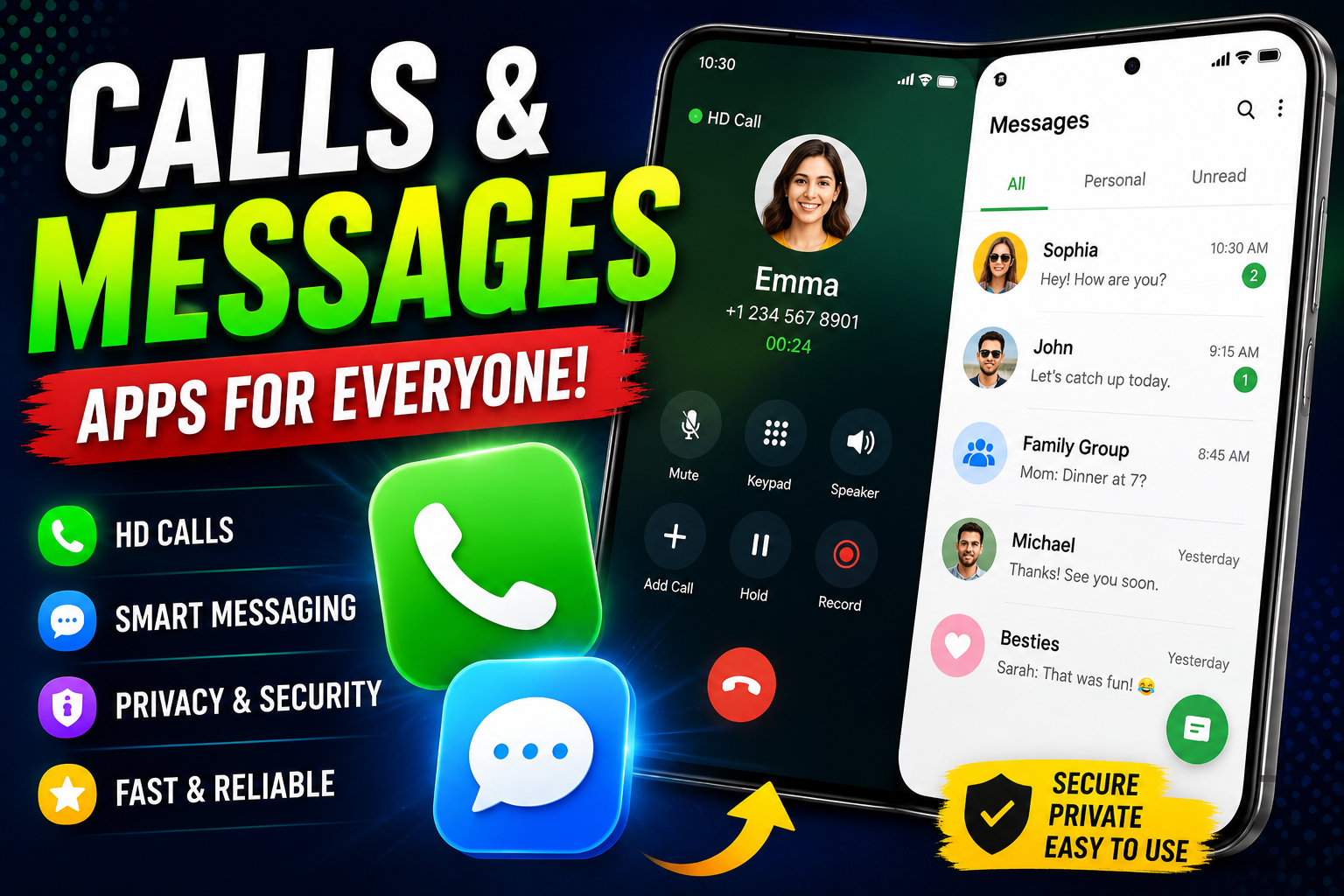
Hello friends, today we are going to try something useful with a feature you use every single day, your calls and messages app on mobile. Many people leave the default settings untouched, then wonder why calls drop, messages arrive late, or spam keeps ringing at night. This guide will help you take control instead of letting random defaults decide how your phone communicates.
This article will walk you through how modern call and SMS apps work on Android and iOS, how to set one as default, and which settings actually matter in daily life. We will look at realistic examples, like keeping work and family calls separate, and avoiding common mistakes that can silently block important messages from banks or delivery services.
The guide is written for everyday users, not only for tech fans. If you recently changed phone, installed a new dialer or SMS app, or your carrier pushed an update, this is for you. It is also helpful if you are helping parents or relatives who constantly miss calls or reply late because their phone is not configured in a simple, clear way.

We will also compare the built in apps from Google and Apple with popular alternatives that combine calling and texting under one clean interface. You will see pros and cons in a small table, then a step by step setup flow you can follow on almost any modern phone. By the end, your calls and messages app on mobile should feel calmer, safer, and easier to manage every day.
Related Resource
The Download Now button above opens the Google Play page related to Calls & Message App On Mobile. Tap it to reach the app install page directly, so you can open the listing without searching again.

What the calls and messages app on mobile actually does
On most phones you have one main app that handles phone calls and another that handles SMS and sometimes RCS chat. Some manufacturers merge them into a single interface. Behind the simple call and text buttons there are several jobs happening quietly, caller ID, spam checking, call forwarding, voicemail, message backup, and more.
Because of this, changing the default app or disabling one permission can break things in strange ways. For example, if an SMS app cannot access contacts, you only see numbers instead of names. If a call app cannot show notifications over other apps, you may miss the incoming call banner while watching video or gaming.
Built in apps versus third party apps
Every phone ships with a basic dialer and messaging app from the manufacturer or platform, examples are Google Phone and Messages on many Android phones, and the Phone and Messages apps on iPhone. There are also third party dialer or SMS apps on Play Store, some add features like advanced spam blocking, custom themes, and scheduled messages.
Before you install anything new, it helps to understand the differences.
| Type | Typical Pros | Typical Cons | Good For |
|---|---|---|---|
| Default system app | Stable, supported by phone maker, best battery use, deep integration with contacts and call history | Limited customization, new features arrive slowly, spam filter may be basic in some regions | Most users, people who value reliability and support |
| Carrier branded app | Extra services like visual voicemail, balance checks, WiFi calling toggles | Can include unwanted ads or promotions, features may only work with that carrier | Users tied to one network who use carrier features daily |
| Third party dialer or SMS app | Themes, backup tools, smart spam blocking, quick replies, dual SIM tools | Privacy risk if poorly built, may not update often, can conflict with system features | Power users who need features not offered by the default app |
First time setup checklist on Android
Menus look slightly different between brands, but most Android phones follow a similar pattern. Move slowly and test each step instead of changing ten settings at once.
1. Choose your default apps
- Open Settings, then Apps, then Default apps.
- Select a default for Phone app and SMS app.
- If you use dual SIM, check the SIM card section and choose which SIM handles calls, SMS, and mobile data.
After changing defaults, place the chosen phone and messaging icons on your home screen so you do not tap an old app by habit.
2. Permissions to double check
- Contacts, required for names instead of just numbers.
- Phone, needed for placing calls and reading call status.
- SMS, required for sending and receiving text and verification codes.
- Notifications, make sure alerts are allowed, and not set to silent by mistake.
If you are privacy focused, avoid giving extra permissions like location or file access to dialer or SMS apps unless a specific feature clearly needs it.
Real world example, student controlling spam and late night calls
Imagine a college student sharing a single number for family, part time work, and study groups. The phone rings constantly during exam week. They also receive many SMS promotions from stores. A quick fix is to tune the calls and messages app on mobile instead of switching off the phone completely.
The student can enable system spam protection for calls, mark frequent numbers as favorites, and set a scheduled Do Not Disturb rule. For example, from 11 pm to 7 am only starred contacts and repeat callers can ring through. In the SMS app, promotional messages can be moved to a separate category so important bank alerts stay visible at the top.
Case study style workflow, small business owner with many clients
Consider a local service business owner, maybe a plumber, who receives bookings by call and text. They use two SIM cards, one for personal use and one for customers. If the calls and messages apps are not configured correctly, personal calls can mix with urgent client messages and appointments get lost.
A practical setup flow might look like this.
- In SIM settings, set SIM 1 as default for personal calls and SIM 2 for business calls and SMS.
- In the phone app, label both SIM cards with clear names like Home and Work.
- Create contact groups or labels for customers, suppliers, and family.
- Turn on call recording only if local law allows it and store files securely, or use call notes instead.
- Use message search and pinning to keep today bookings at the top of the SMS list.
After a few days using this structured layout, the owner can quickly scan missed calls and outstanding replies. They avoid the common mistake of mixing one time verification codes, personal chats, and client quotes in the same messy view.
Hidden or ignored settings worth checking
Several useful features are buried in menus and most users never touch them. Next time you open your calls and messages app on mobile, look for these sections.
- Call recording and announcements, some phones can announce caller name through the speaker, handy while driving.
- Quick responses, preset SMS replies to reject a call politely with one tap.
- Blocked numbers list, often contains old numbers you no longer need to block, or accidentally added contacts.
- Message categories or filters, group personal, transactional, and promotional messages automatically.
- Backup and sync, cloud backup of SMS is not always enabled by default, consider using it if you change phones often.
Privacy and safety tips for call and SMS apps
Voice calls and carrier SMS are usually not end to end encrypted. They are fine for normal everyday use, but be careful with sensitive data. Avoid sending full ID numbers, card details, or passwords in plain text. Use verification codes only on trusted websites and apps.
When you try a new dialer or SMS app, download it from the official Play Store or App Store, read recent reviews, and check the last update date. If the app has not been updated for a long time, or if many reviews mention aggressive ads or strange permissions, it is safer to stay with the system app. A flashy theme is not worth exposing your contact list to unknown servers.
Conclusion
The calls and messages app on mobile is not just a basic dial pad and text window, it is the control center for how people reach you and how you filter noise. When it is set up properly, you get fewer unwanted interruptions and more reliable alerts from people and services that matter.
Take ten minutes to review your default apps, permissions, spam settings, and backup options. If your current app feels heavy or confusing, try the system app again before installing several third party tools. Start simple, then add features only when you clearly need them. This small cleanup will pay off every day in fewer missed calls and less stress.
FAQ
Why are my SMS messages delayed or missing?
Delayed messages often come from weak network, misconfigured SIM for SMS, or battery saver blocking the app. Check that the correct SIM is set for SMS, disable extreme battery saving for your messages app, and restart the phone. If problems continue, contact your mobile carrier.
Can I use two different apps for calls and SMS?
Yes on Android you can choose one app for calls and another for SMS in default app settings. On iPhone the built in Phone and Messages apps handle calls and SMS, other apps usually sit on top as internet calling or chat options.
Is it safe to use third party dialer or SMS apps?
Some are well known and widely used, but there is always extra privacy risk compared with the system app. Only install from official stores, avoid apps with unclear privacy policies, and remove any app that asks for unrelated permissions or shows suspicious behavior.
How do I stop spam calls and texts?
Enable spam and caller ID protection in your phone app if your region supports it. Block individual numbers after they call, and report them as spam. In the messages app, move promotions to separate categories and avoid replying to unknown marketing texts since replies can confirm that your number is active.
Will changing my default app delete old messages or call history?
Usually your call and SMS data stays stored in the system database, not in the app itself. When you change default apps, the new app reads the same data. Still, it is wise to back up SMS and contacts before changing apps, especially if you plan to uninstall the old one.
Thank you for reading this guide. If you found it helpful, keep visiting our blog for more clear tips on mobile tech, useful apps, AI tools, and the latest updates that actually matter in daily use.