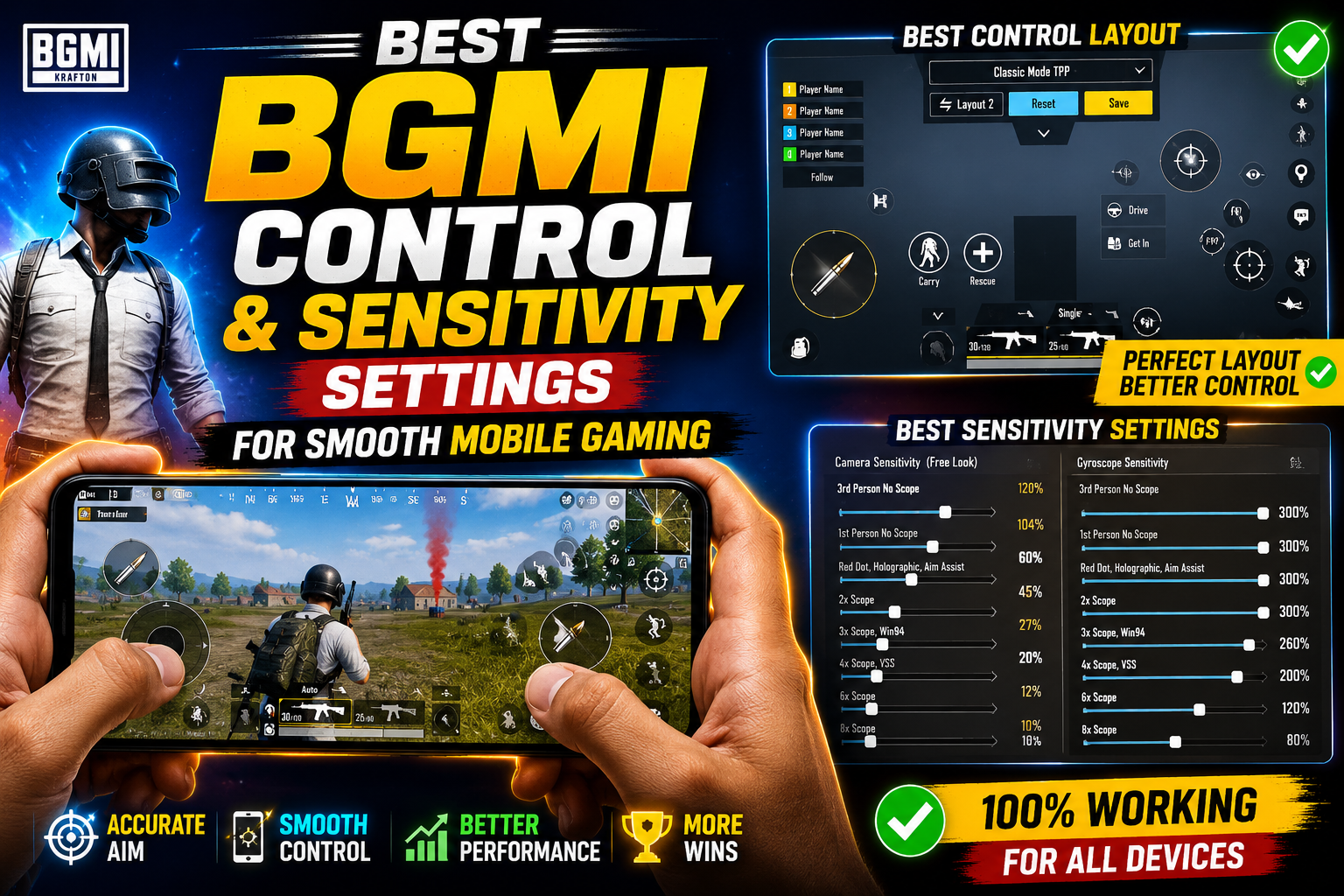
Hello friends, today we are going to try something useful with this topic and fix a very common problem, your BGMI aim feels shaky, your screen jerks when you spray, and you keep hitting the fire button by mistake. Small changes in control layout and sensitivity can completely change how stable and smooth the game feels on your phone.
This blog will walk you through the best BGMI control and sensitivity settings that many players use as a strong starting point. You will see example layouts, specific sensitivity numbers, and a simple way to test and fine tune them on your own device. The goal is not magic one tap headshots, it is consistent control that you can trust in every fight.
These tips are mainly for Android and iOS players who use two finger, three finger, or four finger claw layouts. If you are switching from another battle royale like PUBG Mobile or New State, this guide will help you quickly adapt your old muscle memory to BGMI. New players will also get a clean beginner layout that does not feel crowded or confusing.

We will start inside the BGMI settings menu, then move through graphics, controls, sensitivity, and some useful practice drills. If your current setup is totally broken, you can copy the recommended values first, test them in training, and then slowly adjust according to your device and play style. This way you avoid random guessing and build a stable setup step by step.
Related Resource
The Website Link button above opens the Telegram resource connected to Best BGMI Control And Sensitivity Settings For Smooth Mobile Gaming. Use it to join the channel or open the shared details without searching manually.

1. Start with device friendly graphics settings
Good sensitivity is useless if your frame rate keeps dropping. Before touching controls, open BGMI settings and set graphics to match your phone.
- On budget phones, try Smooth graphics with High or Ultra frame rate.
- On mid range phones, Smooth or Balanced with Ultra or Extreme frame rate.
- On flagship phones, you can try HDR with Extreme or higher, but only if the phone does not overheat.
Disable high motion blur style settings if they exist after updates because they make tracking enemies harder. Also keep anti aliasing off if your device lags during squad fights.
2. Choose a control layout that fits your fingers
Next, go to Settings then Controls. BGMI gives you multiple presets plus full customization. Your layout will decide how stable your aim feels in real fights.
Recommended layouts
- Two finger layout good for new players, simple and less confusing, but you must choose between moving and aiming while shooting.
- Three finger layout adds a separate fire button on the top, you can move, aim, and shoot together, this is a strong balance for most players.
- Four finger claw for advanced players, more buttons on top, better jump plus peek combinations, but takes time to learn.
Place the primary fire button under a comfortable thumb or index finger position. The most common mistake is putting it too far from the movement joystick. That leads to awkward thumb stretches and missed sprays.
Example case study layout
Imagine a player on a six inch device with three finger layout. Left thumb handles movement, right thumb handles aim, and right index finger handles firing from a top right button. Crouch and jump sit near the right thumb, but not close enough to tap by accident. After a week of play, this layout usually feels natural and reduces random jumps during gunfights.
3. Best BGMI control and sensitivity settings starter template
There is no single perfect number set for every phone, but you can use a proven base and then adjust. All percentages below are typical values that many players find comfortable. You can access them under Settings then Sensitivity then Custom.
| Category | Setting | Suggested Value | Notes |
|---|---|---|---|
| Camera | No Scope | 120 to 130 | Faster view turning without scope |
| Camera | Red Dot, Holographic | 45 to 55 | Common sweet spot for close range |
| Camera | 2x Scope | 40 to 50 | Keep slightly lower than red dot |
| Camera | 3x Scope | 30 to 40 | Used often for sprays |
| Camera | 4x Scope | 20 to 30 | For mid range tracking |
| ADS | Red Dot, Holographic | 40 to 50 | Controls aim speed while firing |
| ADS | 3x Scope | 25 to 35 | Lower for better recoil control |
| ADS | 4x Scope | 15 to 25 | Helps steady long sprays |
| Gyroscope | No Scope | 250 to 300 | Start lower if new to gyro |
| Gyroscope | Red Dot to 3x | 260 to 320 | Higher helps recoil control |
| Gyroscope | 4x and above | 120 to 200 | Too high can cause over correction |
If you do not use gyroscope, you can ignore the gyro section and rely on ADS sensitivity only. Just remember that without gyro, you need more thumb movement to control recoil.
4. How to tune your sensitivity in training mode
Once you apply a base setup, never rush into ranked matches. Open the training ground and follow a short routine to check if the values feel right on your device.
Step by step tuning
- Pick two common guns, for example M416 and AKM with standard attachments.
- Stand close to the target board and spray with red dot. If your crosshair jumps above the target, lower ADS sensitivity in small steps of 2 to 3 points.
- Move back to medium distance and spray with 3x. If you cannot pull down enough, increase ADS slightly until the spray line stays on the body.
- Try tracking a moving target while aiming down sights. If your aim feels heavy and cannot keep up, raise camera and ADS by a few points.
Spend at least ten to fifteen minutes on this routine after big changes. Quick switching between values without practice is the main reason many players never feel comfortable with their settings.
5. Using gyroscope correctly in BGMI
Gyroscope is one of the strongest tools for recoil and micro aim control, but it needs time. You can enable it under Sensitivity then Gyroscope then set to Always on or Scope on.
- Scope on is better for beginners, gyro only moves the view while aiming.
- Always on is for advanced players who control both hip fire and ADS with device tilt.
When you first enable gyro, start with lower values than you think. If the screen moves too quickly with a small tilt, lower all gyro sensitivities by 20 to 40 points. Slowly build up as your hands learn the movement. It is normal to play badly for a few days while adjusting.
6. Extra control tips that players often ignore
Beyond raw sensitivity numbers, some smaller settings can make your gameplay much smoother.
- Disable peek and fire on the same side if you keep hitting the wrong one. You can separate peek and fire buttons to reduce confusion.
- Increase button sizes for fire, scope, crouch, and jump slightly, especially on bigger phones. Tiny icons are easy to miss during intense fights.
- Turn off unnecessary buttons like small emote shortcuts if they clutter your screen and block vision.
- Check auto pickup limits so your inventory does not fill with useless ammo. This prevents long looting menus in the middle of a battle.
One real example, a budget device user kept missing the prone button while drop shotting. By moving prone closer to the crouch button and increasing its size by 10 percent, they reduced accidental standing up during sprays and survived more close range trades.
Conclusion
The best BGMI control and sensitivity settings are simply the ones that feel natural on your phone and let you focus on decision making instead of fighting your screen. Use the starter values above as a baseline, then tune them carefully in training mode with controlled tests, not random guesses mid match.
Once you reach a layout that feels decent, resist the urge to change it every day. Give your fingers at least a week to build muscle memory. Later, you can make small adjustments for specific guns or scopes. Combine this with device friendly graphics and you will see steadier sprays, smoother movement, and fewer random misclicks in every match.
FAQ
What are the best BGMI sensitivity settings for low end phones
On low end phones, keep graphics on Smooth with High or Ultra frame rate, then use slightly lower camera and ADS values from the table. Lower sensitivity reduces sudden large movements that feel worse on a laggy screen.
Should I copy pro player BGMI sensitivity codes
You can import pro sensitivity codes as a starting point, but do not expect instant results. Screen size, touch response, and your grip are different, so always adjust after testing in training ground.
Is gyroscope required for good BGMI gameplay
Gyroscope is not required, but it helps a lot with recoil and precise adjustments. Many top players still play without gyro, they just rely more on thumb control and smart positioning.
How often should I change my BGMI sensitivity
Avoid frequent changes. Only tweak your sensitivity when you notice a consistent problem, like always over aiming with a certain scope. Then change by small steps and retest.
Why does my BGMI aim feel different after an update
Game updates can slightly change touch response or frame rate, especially on certain devices. After a major update, revisit your graphics and sensitivity, run a short test in training mode, and adjust if needed.
Thank you for reading this guide. If you found it helpful, stay tuned to our blog for more latest tech news, useful apps, AI tools, and regular gaming related updates.