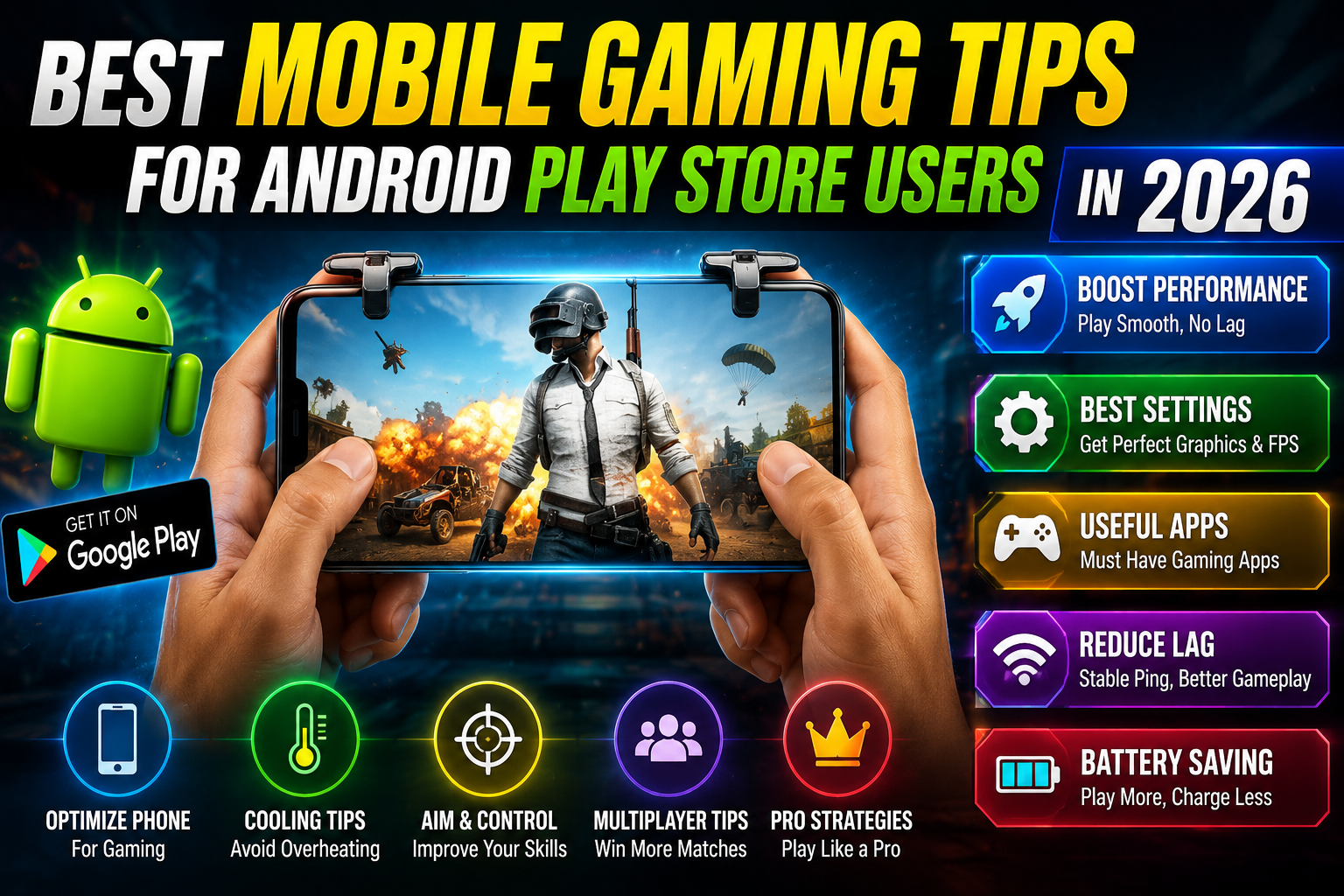
Hello friends, today we are going to look at the best mobile gaming tips for Android Play Store users in 2026, especially if your games stutter, overheat your phone, or eat all your data. Modern Android games are heavy, and the default settings rarely match your device or internet plan.
This guide will help you tune your Play Store games for smoother performance, smarter battery use, and fewer annoying crashes. You will see where to change graphics options, how to use Android Game Dashboard features, and what to avoid if you do not want surprise lag in the middle of a match.
The article is written for everyday Android players, not only for hardcore esports users. If you use budget or mid range phones, have limited storage, or share your connection with family, the tips here are picked to give you noticeable improvement without needing a new device.
Whenever we mention settings, remember that names and menus can vary slightly between Android brands and versions. The steps here will point you to the right type of option, so you can adapt them to your specific phone and the Play Store games you actually play every day.
Related Resource
The DOWNLOAD NOW button above opens the Google Play page related to Best Mobile Gaming Tips for Android PlayStore Users in 2026. Tap it to reach the app install page directly, so you can open the listing without searching again.
1. Start with a clean device and stable connection
Many players blame the game when the real cause is a crowded phone or unstable network. Before you chase advanced tweaks, fix the basics.
Clean storage and background apps
- Use the built in Storage or Files app to remove old downloads, screenshots, and unused apps.
- Keep at least 10 to 15 percent of total storage free. Large games often need extra space for updates and cache.
- Close heavy background apps such as browsers with many tabs, social video apps, and other games before launching your main title.
Check your connection type
- For online shooters or competitive titles, prefer 5 GHz Wi Fi or stable 4G or 5G instead of a congested public network.
- Avoid switching between Wi Fi and mobile data while in game. That can trigger disconnects or rubber banding.
- If your router supports it, enable a gaming or QoS mode to give priority to your phone.
2. Use Android Game Dashboard and vendor Game Modes
From Android 12 onward, many devices include a Game Dashboard or Game Mode shortcut that appears when you launch supported Play Store games. Brands like Samsung, Xiaomi, OnePlus, and others add their own overlays.
These tools usually let you block alerts, monitor frames per second, record clips, and switch between performance and battery modes. The exact labels differ, but the idea is similar.
| Tool type | Typical name | Best used for | Key caution |
|---|---|---|---|
| System Game Dashboard | Game Dashboard, Game Mode | Blocking notifications, quick screen recording, basic FPS overlay | Not all games are supported on all devices |
| Brand gaming suite | Game Launcher, Game Turbo, Game Space | Performance profiles, touch optimization, accidental touch lock | Aggressive modes can heat the phone and drain battery faster |
| Third party booster app | Performance booster tools | Legacy phones without built in game mode | Check permissions and reviews, avoid apps with risky access |
Real world example. On a mid range Samsung phone, enabling Game Booster and choosing a balanced mode often gives smoother gameplay than maximum performance, because the device throttles less from heat over time.
3. Tune in game graphics instead of accepting defaults
Popular Play Store titles often guess your settings based on the first hardware check. That guess is not always right, especially after an update or if your storage is almost full.
Practical graphics checklist
- Open the game settings and find Graphics or Display options.
- Lower frame rate one step if your phone overheats or the battery drops very quickly.
- Reduce shadow quality and extra effects first. These are usually heavy but not critical to gameplay.
- Turn off motion blur if you feel dizzy or the game looks smeared when you move the camera.
Case study style example. A player with a 2022 mid range device running a popular battle royale game set everything to high after a 2026 update, which caused stutters in team fights. By dropping resolution one level and disabling high shadows, the frames stabilised, and aiming felt much more responsive, even though the image was slightly less sharp.
4. Protect your battery and avoid overheating
Long gaming sessions can damage weak batteries over time. Instead of playing at maximum brightness for hours while the phone is hot and charging, treat your device like something you want to keep for more than one year.
Safe battery practices for gamers
- Avoid heavy gaming while the phone is fast charging. If you must, use a lower watt charger or limit the session length.
- Turn down screen brightness to the lowest comfortable level. OLED screens burn more power at full brightness.
- Use a simple phone stand or prop to improve airflow. Gaming under a pillow or blanket traps heat.
- If your phone has a Battery Saver mode that affects performance, keep it off during intense games, but turn it on later for normal use.
If you notice the device becoming uncomfortably hot, pause the game for a few minutes. Persistent overheating can trigger automatic slowdowns, and it can also shorten battery health in the long run.
5. Manage storage, data, and updates for big Play Store games
Modern Android games can easily reach 10 gigabytes after extra content packs. When storage is nearly full, performance and update reliability suffer.
Smart storage practices
- Open Settings then Apps then sort by size. Remove old games you no longer play, especially ones with large additional files.
- Inside each big game, look for a Downloaded resources or Content manager section. Many titles let you delete unused maps or offline packs.
- Move screenshots and clips to cloud or external storage regularly if you record a lot of gameplay.
Data usage control
- In Play Store settings, choose update apps over Wi Fi only if your mobile data is limited.
- Inside online games, check if there is a low data mode. This may reduce voice quality or textures, but it can save your monthly plan.
- Avoid large downloads while you are in a match. Background updates can steal bandwidth and cause lag spikes.
6. Improve controls and touch response
Many users leave controls on default, then blame the phone when they keep missing taps. Spend ten minutes tuning this, especially in shooters and racing games.
What to adjust first
- Change sensitivity step by step and test in a training range, not directly in ranked play.
- Use fixed buttons instead of floating buttons if you play on a smaller screen. Muscle memory improves over time.
- Increase button size slightly for jump, fire, or drift actions. This reduces accidental misses when your thumb is sweaty.
- Check your phone settings for touch sensitivity or accidental touch protection and experiment with these if you see ghost taps.
Real world example. A racing game on a six inch device felt unplayable to one user because steering was too sharp. They halved steering sensitivity and moved the brake button further from the edge, which stopped accidental presses and made lap times more consistent.
7. Account security and fair play matters in 2026
With cross platform accounts and valuable in app items, security is part of mobile gaming. Losing access to a game account hurts more than losing a single match.
- Link your game profile to a stable login method such as Google or a verified email where supported.
- Turn on two factor authentication for any game service that offers it. This is especially important for games with trading or premium currencies.
- Avoid installing unofficial mods or cracked versions from outside the Play Store. They often violate game rules and can contain unsafe code.
- Be careful with overlay cheat tools. Even if they simply show crosshairs, many games treat them as cheating and can ban accounts.
If something feels too good to be true, such as unlimited coins by installing an unknown app, treat that as a warning sign rather than a shortcut.
Conclusion
Getting better mobile gaming performance on Android in 2026 is less about secret tricks and more about a set of small, informed choices. Clean storage, realistic graphics settings, smart use of Game Dashboard features, and simple battery care together produce a smoother experience than any single magic app.
For the average Play Store user, start with one game that you play daily and apply the steps from this guide. Adjust graphics, refine controls, and watch how your device behaves in a full session. When you find a setup that feels stable, copy that approach to your other titles so your whole library benefits.
FAQ
Which setting should I lower first if my game lags on Android
Lower shadows and extra effects before you reduce resolution. If lag continues, step down frame rate or use a balanced performance mode in your Game Dashboard.
Is it safe to use third party game booster apps from the Play Store
Some are harmless, but many request wide permissions without clear benefit. Prefer built in Game Mode tools from your phone brand and check reviews carefully before installing any booster.
How often should I clear cache for large games
Only when you face issues such as crashes, missing textures, or failed updates. Clearing cache too often forces games to re download data, which uses more time and bandwidth.
Can playing while charging damage my Android phone
Short sessions on a cool device are usually fine, but long heavy gaming on fast charge that keeps the phone hot is not ideal. It can speed up battery wear over many months.
Do I really need 120 Hz for mobile gaming in 2026
High refresh screens feel smoother in fast games, but they are not mandatory. If your battery is weak or your device struggles, 60 Hz with stable performance is often the better choice.
Thank you for reading. If you found this guide useful, consider following the blog for more latest tech news, practical Android app tips, AI tools, and updates for mobile gamers.








