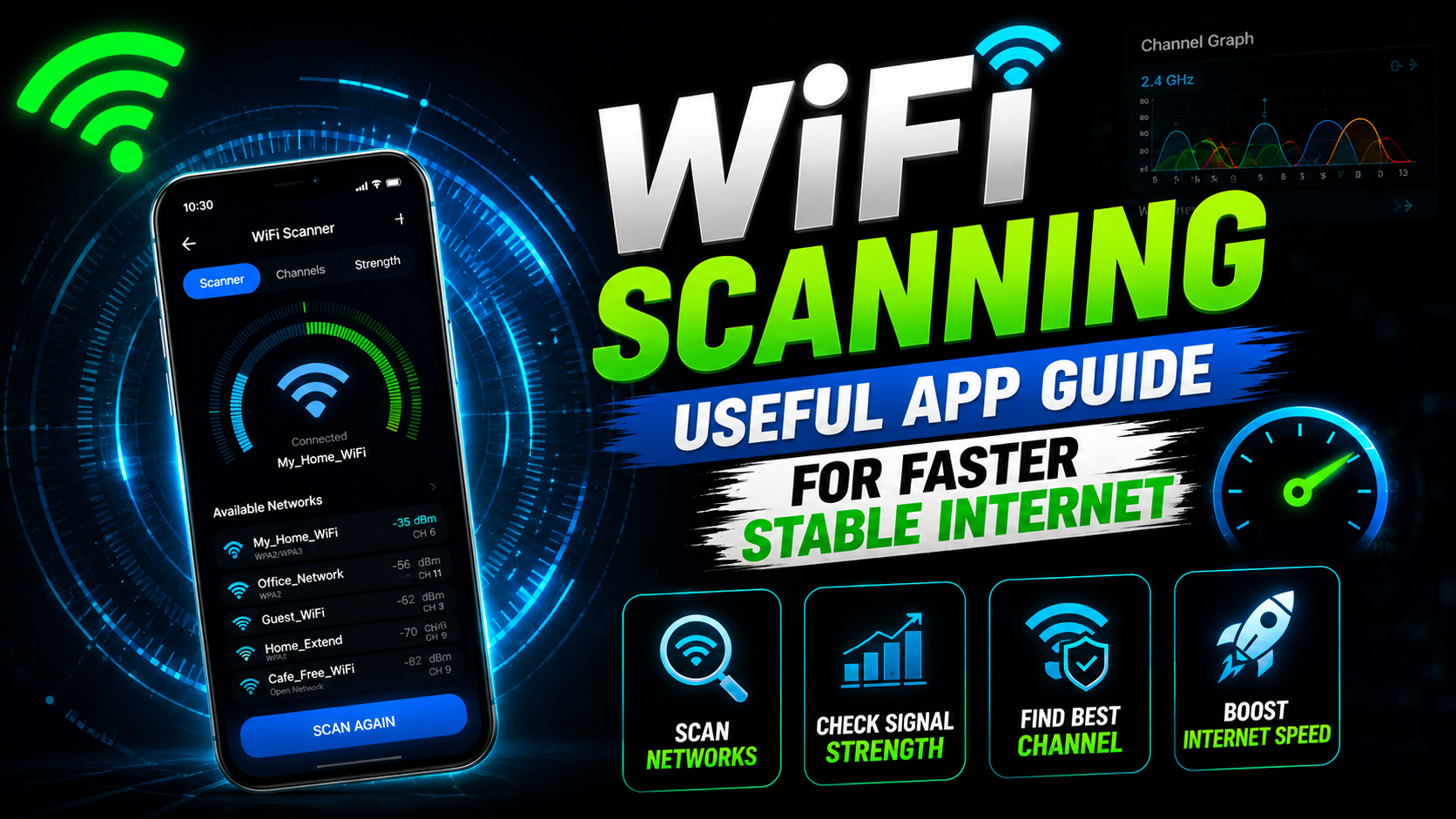
Hello friends, today we are going to try something useful with this topic of slow and unstable WiFi. Many people blame the internet provider when pages buffer and games lag, but often the real issue is a messy wireless signal inside the home. A good WiFi scanning useful app can reveal those hidden problems in just a few seconds.
This blog will help you understand what WiFi scanner apps actually do, how they read signal strength and channels, and how to make simple changes for better speed. Instead of random router resets, you will learn a repeatable method to test, adjust, and test again. That way you can see real improvement instead of guessing.
The guide is written for home users, students in hostels, people working from small offices, and anyone who shares WiFi with family or roommates. You do not need to be a network engineer. If you can install an app, read a basic chart, and move your router by a few feet, you can use these tips.
We will focus on the typical Android WiFi scanning useful app style you find on the Play Store. Many have similar features, like signal graphs and channel views, even if the names differ. You can pick any trusted app with these tools and then follow the same steps in this article to diagnose interference, placement issues, and crowded channels.
Related Resource
The Download Now button above opens the Telegram resource connected to WiFi Scanning Useful App. Use it to join the channel or open the shared details without searching manually.
What a WiFi Scanning Useful App Actually Shows You
A proper WiFi scanner does more than repeat the usual signal bars from your phone status bar. It collects detailed information from nearby access points and presents it in graphs and lists that are easier to compare. That detail is what helps you make better decisions.
Most popular WiFi scanner apps show at least these items.
- Network name (SSID) so you can tell which network is yours.
- Signal strength in dBm values, often from about minus 30 (excellent) to minus 90 (very weak).
- Channel number and band, for example channel 6 in 2.4 gigahertz or channel 44 in 5 gigahertz.
- Security type such as WPA2 or WPA3, which matters for safety.
Some advanced apps add speed test shortcuts, simple heat map style views, and device lists. Exact features vary by app version and Android rules in your country, so check the app description carefully before installing. Avoid any WiFi scanner that asks for unnecessary permissions unrelated to location and WiFi info.
Quick Comparison of Common WiFi Scanner App Styles
There are many choices, but most fall into three styles. Basic list view, graph heavy tools for channel tuning, and visual heat map tools. The table below compares these types in simple language so you know what to look for in the Play Store.
| App style | Main purpose | Best for | Typical drawback |
|---|---|---|---|
| Simple list scanner | Shows nearby networks with signal and security | Quick checks, beginners, small homes | Harder to spot channel overlap and interference |
| Channel and graph scanner | Shows graphs of signal over channels | Finding less crowded channel for router | Interface can confuse non technical users |
| Heat map style scanner | Shows coverage on floor plan or simple map | Large flats or small offices, router placement | May require paid version or more steps to set up |
For most people a channel and graph style WiFi scanning useful app is ideal. It gives you enough detail to tune the router, without needing full professional mapping tools.
Real World Example 1: Fixing Buffering In A One Room Flat
Imagine a student in a one room flat who streams classes on a laptop. The connection is fine near the door, but video buffers near the bed. A quick scan shows signal strength of about minus 45 dBm at the door and minus 75 dBm at the bed, which is a big drop in a short distance.
By walking slowly with the app open, the student notices a sharp dip when passing a metal cupboard. The router was behind that cupboard, which blocked the signal. They move the router on top of the cupboard, scan again, and now the bed area reads about minus 55 dBm. Streaming becomes stable without changing the internet plan at all.
Real World Example 2: Choosing The Right Channel In An Apartment Block
In a crowded apartment building you might have ten or more neighbor networks on the same 2.4 gigahertz band. With a scanner app open, you see that your network and three others are all on channel 6, each with similar strength. This overlap leads to packet collisions and retries, which feel like random lag for you.
Using the graph, you notice that channels 1 and 11 only have one weak neighbor network each. After logging into your router settings and changing the wireless channel to 1, the next scan shows your network clearly separated. Speeds improve, and gaming ping becomes more stable in the evenings.
Step By Step: Basic Workflow With A WiFi Scanning Useful App
Here is a simple process you can follow with almost any scanner app. Details may differ slightly by model and Android version, but the ideas are the same.
- Install a trusted WiFi scanner from the official Play Store and check recent reviews for your device model.
- Grant required location permission, it is needed because WiFi signals can reveal your area.
- Connect your phone to your own network so it appears clearly in the list.
- Open the app and find the view that shows channels and signal graphs.
- Stand near the router and note your signal level and the list of overlapping networks.
- Walk to your usual spots, for example sofa, bed, work desk, and note where signal falls below about minus 70 dBm.
- If the band is crowded, log in to your router admin page and change the channel to a less busy one suggested by the app.
- Move the router slightly higher and away from thick walls, then scan again to see if the weak spots improved.
Repeat this test and adjust cycle two or three times, instead of changing many things at once. That way you can see which action really helped.
Case Study Style Routine: Weekend WiFi Health Check
Think of this as a light WiFi audit you do once every couple of months. One weekend morning, you start by running a quick internet speed test on a laptop near the router. You record that number as your baseline. Then you take your phone with the scanner app and walk through every room.
You mark three simple zones in your notes or a basic sketch. Strong zone above minus 60 dBm, okay zone between minus 60 and minus 70, and weak zone below minus 70. If you notice that streaming devices or work desks are in the weak zone, you either move the device, move the router, add a cheap range extender, or switch heavy usage to the 5 gigahertz band if your router supports it.
After changes, you repeat the scan and another speed test in your key usage spots. Over time you build a small history. You might even notice that performance drops only at certain hours, which could mean neighbor interference or provider congestion. In that case, your logs from the scanner app give you better information when talking to customer support.
Common Mistakes To Avoid With WiFi Scanner Apps
Some users install a scanner, look once, and then change five router settings at the same time. That usually creates more confusion. Adjust one thing such as channel or router position, then test again with the app.
Another mistake is trusting color codes without context. Different apps use different color schemes. Always read the numeric dBm value and not just the color bar. Also remember that 2.4 gigahertz travels farther but is more crowded, while 5 gigahertz is faster at short distance but blocked more by walls. Let the app help you choose which band is best at each spot, instead of forcing a single answer for the whole house.
Finally, never install WiFi scanner apps from unknown websites or unofficial stores, because some copycat tools bundle malware or intrusive ads. Stick to trusted developers and check permission requests. A scanner does not need contact access or SMS access to do its job.
Conclusion
A WiFi scanning useful app is not magic, it is a measurement tool. When you pair it with a simple habit of testing, adjusting, and testing again, you can often fix slow WiFi without upgrading your plan. You see real numbers for signal, channels, and interference, and then move your router or change settings based on data.
If you often face buffering, dropped video calls, or laggy games, install a trusted scanner, run a quick walk around your home, and try at least one physical change and one channel change. Keep notes of the readings so you can track which changes helped. You can also explore related guides on router buying tips, Android network tools, and privacy settings to build a more complete home setup.
FAQ
Is it safe to use a WiFi scanner app on my phone
Yes, as long as you use a trusted app from the official Play Store and review the permissions carefully. It reads broadcast network info that is already visible to WiFi devices.
Can a WiFi scanner increase my internet speed
The app itself does not add speed, but it helps you find better placement and channels. Those changes can reduce interference and make your existing plan feel faster and smoother.
Do I need root access for WiFi scanning on Android
Most modern WiFi scanner apps work fine without root. You just need WiFi and location permissions. Some very advanced features may be limited by Android policy on certain versions.
How often should I scan my home WiFi
Scan when you first set up a new router, after moving furniture, and every few months in crowded buildings. Also scan again if you suddenly notice new lag or frequent disconnections.
What signal strength should I aim for
For normal browsing, signal around minus 65 dBm is usually fine. For stable video calls and gaming, try to keep it closer to minus 60 dBm or better in your main usage spots.
Thank you for reading. If this guide helped you understand WiFi scanner apps better, stay connected with this blog for more latest tech news, useful apps, AI tools, and practical updates for everyday users.








