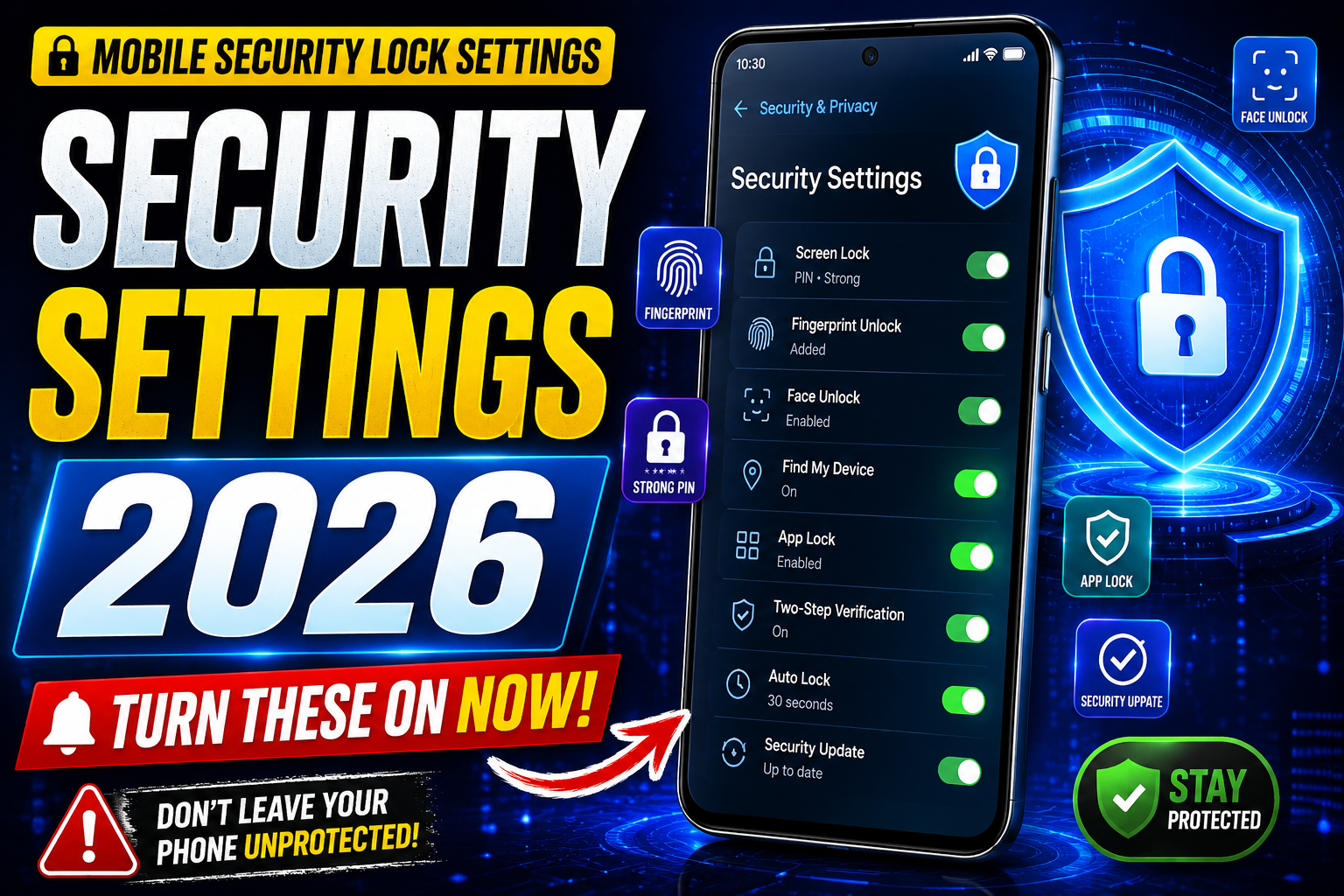
Hello friends, today we are going to look at something that quietly protects almost everything on your phone, your lock screen security. In 2026 more banking, health, work and private chats live on mobile than ever, yet many phones are still left with weak pins or easy patterns. One stolen device can expose huge parts of your life if those basic settings are not configured correctly.
This guide will walk you through the most important mobile security lock settings in 2026 and how to tune them for real life. We will keep it practical, which options are worth turning on, which ones can be annoying, and where people usually make mistakes. The goal is not just to be secure on paper, but to stay secure without hating your own phone.
The tips here are useful whether you use Android or iPhone, and whether your phone is brand new or a few years old. If you use your phone for banking, online shopping, work email, or managing social media accounts, you are the main target for this article. Parents giving phones to kids, and people who travel a lot, will also find some extra steps that matter in their situations.
Throughout the article you will see examples based on common devices like Samsung Galaxy, Google Pixel, Xiaomi, and iPhone models from the last few years. The exact names of menus can vary slightly by brand and software version, so treat them as directions rather than exact labels. The key is to understand the security idea behind each setting so you can find the nearest match in your own phone menu.
Vivo (Funtouch OS)
- Open Settings
- Scroll down and tap Security & Privacy
- Select System Cloner
- Tap Create System Clone
- Set a separate password or fingerprint
- Complete the setup process
- Now you can switch between the Main System and Clone System
iQOO (Funtouch OS)
- Open Settings
- Go to Security & Privacy
- Tap System Cloner
- Select Create Clone System
- Set a different lock screen password
- Finish the setup
- Use the password/fingerprint to switch between systems
Realme (realme UI)
Method 1: System Cloner
- Open Settings
- Go to Privacy
- Tap System Cloner
- Select Create Clone System
- Set a separate password
- Complete setup and start using the cloned system
Method 2: Multiple Users (Some Models)
- Open Settings
- Go to Users & Accounts
- Tap Multiple Users
- Select Add User
- Create a new user profile
- Switch between profiles whenever needed
Redmi / Xiaomi / POCO (HyperOS / MIUI)
Second Space
- Open Settings
- Go to Special Features
- Tap Second Space
- Select Turn On Second Space
- Complete the setup
- Set a separate password or fingerprint
- Use both spaces independently
Multiple Users (Some Models)
- Open Settings
- Tap Users & Accounts
- Select Users
- Tap Add User
- Create a new user profile
- Switch between users from the quick settings panel
Samsung (One UI)
Multiple Users
- Open Settings
- Go to Accounts and Backup
- Tap Users
- Select Add User
- Complete the setup process
- Switch users from Quick Settings
Secure Folder (Alternative)
- Open Settings
- Go to Security & Privacy
- Tap Secure Folder
- Sign in with your Samsung account
- Set up a separate lock
- Store private apps and files inside Secure Folder
OnePlus (OxygenOS)
System Clone
- Open Settings
- Go to Privacy
- Tap System Cloner
- Select Create System Clone
- Set a different password
- Complete setup
- Switch between Main System and Clone System
OPPO (ColorOS)
System Cloner
- Open Settings
- Go to Privacy
- Tap System Cloner
- Select Create Clone System
- Set a separate password
- Finish setup and use independently
Motorola
Multiple Users
- Open Settings
- Go to System
- Tap Multiple Users
- Enable Allow Multiple Users
- Tap Add User
- Complete setup
- Switch users from Quick Settings
Google Pixel
Multiple Users
- Open Settings
- Go to System
- Tap Multiple Users
- Turn on Allow Multiple Users
- Select Add User
- Complete setup
- Switch profiles anytime
Nothing Phone
Multiple Users
- Open Settings
- Go to System
- Tap Multiple Users
- Enable the feature
- Select Add User
- Complete setup
- Switch between profiles whenever needed
Quick Summary
| Brand | Feature Name |
|---|---|
| Vivo | System Cloner |
| iQOO | System Cloner |
| Realme | System Cloner / Multiple Users |
| Redmi | Second Space |
| Xiaomi | Second Space |
| POCO | Second Space |
| Samsung | Multiple Users / Secure Folder |
| OnePlus | System Cloner |
| OPPO | System Cloner |
| Motorola | Multiple Users |
| Google Pixel | Multiple Users |
| Nothing | Multiple Users |
Why lock settings matter more in 2026
Phones in 2026 are deeply connected to cloud accounts, password managers, and digital wallets. A weak screen lock is no longer just about someone reading your messages, it can be a gateway to your email, saved passwords, crypto wallet, or corporate VPN. Many attacks are still low tech: a stolen phone plus a lazy lock pattern is enough.
On the positive side, modern phones have powerful hardware security modules, biometric sensors, and smart lock options. Used well, these make your life easier and safer. Used carelessly, they can open silent gaps, like staying unlocked in unsafe locations or exposing lock screen previews that reveal private codes.
Choosing the right primary screen lock
Your primary screen lock is the base layer under all fingerprints and face unlock features. If biometrics fail or the phone is restarted, this is what you must enter.
| Lock type | Security level | Typical use | Risk in 2026 |
|---|---|---|---|
| 4 digit PIN | Low | Legacy devices, quick unlock | Easier to guess or shoulder surf, often reused |
| 6 digit PIN | Medium | Most casual users | Safer than 4 digit, still guessable if simple patterns |
| Long PIN or passphrase | High | Power users, work phones | Can be annoying to type, people may shorten it over time |
| Pattern lock | Varies | Older Android habits | Smudge trails, simple shapes, visible from angle |
| Password (letters plus numbers) | Very high | Security focused users | Slow to enter, but safest if unique and long |
For most people in 2026 a 6 digit PIN combined with biometrics is the best balance. If your phone stores work data or a lot of finance apps, consider a longer PIN or password that is unrelated to birthdays, repeated sequences or old ATM codes.
Biometrics in 2026: fingerprint and face unlock
Modern biometric sensors are far better than earlier generations, but they are not magic. Treat fingerprints and face recognition as a convenience layer sitting on top of a strong PIN, not as your only defense.
Fingerprint tips
- Register at least two different fingers, usually both thumbs, to avoid lockouts when one is wet or injured.
- On under display sensors, re register the same finger twice for better accuracy, if your phone allows multiple entries.
- Avoid using fingerprints on devices where multiple people regularly unlock the same phone for work or kids, set up separate profiles instead when supported.
Face unlock tips
On recent iPhones Face ID is generally strong and secure when properly configured. On Android the strength varies. Some budget phones still offer simple camera based face unlock which is less secure and may be fooled by photos in some conditions.
- If your Android settings clearly warn that face unlock is less secure, do not rely on it for banking apps and disable it for sensitive app locks where you can.
- Check the option that requires your eyes to be open for unlock to reduce the chance of someone unlocking your phone while you sleep.
- Turn off face unlock for lock screen notifications where possible if you are often in crowded places like trains or events.
Lock screen timeout and auto lock settings
One of the most ignored mobile security lock settings in 2026 is how quickly the phone locks itself. A long timeout feels comfortable at home, but it is a problem the moment you leave your phone unattended in a cafe or office.
For most people a screen time out of 30 seconds and an auto lock set to at most 1 minute after sleep gives decent safety without making the phone painful to use. If you work with sensitive data, shorten the delay so the device locks as soon as the screen goes off.
Notification and lock screen content control
Even with a strong pin, a lot of information can leak through lock screen notifications. Message previews, one time passwords, and email subject lines can give away private details while the phone is still locked.
On both Android and iOS you can usually choose between showing full content, hiding sensitive content, or hiding all notifications on the lock screen. A good compromise is to show icons and app names, but hide message text and codes. This keeps you aware without exposing private data to anyone near your phone.
Smart Lock and trusted devices: handle with care
Many Android phones still offer Smart Lock features such as keeping the phone unlocked when at home, connected to a smartwatch, or on your body. These are convenient but can easily stay enabled long after people forget they turned them on.
Case study example, a user connects their phone to a rental car Bluetooth and chooses to trust that device, the phone then stays unlocked as long as it thinks it is connected, even when someone else drives the car. This is not a rare scenario during travel and it undermines all your other efforts.
Recommendation, disable location based and on body detection unlock. If you want one trusted scenario, use a personal smartwatch you always wear, and review that list regularly to remove old devices.
Work profiles, app locks, and kids
If your phone mixes personal and work apps, or you share it sometimes with family, system level profiles and app locks are very helpful. Recent Android versions allow a separate work profile managed by your company, which can be turned off outside working hours. Some manufacturers also include secure folders where you can move sensitive apps and files behind an extra PIN.
For parents, use built in kid profiles or guided access type features when handing over the phone. Do not rely on a simple home screen folder. Configure the lock settings so kids cannot buy apps, change passwords, or install unknown software while playing games.
Real world examples of better lock setups
Example one, a frequent traveler uses banking apps, airline apps, and a password manager. They choose a 6 digit unique PIN, turn on fingerprint unlock, set auto lock to 30 seconds, hide notification content, disable Smart Lock, and enable a secure folder for passport scans. If the phone is lost in an airport, the finder sees almost nothing useful.
Example two, a small business owner shares a phone with staff during shifts for POS and delivery apps. Instead of sharing a single unlocked device, they set up user profiles, protect the owner profile with a strong password, and use app level locks for finance apps. The shared profile only has the few apps needed for work, which limits damage if someone walks away with the phone.
Conclusion
Mobile security lock settings in 2026 are powerful enough to protect most people from common risks, but only if they are configured thoughtfully. A strong primary lock, sensible use of biometrics, short auto lock delays, careful notification settings, and minimal Smart Lock use cover most daily threats.
Take ten minutes to walk through your own phone and adjust these options now. Start with the lock type, timeout, notifications, then review any trusted devices or locations. If you run work or banking apps, add a secure folder or work profile where available. This small setup session can prevent big headaches later if your phone is lost, stolen, or borrowed by the wrong person.
FAQ
What is the safest screen lock option in 2026 for most users
A unique 6 digit or longer PIN combined with fingerprint or high quality face unlock is usually safest and still practical. Avoid simple sequences or repeated digits.
Is pattern lock still safe to use
Complex patterns can be decent, but many people choose simple shapes that are easy to guess or read from screen smudges. A PIN is usually a better choice today.
Should I allow my bank app to use face unlock
On newer iPhones and high end Android phones with secure face systems, it is generally fine. On phones that warn face unlock is less secure, prefer fingerprint or PIN for banking.
How often should I change my phone PIN
If you chose a strong unique PIN and do not share it, you do not need to change it constantly. Change it whenever someone may have seen it or if the phone was out of your control.
What if my fingerprint or face stops working after an update
Remove and re register your biometrics in settings, and always keep your PIN or password memorized as a backup. If the issue continues, check your manufacturer support pages.
Thank you for reading. If this guide helped you tidy up your lock screen security, stay tuned to our blog for more latest tech news, useful apps, AI tools, and practical mobile privacy updates.