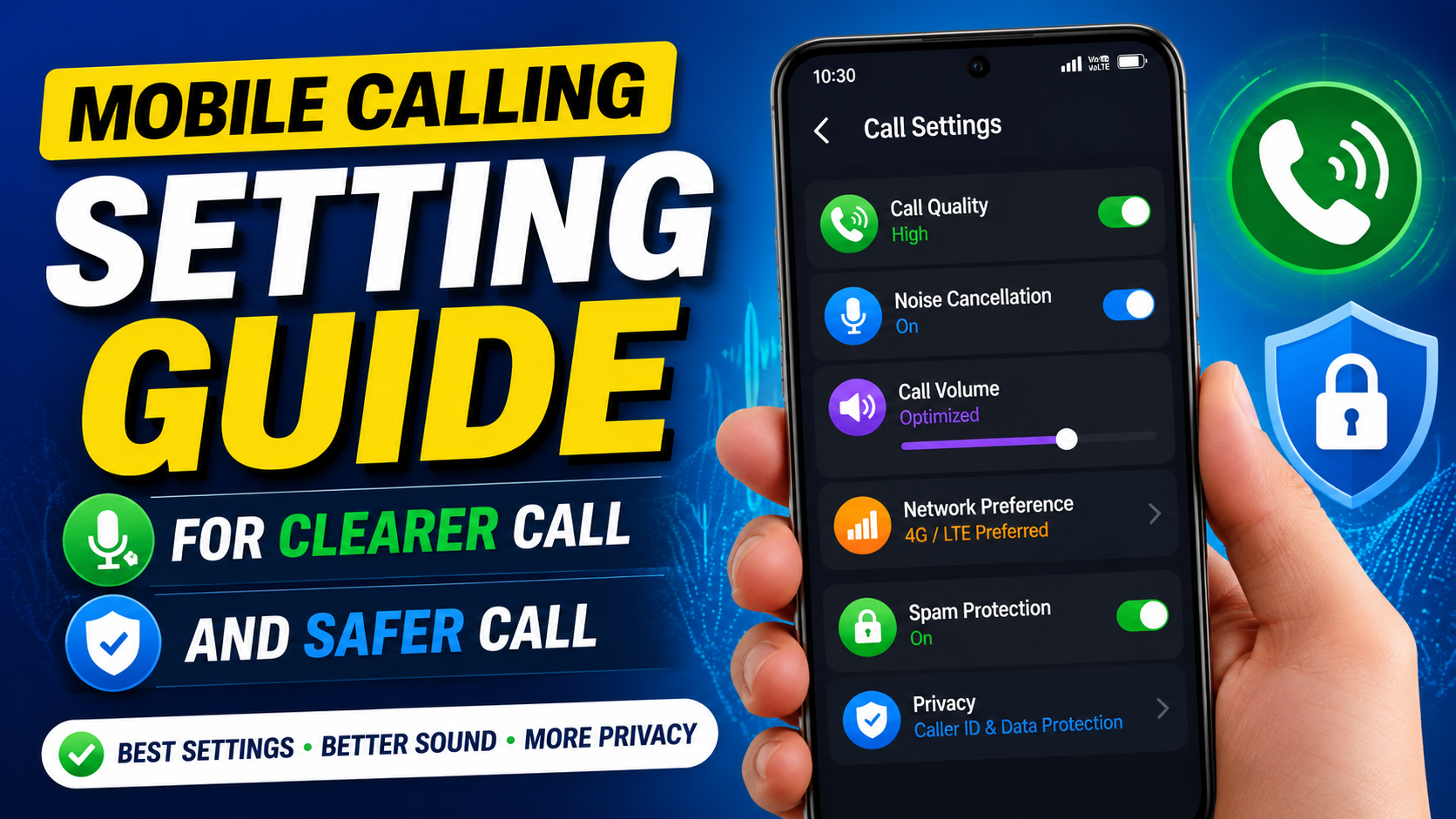
Hello friends, today we are going to try something useful with this topic. Many people complain that their calls sound bad or drop randomly, yet they never open the mobile calling setting page on their phone. A few small switches in that menu can change your daily calling experience, save money, and protect your privacy, if you know what each option really does.
This guide will walk you slowly through the most important mobile calling setting options on Android and iPhone. You will see what to turn on, what to keep off, and which features depend on your mobile operator or region. The goal is not to touch everything, but to adjust only the settings that actually improve your life.
The article is written for normal users, not just tech experts. If you have ever missed calls because your phone was on Do Not Disturb, or your voice sounded robotic on data calls, or you feel spam callers are winning against you, then these steps will help. Even if you just bought a new phone, this is a good first week checklist.
You can also use this guide while exploring other posts on your favorite tech site, for example detailed Android app reviews or privacy setting explainers. Keep your phone in your hand, open the call settings screen, and adjust one item at a time. Within ten minutes your calling setup will be cleaner, safer, and usually much clearer.
Related Resource
The Download Now button above opens the Google Play page related to Mobile Calling Setting. Tap it to reach the app install page directly, so you can open the listing without searching again.
1. Finding the mobile calling setting menu
The first confusion is that call related settings live in different places depending on phone model. On many Android phones you can open the Phone app, tap the three dots menu, select Settings, then look for Calling accounts or Call settings. Some brands move parts of this into the main Settings app under Network and Internet or SIM cards.
On iPhone, most options are inside the main Settings app under the Phone section. Additional network items appear under Mobile Service or Cellular. If a setting from this guide is missing on your phone, it may not be supported by your operator or it might be hidden under Advanced options inside the menu.
2. Core network options, VoLTE and Wi Fi calling
The most powerful mobile calling setting for quality is VoLTE which some menus call 4G calling or HD calling. When enabled and supported by your SIM, calls use the 4G network so audio is usually clearer and the phone can stay on fast data while you speak. If you see poor signal on 4G in your area, you may temporarily disable this and force calls to older networks.
Wi Fi calling is the next key switch. When turned on, calls use your Wi Fi connection when possible. This is useful inside concrete buildings or basements where network bars are low but broadband Wi Fi is strong. Check your operator rules first, because in a few countries some carriers still charge the same voice rate even on Wi Fi calls.
| Calling option | When to enable | When to avoid |
|---|---|---|
| VoLTE or 4G calling | Good 4G signal in most places, need better audio and faster call setup | Very weak 4G coverage, calls often drop when moving between areas |
| Wi Fi calling | Home or office with stable Wi Fi, poor indoor mobile signal | Public or shared Wi Fi that is unstable or throttled |
| Preferred network 4G or 5G | Modern data plan, want speed and HD calling support | Rural zone where only 3G or 2G is usable for voice |
3. Call forwarding, waiting, and missed call control
Three classic features still matter a lot, call forwarding, call waiting, and voicemail. On Android, open the Phone app settings, then Calling accounts, then your SIM, and look for Call forwarding. On iPhone, open Settings then Phone then Call Forwarding. You can forward all calls, or only when busy, unanswered, or unreachable.
Call waiting lets a second caller beep you during an active call. Most people should keep this on, especially for work or family emergencies. The forwarding section is also where many users accidentally create loops, for example forwarding to a secondary SIM that has its own rules. If you see strange behavior with missed calls, reset forwarding to default and set it again carefully.
4. Block list, spam protection, and caller ID
Modern phones include built in spam detection, but this is often turned off or limited by region rules. On Android, in the Phone settings, look for Caller ID and spam or similar text. You can allow your phone to show suspected spam labels or automatically silence calls that are likely marketing. iPhone users can go to Settings then Phone then Silence Unknown Callers to reduce interruptions.
Create and maintain a proper block list. In most dialer apps, you can open a recent number, tap more options, then choose Block or Report spam. This is safer than answering and asking to be removed from a list, which sometimes just confirms that your number is active and can be targeted more.
5. Real world example, student in a hostel
Consider a student living in a hostel where network signal is weak inside rooms but Wi Fi is strong near the study area. With default settings, calls keep dropping inside the room, and friends complain that the student is unreachable. By enabling Wi Fi calling, keeping VoLTE on, and adding the most annoying marketing numbers to the block list, that student suddenly has reliable communication.
There is one catch. If the hostel Wi Fi logs out users every few hours, incoming calls might fail during the re login period. The student should test and observe this pattern, and perhaps keep a habit of refreshing Wi Fi or moving to a better signal spot for very important calls such as interviews.
6. Case study, small business owner with two SIM cards
Imagine a small business owner who uses one SIM for personal use and another for customers. On many dual SIM Android phones there is a section in mobile calling setting called SIM preferences or similar. Here you can choose the default SIM for outgoing calls, or force the phone to ask every time. This owner sets work SIM as default during daytime and personal SIM during nights.
They also use separate ringtones for each SIM, so it is easy to know whether the call is from a customer or a family member before looking at the screen. In the call forwarding menu, calls from the work SIM are forwarded to a backup number only during holidays, using the operator specific short codes or built in scheduled rules if available. This setup avoids missed clients without mixing personal life completely.
7. Audio settings, noise reduction, and accessibility
Inside the call settings or the main sound menu you may find options like noise reduction during calls, hearing aid compatibility, or enhanced voice clarity. These can help, but they are not magic fixes. If you hear echo or a metallic voice, test calls with those features on and off to see what works better for your specific device and headphones.
Accessibility options are important for users with hearing difficulties. On some Android phones you can route call audio to speaker by default, or use mono audio so the same signal reaches both ears. On iPhone, Settings then Accessibility then Audio and Visual provides similar options. Make sure you do not accidentally leave call volume very low from a previous headset use, which is a simple but common mistake.
8. Privacy, recording, and app permissions
Some Android brands still include built in call recording. Laws about recording conversations vary widely, and in many places you must inform the other person before you record. If you see call recording in your dialer, check first what is legal in your country. Avoid third party recording apps from unknown sources, these can raise privacy risks and sometimes break after system updates.
Also review app permissions related to calling. In your phone Settings under Apps and Permissions, check which apps have access to Phone or Call logs. It is rarely necessary for a random game or wallpaper app to know who you called yesterday. Remove that permission unless it clearly supports a feature you use, such as a trusted messaging app that shows call integration.
Conclusion
The best mobile calling setting plan is simple, enable modern features that actually help you, like VoLTE and Wi Fi calling where coverage is good, keep call waiting active, and maintain a tight block list and spam filter. Avoid blindly installing third party dialer or recorder apps, especially if they come from unfamiliar websites or promise unbelievable free calling perks.
Spend ten minutes now to review your own menu, test one or two important calls, and then note how your phone behaves over the next few days. Small tweaks can remove daily irritations, fewer missed calls, clearer audio, and less spam. If your device brand has its own support pages, you can cross check menu names there, since labels do change slightly across regions and updates.
FAQ
How do I reset my calling settings to default?
On many Android phones you can open the Phone app settings and look for Reset settings or Reset call settings. Network related items may be under System then Reset options then Reset Wi Fi, mobile and Bluetooth. On iPhone, you can reset network settings under General then Transfer or Reset. Note that this also resets Wi Fi and Bluetooth pairs, so read carefully before tapping.
Why can I not see VoLTE or Wi Fi calling on my phone?
This usually means your operator or phone model does not support the feature in your region, or it is disabled on their side. Sometimes a SIM change or software update is required. Contact your carrier support and check their help page for supported devices. Avoid unofficial tricks that claim to unlock hidden network features, these can cause unstable behavior.
Should I allow my phone to show my caller ID?
For most people it is better to allow caller ID so friends and businesses know who is calling. You can hide your number for sensitive calls using per call codes that many operators support. Permanent caller ID hiding can make people ignore your calls, and some services will not accept hidden numbers at all.
Why are my calls going to voicemail without ringing?
This often happens when Do Not Disturb is active, or call forwarding rules are set by mistake. Check your sound settings and DND schedule, then open call forwarding options and disable all rules temporarily. If the issue continues, contact your carrier and ask them to reset forwarding from their side.
Is third party dialer better than the default phone app?
Usually the default dialer from your phone brand or Google is the safer choice, since it is tested closely with your device. Third party dialers can add features like themes or advanced spam blocking, but they also get deep access to your call data. If you try one, pick a well known app with clear privacy policy, and remove it if any strange behavior appears.
Thank you for reading this guide. If you found it helpful, keep visiting this blog for more latest tech news, practical mobile tips, useful apps, AI tools, and other clear step by step guides.








