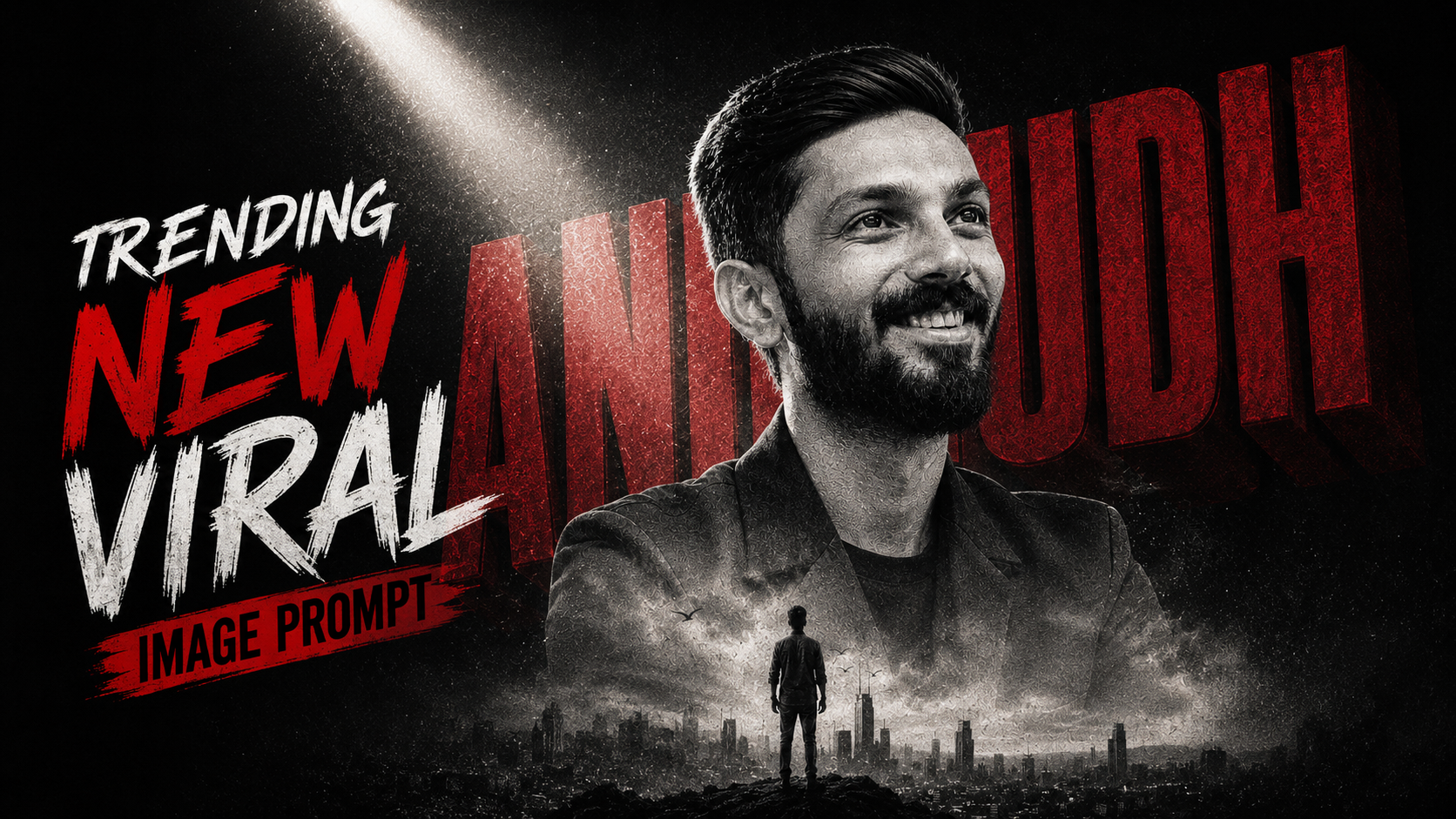
Hello friends, today we are going to look at a simple but stylish way to create DC BGM photos directly from your phone or laptop. Many people see DC style images with bold text, dark background and powerful music used in reels, but do not know the exact trick to make them clean and crisp.
This guide will walk you through a practical workflow for the trending DC bgm photo making trick online. You will learn which type of photo works best, what free tools you can try, how to add music in a smart way, and how to export in the correct size for Instagram, WhatsApp status or YouTube Shorts.
The article is written for beginners who are comfortable using basic photo apps but feel confused when it comes to DC presets, color grading, and syncing images with background music. If you create fan edits, attitude photos, birthday posts, or status clips, this step by step process will help you get a cleaner DC look without heavy editing skills.
We will mainly focus on safe online editors and popular mobile apps that support DC style color grading, text, and audio. There are many random sites and mod apps that promise one tap miracles but also risk malware or watermark issues. Here, the aim is to use trusted tools so your DC BGM photos are stylish, but your device and account stay safe.
Related Resource
The Prompt Link button above opens the related resource for Trending DC Bgm Photo Making Trick Online. It is included so readers can reach the mentioned page directly.
What People Mean By DC BGM Photo Trend
The word DC is often used in edit groups for dramatic color or dark color. In this trend, a single portrait or couple photo is edited with deep shadows, high contrast, teal or blue tints, and bold text. Then the image is used with a cinematic background music track in a short video or status.
Most users do not keep it as a simple still photo. They export it as a 10 to 20 second clip with slow zoom and DC style BGM, which makes it work better on Instagram Reels and WhatsApp status. This is why photo and audio planning need to match from the beginning.
Online Tools You Can Use For DC Style Edits
You can follow the DC BGM trick with either a browser editor or a phone app. The basic idea is the same: edit the photo, then combine it with audio in a video or status format.
| Tool | Main Use | Good For | Watch Out For |
|---|---|---|---|
| Canva (web and app) | Photo and short video edits | Beginner friendly DC layouts and text | Some effects and tracks only in paid plan |
| CapCut (web and app) | Photo with BGM video | Auto zoom, beat sync, DC presets in filters | Check copyright rules before using template music |
| Picsart (web and app) | Detailed photo color grading | Dark tone, glow edges, custom text fonts | Free version shows ads and some watermarks |
| Photopea (web | Advanced photo editing in browser | Manual DC color effect with curves and gradient maps | Not ideal on low RAM phones, many options for beginners |
For a fast workflow, many creators use Picsart or a similar app to prepare the photo, then CapCut or Canva video editor to add BGM and export in vertical size. You do not need all tools, start with one photo editor and one video editor that you feel comfortable using.
Step By Step DC BGM Photo Making Trick Online
Step 1: Pick the Right Base Photo
Choose a clear portrait where the face is sharp and background is simple. DC colors exaggerate shadows, so noisy or low light photos can look broken. Try front camera shots taken in shade, indoor window light, or golden hour. Avoid busy backgrounds like markets or bright mixed lights unless you are ready for more manual masking.
Step 2: Create the DC Look in a Photo Editor
Open your photo in any of the editors mentioned above. Then apply this general recipe for a DC feel, adjusting slowly.
- Lower brightness slightly, increase contrast a bit.
- Pull down highlights, lift shadows very little to avoid grey look.
- Add a cool tone in shadows using split tone or color grading blue and cyan.
- Boost clarity or structure on the subject, not on background.
- Use vignette for darker corners so attention moves to the face.
If the app has DC or dark preset filters, use them as a base then fine tune instead of relying fully on one tap results.
Step 3: Add Text, Borders, and Elements
Most trending DC BGM photos include text like attitude lines, names, date, song lyrics, or short captions. Use clean fonts in white or light grey with slight stroke border. Keep lines short so the image is not crowded. Place text near empty space, usually bottom or side, not across the face.
You can also add simple shapes like line under text, or faint music wave graphics, but avoid heavy stickers that make the edit look cheap or cluttered.
Step 4: Export Photo, Then Move To Video Editor
Save the edited image in high quality jpg or png. Now open a video editor like CapCut web or app, or Canva video editor. Create a new vertical project like 1080 by 1920, import the DC style photo, and place it on the timeline for 10 to 15 seconds.
Add slow zoom in or zoom out using keyframes or built in animation. Keep movement very smooth. Fast shake or flashy transitions usually reduce the premium DC feel.
Step 5: Add BGM and Sync Key Moments
Import your background music. For reels, it is safer to select the music inside the social platform when posting, because Instagram and YouTube handle licensing in that flow. For a private WhatsApp status, many people still import MP3, but be careful when sharing copyrighted tracks widely.
Place the strongest beat or hook around the moment where your zoom feels close to the face or text. Trim the starting part so the clip begins near an interesting part of the song. Lower audio levels slightly if the app shows clipping, so the status does not sound distorted.
Real World Examples You Can Copy
Example 1: Birthday DC BGM Photo
Use a clean birthday portrait of the friend. In the editor, apply darker tone, cool shadows, and a warm orange tint on skin so it looks dramatic but friendly. Add text with their name and age, and maybe a short two word caption. Then in video editor, select a trending birthday BGM, align the beat when the text appears, and keep total length under 12 seconds for WhatsApp.
Example 2: Fan Edit With Dialogue BGM
Take a still of a movie character or a cosplay shot that you clicked yourself. Color grade with blue shadows, strong contrast, and heavy vignette for a cinematic view. Add a short dialogue line as text. In video editor, place a dialogue audio clip as BGM, sync the text animation exactly when the dialogue word hits, and add very slow zoom in to the eyes for extra impact.
Mini Case Study: Fixing A Messy DC BGM Edit
Imagine you created a DC photo from a low light selfie and added strong blue shadows plus heavy grain filter. After exporting with loud BGM, the result looks noisy and cheap on WhatsApp status. Friends complain that the face is not clear and sound is harsh.
To fix this, start again from the original photo. This time, reduce noise first, keep blue tint lighter, and avoid extreme sharpen. Do not push clarity beyond a small increase. In the video editor, reduce added visual effects, keep only slow zoom and one simple text fade in. Lower audio volume by around 20 percent. The revised post will look calmer, with focus back on expression instead of over editing.
Common Mistakes When Following The DC BGM Trick
- Using very low resolution photos then complaining about blur after export.
- Adding too many fonts and colors on one image so it loses the DC mood.
- Overusing HDR, sharpening, and glow so skin looks plastic or grey.
- Pulling BGM from random websites without checking safety or copyright risk.
- Saving at low bitrate or wrong size, which can make social apps compress more.
If you keep only one or two strong elements, one DC tone and one clear text style, the results usually look more premium on every platform.
Conclusion
The trending DC bgm photo making trick online is less about secret apps and more about a simple, repeatable workflow. Choose a clean base portrait, apply controlled dark color grading, add short and readable text, then turn it into a short vertical clip with smooth zoom and well chosen BGM.
Once you are comfortable with this pipeline, you can build preset styles inside your favorite apps and reuse them for birthday posts, attitude edits, fan reels, and more. Test your exports on one status group first, check how they look on different phones, then refine before posting widely.
FAQ
Which app is best for DC BGM photo edits for beginners
For most beginners, a combo of Picsart for photo editing and CapCut for adding BGM and zoom works well. Both have free versions and plenty of tutorials online.
Can I do the complete DC BGM trick only in browser
Yes, you can edit the image in Canva or Photopea, then use Canva video editor or CapCut web. The experience will depend on your internet speed and device power.
How long should a DC BGM status clip be
For WhatsApp, 10 to 15 seconds is usually enough. For Instagram Reels and Shorts, you can go up to 20 seconds, but keep the main hook in the first 5 seconds.
Is it safe to use DC templates from random Telegram groups
It is better to be careful. Some shared files contain harmful links or modified apps. Prefer official store apps and known template libraries inside them.
How do I stop my DC photos from looking too dark
Reduce contrast slightly, lift shadows a bit, and avoid stacking multiple dark filters. Always zoom in on the face and check if eyes and expression are clearly visible.
Thank you for reading. If you found this DC BGM photo trick guide useful, keep visiting our blog for more updates on trending edits, helpful apps, AI tools, and the latest tech tips.








