
Matching wallpapers sound cute until one of you has a blurry crop, icons covering your faces, and the lock screen still shows your old cat photo. This guide walks through how to actually make trendy couple wallpapers work on real phones, not just in Pinterest screenshots.
What People Usually Get Wrong with Couple Wallpapers
Before we get into apps and steps, it helps to know the common mistakes:
- Using a single image for both phones so it never aligns when you put the screens together.
- Downloading low resolution images that look fine in the gallery but pixelated on the home screen.
- Ignoring icon and widget layout, so the main subject is covered by apps or the clock.
- Forgetting different phone sizes a wallpaper that looks perfect on one device can crop badly on the other.
- Sharing personal photos through random apps without checking how they store or use uploads.
The goal is a matching look that survives all of this: different phones, lock vs home screen, and your normal app layout.
Three Main Ways to Get Trendy Couple Wallpapers
Most couples end up using one (or a mix) of these:
- Pre made couple wallpaper apps easy, quick, often very stylized.
- General wallpaper apps wider variety, but you’ll search more.
- DIY with your own photos best for personalization and privacy control.
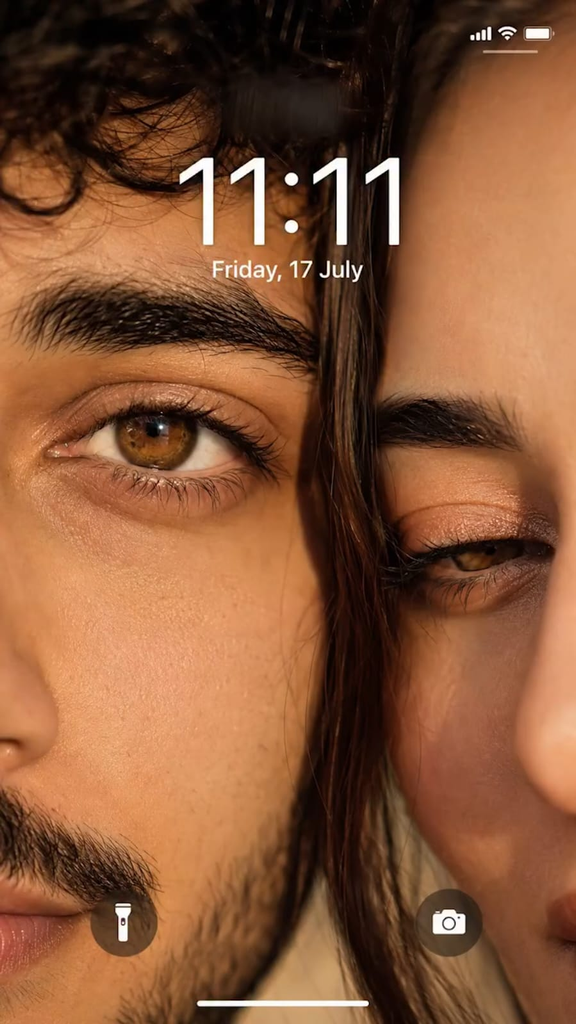
Ultra-realistic iPhone lockscreen wallpaper, extreme close-up of couple faces, only one eye each visible – boy eye fully open, girl eye slightly closed (romantic). Faces almost touching, natural skin texture, pores, detailed eyelashes, hazel-brown glossy eyes. Warm golden hour cinematic lighting, soft reflections, few hair strands between faces, shallow depth blurred background.8K, HDR, ultra-detailed, realistic, 9:16.

Using the provided photo generate a hyper realistic 4K A close up mirror photo the photo look natural, the selfie taking while using phone iPhone 14 Pro Max of a young couple in a dimly lit, cozy, indoor room. The man has same hair, is wearing Clothing: – Male Wearing an oversized black full-zip spider-themed hoodie. Heavy premium cotton fleece fabric with deep black tone and realistic texture. Large red spider emblem embroidered on the chest with sharp red web patterns.Zip-up hood capable of fully closing into a spider-mask style with white eye shapes on the hood.Relaxed oversized streetwear fit, natural folds, realistic weight and drape of fabric. High-quality embroidery, clean seams, no text, no branding. Ultra-realistic fabric detail, cinematic lighting, modern streetwear aesthetic.– Female Wearing an oversized white full-zip spider-themed hoodie. Premium thick cotton fleece fabric with a soft, heavy streetwear texture.Bold red spider emblem embroidered on the chest, clean red web patterns extending.
1. Using Couple Specific Wallpaper Apps
On Android and iOS, you’ll find several apps focused on couple backgrounds. Typical features:
- Paired images designed to align across two screens (e.g., half the illustration on each phone).
- Categories like minimalist, cartoon, aesthetic, anime couples, or text quotes.
- Sometimes built in cropping for different screen ratios.
Basic workflow is usually:
- Both of you install the same app from the official store (Google Play Store or Apple’s App Store).
- Pick a set you like and save each half to your gallery instead of applying directly.
- Set each half as wallpaper using the phone’s default wallpaper picker (this gives you more control over crop and blur).
Watch for: aggressive ads, forced sign ups, and apps demanding contacts or location for no good reason. If permissions feel unrelated to wallpapers, skip that app.
2. Using General Wallpaper Apps
Popular wallpaper apps (like Zedge, Backdrops, etc. Search terms to try in any wallpaper app:
- matching wallpaper for couples
- dual wallpapers
- phone pair backgrounds
- left right wallpaper set
These apps are useful if you want something more subtle, like abstract shapes or gradients that line up when phones are together, instead of obvious couple art.
3. Creating Your Own Couple Wallpapers
If you want a personal photo or a specific aesthetic, a photo editor app is usually the cleanest approach. Apps like Canva, PicsArt, or any collage editor work well.
Simple workflow using a canvas based editor (e.g., Canva mobile app):
- Create a single wide canvas.
Check the resolution of the larger phone (e.g., 2400×1080).
Make a canvas roughly twice the width (e.g., 2400×2160). 🟩 ADD REAL DETAIL: insert 1 2 example resolutions from a popular Android model and iPhone model. - Drop your photo or design in the center.
Leave some breathing room at the top for the clock and app icons. - Draw a vertical guide down the middle.
That left side is Phone A, right side is Phone B. - Export and split.
Either use the app’s grid feature or export and split the image later in a separate image splitter tool so each phone gets its half. - Send the right half to your partner via a private channel (encrypted messenger or shared album).
How to Apply Couple Wallpapers on Android
Exact menus vary by brand and Android version, but the general flow is similar.
- Open Photos/Gallery and select the wallpaper image.
- Tap More > Set as (or use the three dot menu).
- Choose Wallpaper or Use as > Home screen, Lock screen, or both.
- Use the crop tool to center the important part away from icons and widgets.
- Confirm and exit back to the home screen to check alignment.
Tips for Android:
- On some Android skins (Samsung One UI, Xiaomi MIUI, etc.), you’ll see extra options like Motion effect or Blur. Turning these off usually keeps the couple design sharper and better aligned.
- If you have multiple home screens, try to keep your main couple wallpaper on the default one where you land after pressing Home.
How to Apply Couple Wallpapers on iPhone (iOS 16+)
On newer iPhones, wallpapers are linked to Lock Screen profiles, which can be both a blessing and a bit confusing.
- Open the Photos app and select the image.
- Tap the Share icon > Use as Wallpaper.
- Pinch to adjust crop. Turn off Perspective Zoom for more precise alignment.
- Tap Add, then choose Set as Wallpaper Pair if you want it on both Lock and Home screen, or customize each separately.
iOS quirks to know:
- Widgets and time styles can cover key parts of the image. Adjust your photo downwards if you have big lock screen widgets.
- If you like Focus modes, you can assign your couple wallpaper to a Personal Focus so it only shows at certain times.
Keeping Both Phones in Sync
Trendy couple wallpapers only work if both halves stay visually consistent. A few simple habits help:
- Use the same background color if your wallpaper has borders or empty areas.
- Align notes and icons similarly for example, keep your first row of apps in the same pattern so faces or key elements sit below them on both screens.
- Share the exact same file for each half rather than re downloading from different sources (downloads might have slightly different crops or resolutions).
- Store your sets in a shared cloud album so you can quickly reapply them after OS updates or phone resets.
Privacy and Safety Checks Before Using Couple Wallpaper Apps
Most wallpaper apps are harmless, but a few red flags are worth watching for, especially if you’re uploading personal photos:
- Permissions: Wallpaper apps usually only need storage/media access. Be cautious if they request contacts, SMS, microphone, or precise location without a clear reason.
- Account creation: If an app forces you to create an account just to browse, check its privacy policy before giving your main email.
- Cloud editing: If the app uploads photos to servers for filters or AI effects, assume they may be stored or processed outside your device. Avoid very private images here.
- In app reviews: Skim recent store reviews. Watch out for complaints about spam notifications, paywalls, or unexpected subscription charges.
If you’re just using personal photos, a trusted photo editor you already use is often safer than a random new couple wallpaper app.
Quick Ideas for Trendy Couple Wallpaper Themes
If you’re stuck on what to choose, these themes generally work well on most screens:
- Half and half illustrations: Each phone shows half of a heart, planet, or skyline that lines up when placed together.
- Complementary quotes: One phone with You are my favorite notification and the other with a matching phrase.
- Minimal icons or doodles: Small line art in the lower third of the screen keeps icons readable.
- Same photo, different detail: Wide landscape shot split into left and right focus (e.g., one shows the couple, the other shows the view).
- Light vs dark mode theme: One bright, one dark, but using the same pattern or symbol.








