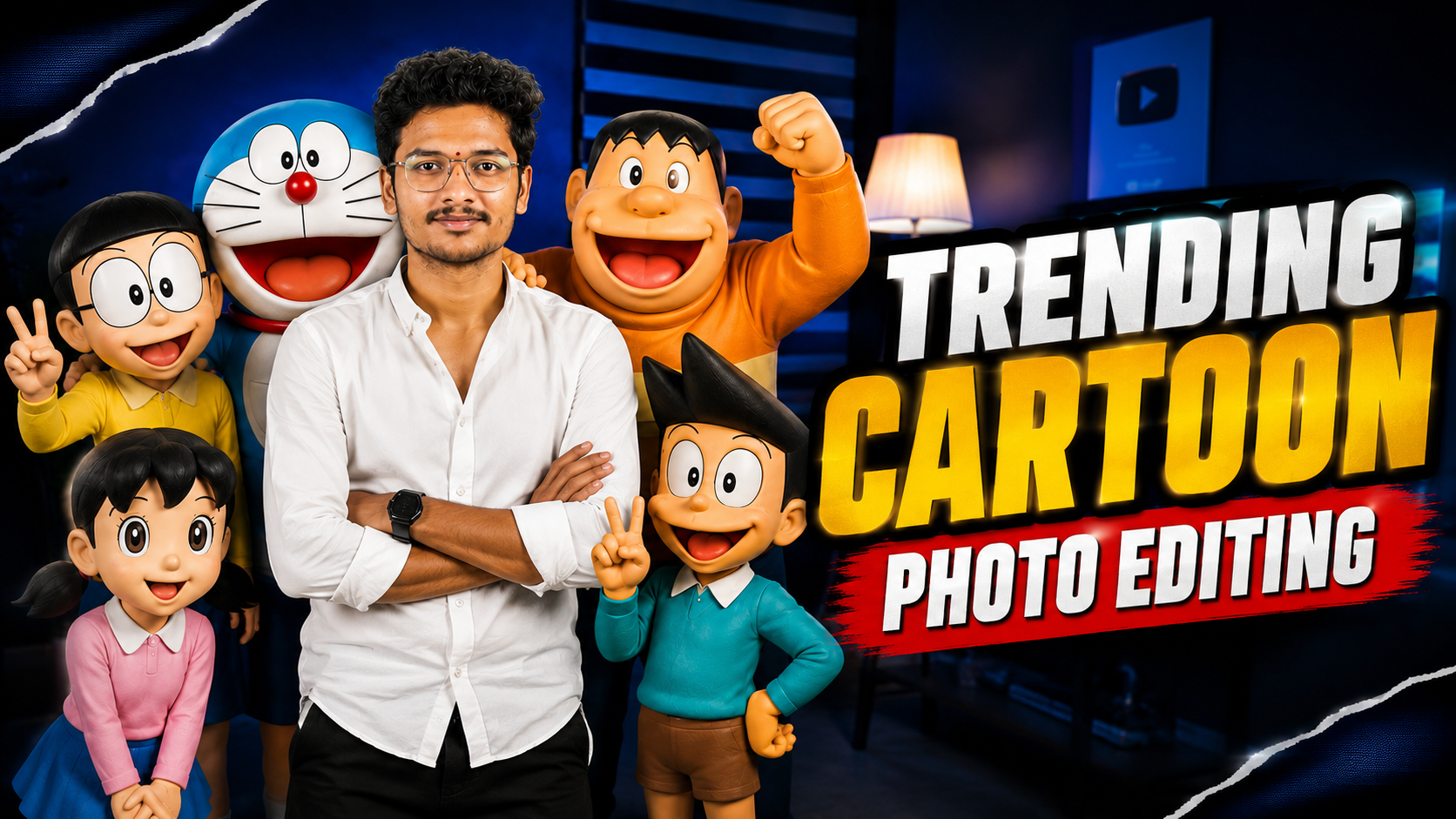
Hello friends, today we are going to explore how you can turn a normal selfie into a trendy cartoon style photo using only your mobile and online tools. Many people see these cartoon avatars on Instagram, WhatsApp DP, or YouTube thumbnails and wonder which app or website everyone is using.
This guide will help you understand what these AI cartoon selfie generators actually do, which tools are worth trying, and how to get a clean result without weird faces or messy backgrounds. You will also see some example styles and a simple workflow that you can follow for any new trend that appears.
The article is written for casual users who want fun cartoon selfies for social media, as well as beginner creators who make profile pictures, gaming logos, or channel art for clients. You do not need advanced editing skills. If you can take a selfie and upload it, you can follow this tutorial.
We will focus mainly on safe, popular mobile apps and browser based editors that support AI cartoon filters. When a tool needs signup or asks for payment, you will see it clearly so you can decide if it is worth it. You can keep this page bookmarked whenever you want to test a new cartoon selfie trend.
Related Resource
The PROMPT LINK button above opens the related resource for Trending Mobile Cartoon Photo Selfie Generating Online. It is included so readers can reach the mentioned page directly.
What People Mean By Trending Mobile Cartoon Selfies
When people talk about trending mobile cartoon selfies, they usually mean AI generated portraits that look like 2D anime art, 3D Pixar style, comic book ink, or soft pastel illustration. The trend changes every few months but the idea is the same. One selfie, one tap, and you get a fresh character look.
Modern apps send your selfie to a cloud server where a model is trained to recognize face structure, hair, and lighting. It then redraws your image in a selected style. This can be stylish, but it also means you need to think about privacy and how your photos are stored.
Popular Tools For Cartoon Photo Selfies On Mobile
Below are some commonly used apps and web tools that often appear in reels and shorts when people show cartoon selfie tricks. Availability can change by region or device, so always check the latest version in your app store.
| Tool | Platform | Free Usage | Main Cartoon Strength | Key Limitation |
|---|---|---|---|---|
| Prisma | Android, iOS | Limited daily filters with watermark | Art and painting style portraits | Some top filters need subscription |
| ToonMe | Android, iOS, Web | Free presets with ads | Cartoon and vector avatar looks | Ads can be heavy on some phones |
| Photo Lab Picture Editor | Android, iOS | Many effects free with watermark | Face montages and comic frames | Some results look very processed |
| Lensa | Android, iOS | Occasional free trial packs | AI avatars and stylized faces | Avatar packs usually paid |
| Canva Cartoon Filters | Web, Android, iOS | Basic filters free | Soft cartoon DP and thumbnails | Deep AI modes may need Pro |
You do not need all of these. For most readers, one app with AI cartoon mode and one web based backup is enough. Try a couple to see which style fits your face shape and skin tone best.
Step By Step Workflow For Cartoon Selfies Using Online Tools
This is a generic workflow that works with almost any mobile cartoon generator that runs in the browser. The button names will change, but the order and small tips will save you time.
Step 1: Start With A Clean Selfie
- Use your rear camera if possible, it is usually sharper.
- Stand near a window or soft light so your face is clear.
- Avoid busy backgrounds, strong backlight, or heavy shadows on half your face.
- Remove extreme beauty filters, they confuse some AI models.
Step 2: Open The Cartoon Generator
- Search in your browser for a known tool like ToonMe web or a trusted editor.
- Check the address bar to confirm you are on the official site, not an imitation.
- Look for the cartoon, avatar, or AI portrait section rather than random effects.
Step 3: Upload And Crop
- Upload only the photo you want, avoid full gallery access if the site offers a file picker option.
- Crop to your head and shoulders so the face is centered.
- Align your eyes to the middle of the frame, this usually gives better cartoon eyes.
Step 4: Choose Style And Adjust
- Test a small set of styles, such as anime, 3D character, and comic line art.
- Use strength or intensity sliders if available to avoid over processed faces.
- Compare the eyes and mouth area. If they look warped, try another style or a different selfie.
Step 5: Export For The Correct Platform
- Download at medium resolution for WhatsApp or Instagram stories to keep file size small.
- Keep a higher resolution copy for YouTube banners or profile graphics.
- Save without heavy watermark if your usage is professional. Some tools allow small paid removal.
Real World Examples You Can Try
Example 1: Gaming Avatar For YouTube Or Twitch
Take a selfie facing the camera, then upload it to a cartoon tool that supports bold outlines and neon color accents. Select a style that adds slight shadows and fake lighting. After exporting, place the cartoon head over a solid color or gradient background in an editor like Canva, then add your channel name below. This works well for gaming or tech commentary channels.
Example 2: Soft Cartoon DP For WhatsApp Or Instagram
Use a side angle selfie with natural light. In the generator, choose a watercolor or pastel cartoon style. Reduce intensity so skin looks smooth but still realistic. Crop to a circle and keep simple background color like light blue or off white. This gives a friendly but not childish look that fits daily messaging apps.
Mini Case Study: Fixing A Bad Cartoon Result
Imagine you upload a selfie to a trending AI cartoon app. The preview looks funny, but when you zoom in, one eye is bigger, hair looks like plastic, and teeth are stretched. Many people just accept this and post it, but you can usually correct it with two small changes.
First, retake the selfie with less angle. Most AI models handle straight or slightly turned faces better than full side profiles. Second, reduce background detail. Stand against a plain wall or blur the background slightly before sending it to the cartoon engine. When this user tried again with a cleaner front facing shot, the algorithm drew balanced eyes and more natural hair texture.
If repeated attempts still look strange, try another app. Each company trains its AI with different images, so one tool that fails on your face type might be fine on another. Keeping two or three options installed helps you avoid being stuck with one bad style.
Privacy And Safety Tips For Cartoon Selfie Generators
AI selfie apps often need your face data to work. This is normal, but you should understand a few things before uploading dozens of close portraits.
- Read the basic privacy section inside the app or on the website. Focus on how long they keep images and if they use them for training.
- Avoid uploading selfies of children to random sites. Many terms of service do not clearly cover minors.
- Do not share cartoon selfies that include sensitive documents or location clues in the background.
- Prefer tools that allow manual account deletion if you later change your mind.
Also note that some apps push in app purchases after a few free tries. Keep an eye on subscription screens, and cancel trial packs on time if you decide not to continue. This is a frequent complaint in app store reviews for AI avatar tools.
Conclusion
Turning a normal selfie into a trendy cartoon portrait is now simple thanks to mobile apps and web based AI tools. The trick is not only which app you use, but also how clean your original photo is and how carefully you pick the final style and export size.
If you want quick fun results, start with a free app like ToonMe or a browser editor, then keep one higher quality option like Lensa or Canva for more serious profile images. Always check privacy notes, avoid unsafe download links, and test two or three selfies before sharing publicly.
Once you understand this basic workflow, you can easily follow new cartoon selfie trends that appear on Instagram, YouTube shorts, or Telegram groups without needing a fresh tutorial every time.
FAQ
Which app is best for cartoon selfies on Android
For most Android phones, ToonMe and Photo Lab are good starting points because they offer many styles for free. If you need cleaner AI art and do not mind payment, Lensa or similar avatar apps often give sharper results.
Can I make cartoon selfies without installing any app
Yes, several websites let you upload a photo and apply cartoon filters directly in the browser. Search for trusted online editors, open them in Chrome, then upload a single selfie and export the result.
Why does my cartoon face look distorted
Distortion usually comes from poor lighting, extreme angles, or heavy beauty filters in the original selfie. Try a straight front facing shot with even light and no face retouching, then run the effect again.
Are AI cartoon selfie generators safe
They can be safe if used from official stores or known websites and if you understand their privacy terms. Avoid sharing sensitive photos, do not use cracked versions, and review permissions before giving full access to your gallery.
How can I remove watermarks from cartoon selfies
Most legal ways to remove watermarks are inside the app itself, usually through a small one time payment or subscription. Avoid external watermark removers that re upload your image to unknown servers.
Thank you for reading. If this guide helped you understand cartoon selfie tools, stay connected with our blog for more latest tech news, useful apps, AI tools, and mobile editing updates.








