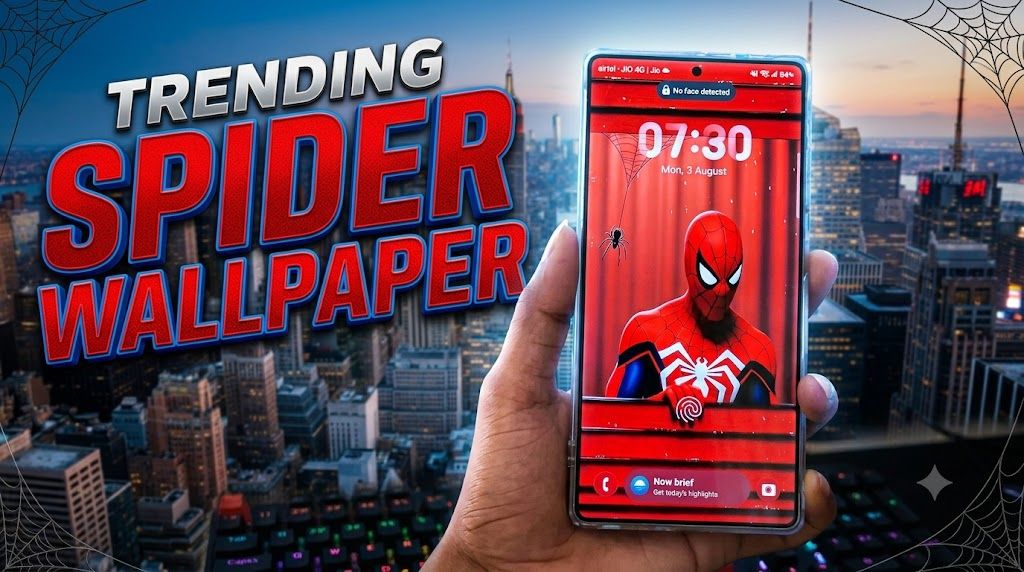
Spider themed wallpapers are trending again, and not just as static images. Many users want animated spider style backgrounds that move on the home screen and lock screen. The problem: a lot of apps are confusing, packed with ads, or don’t clearly explain how to apply the wallpaper on different phones.
This guide walks through using the WallZone HD Live Wallpaper app on Android for spider style live wallpapers, plus realistic options for iPhone users who want a similar effect.
1. What the WallZone live wallpaper app actually does
WallZone HD Live Wallpaper (by sdtech) is an Android app that offers animated and static wallpapers. At the time of writing, it includes multiple styles such as:
- Spider style wallpapers (dark, web effects, glowing spider logos)
- Abstract neon animations
- Nature, city, and other themed live wallpapers
Important points before you start:
- Platform: It is an Android app available on Google Play. There’s no official iOS version from the same link.
- Battery usage: Any live wallpaper will use more battery than a static image, especially on LCD screens and older phones.
- Ads & in app items: Many wallpaper apps rely on ads or in app purchases. Plan for this and check reviews before you keep it installed.
If you want the spider theme without killing battery life, you can also use the spider wallpapers as static images instead of full animations. We’ll cover that below.
2. Install WallZone from the official source (Android)
For Android users, always start with the official app store listing. Avoid random APK sites, mod versions, or links from social media comments. Those can contain malware or adware.
- On your Android phone, open the Google Play Store.
- Search for WallZone HD Live Wallpaper or use the official link if you have it saved.
- Check that the developer name shows as sdtech before installing.
- Tap the install button and wait for the app to finish installing.
- Once done, tap Open.
Why this matters: some lookalike wallpaper apps copy the same name and thumbnails but are loaded with aggressive ads or shady permissions. Verifying the developer name and using Google Play reduces that risk.
Official App Listing
The open on google play button opens the Google Play listing related to Mobile Wallpaper New Spider Style Photos. Check the developer name, permissions, reviews, and update date before installing.
You can add a button or card here that points to the official Google Play listing so readers don’t go hunting for random APKs. Label it something neutral like Open on Google Play or View on Google Play rather than anything that sounds like a direct file download.
3. Give the app the correct permissions
When you first open WallZone, it may request permissions. Typical ones include:
- Storage / Photos and media: Needed to save wallpapers locally or apply them from your gallery.
- Set wallpaper: Some Android versions show this as a system dialog when you try to apply a background.
Only grant what is required for wallpaper usage. If the app asks for unrelated permissions (for example, location or contacts) without a clear reason, be cautious and consider leaving those disabled and re checking reviews.
4. Apply a spider style live wallpaper on Android
The exact layout can change with updates, but the general flow inside WallZone is similar across versions. Use this as a reference and adjust names to match the current UI.
Step by step inside the app
- Open the WallZone app.
- From the home screen, look for categories such as Live, Trending, or a Spider/Superhero style section. If there’s no dedicated spider category, try searching spider or browsing dark / neon / superhero collections.
- Tap a spider style live wallpaper preview to open its detail page.
- Let the preview animation play for a few seconds to check smoothness and style.
- Tap the button labeled something like Set Wallpaper, Apply, or Use. You may see options:
- Home screen
- Lock screen
- Home & lock screen
- Choose your desired option.
- Confirm in the system popup that appears (Android’s native Set wallpaper dialog).
After that, press the home button and you should see your new spider themed live wallpaper moving in the background.
Common mistakes to avoid
- Home screen looks the same? Your launcher (e.g., some OEM or third party launchers) might not support live wallpapers. Try switching to the default system launcher and reapply.
- Wallpaper only shows on lock screen? Check the option you chose when applying. Many users accidentally set it only for the lock screen.
- Lag or stuttering? Older or low end devices may struggle with heavy animations. Try a simpler animation or static spider wallpaper instead.
5. Reduce battery drain with live wallpapers
Spider live wallpapers often use dark themes, which can actually help on OLED/AMOLED screens, but animation still costs power. A few tuning tips:
- Prefer darker designs: Black heavy wallpapers are more efficient on OLED screens (many Samsung, Pixel, and newer phones).
- Lower screen brightness: This makes a bigger difference to battery life than the wallpaper itself.
- Avoid constant motion on very old phones: If your phone is older than 4 5 years, consider a static spider wallpaper or a slower animation.
- Watch for overheating: If the back of your phone gets hot after changing wallpaper, switch to a simpler one and monitor for improvement.
If you mostly love the look of the spider, not the movement, saving a frame as a static wallpaper is a good compromise.
6. Using spider style wallpapers on iPhone (iOS)
WallZone HD Live Wallpaper from the Play Store is Android only. iOS handles wallpapers differently and has tighter control over live backgrounds, especially on recent versions of iOS.
Realistic options for iPhone users:
Option A: Static spider wallpapers
- Find a high resolution spider wallpaper from a legitimate source (your own design, licensed wallpaper app from the App Store, or royalty free image site).
- Save it to your Photos app.
- Go to Settings > Wallpaper > Add New Wallpaper.
- Select the spider image from your photos.
- Adjust the crop and perspective, then tap Add.
- Set it for Lock Screen, Home Screen, or both.
Option B: Live Photo style lock screen (older iPhones)
On some older iPhones that still support Live Photos as lock screen wallpapers:
- Use an iOS wallpaper app that offers spider themed Live Photos.
- Save the Live Photo to your camera roll.
- Go to Settings > Wallpaper and choose New Wallpaper.
- Select the Live Photo, ensure the Live option is enabled, and set it as your lock screen.
Note: Newer iOS versions have changed or limited interactive live wallpapers. Treat animated spider lock screens as a bonus feature, not something guaranteed on every model.
7. Privacy and safety tips for wallpaper apps
Wallpaper apps often feel harmless, but they still interact with your image gallery and sometimes the internet. A few safety habits:
- Check reviews: Look for recent reviews about aggressive ads, popups, or suspicious behavior.
- Review permissions: In Android Settings > Apps > WallZone > Permissions, confirm only storage/media (and similar basics) are enabled.
- Don’t grant unnecessary permissions: If a wallpaper app requests location, contacts, or microphone, question why that’s needed.
- Avoid sideloading: Stick to Google Play or the iOS App Store, not random APK hosting websites, to reduce malware risk.
8. Quick troubleshooting checklist
If your spider style wallpaper isn’t working the way you expected, run through this short list:
- No animation on Android: Ensure you picked a live wallpaper category, not a static category. Reapply from within WallZone.
- Wallpaper resets after restart: Some battery saver or cleaner apps kill wallpaper services. Add WallZone to their allowed list or uninstall the cleaner.
- Phone feels slow: Switch to a lighter animation or a static spider background and see if performance improves.
- Ads are too frequent: If the ad experience is unbearable, look for alternative live wallpaper apps with better reviews, or stick to static wallpapers.
9. FAQ: Spider style mobile wallpapers
Do spider live wallpapers work on every Android phone?
No. Very old devices or some custom launchers may not fully support live wallpapers. Most modern phones running a reasonably recent Android version should work, but performance can vary.
Can I make my own spider live wallpaper?
Yes, but you’ll need an app that lets you create custom live wallpapers from short videos or animations. You can design a short spider animation and then apply it through such an app, keeping in mind licensing if you use any existing characters or logos.
Will live wallpapers damage my screen?
They don’t directly damage the screen, but static elements (like a bright status bar) can contribute to burn in on OLED displays over long periods. Rotating wallpapers and using darker themes helps reduce that risk.
Why can’t I get the same live spider wallpaper on iOS?
Apple controls how animated wallpapers work and doesn’t allow third party apps to apply interactive home screen live wallpapers in the same way as Android. You can still use spider images and sometimes Live Photo lock screens, but it won’t fully match Android’s behavior.
10. Should you keep using live spider wallpapers long term?
If you enjoy the look and your phone still feels smooth with acceptable battery life, there’s no real reason to stop using them. Just keep an eye on performance and heat, and switch to a static spider wallpaper if you notice slowdowns.
For Android users, apps like WallZone HD Live Wallpaper are one of the simplest ways to get fresh, animated spider themes without digging through sketchy download sites. For iPhone users, a high quality static spider design plus dark mode still gives a bold, clean look that fits the latest iOS style.








