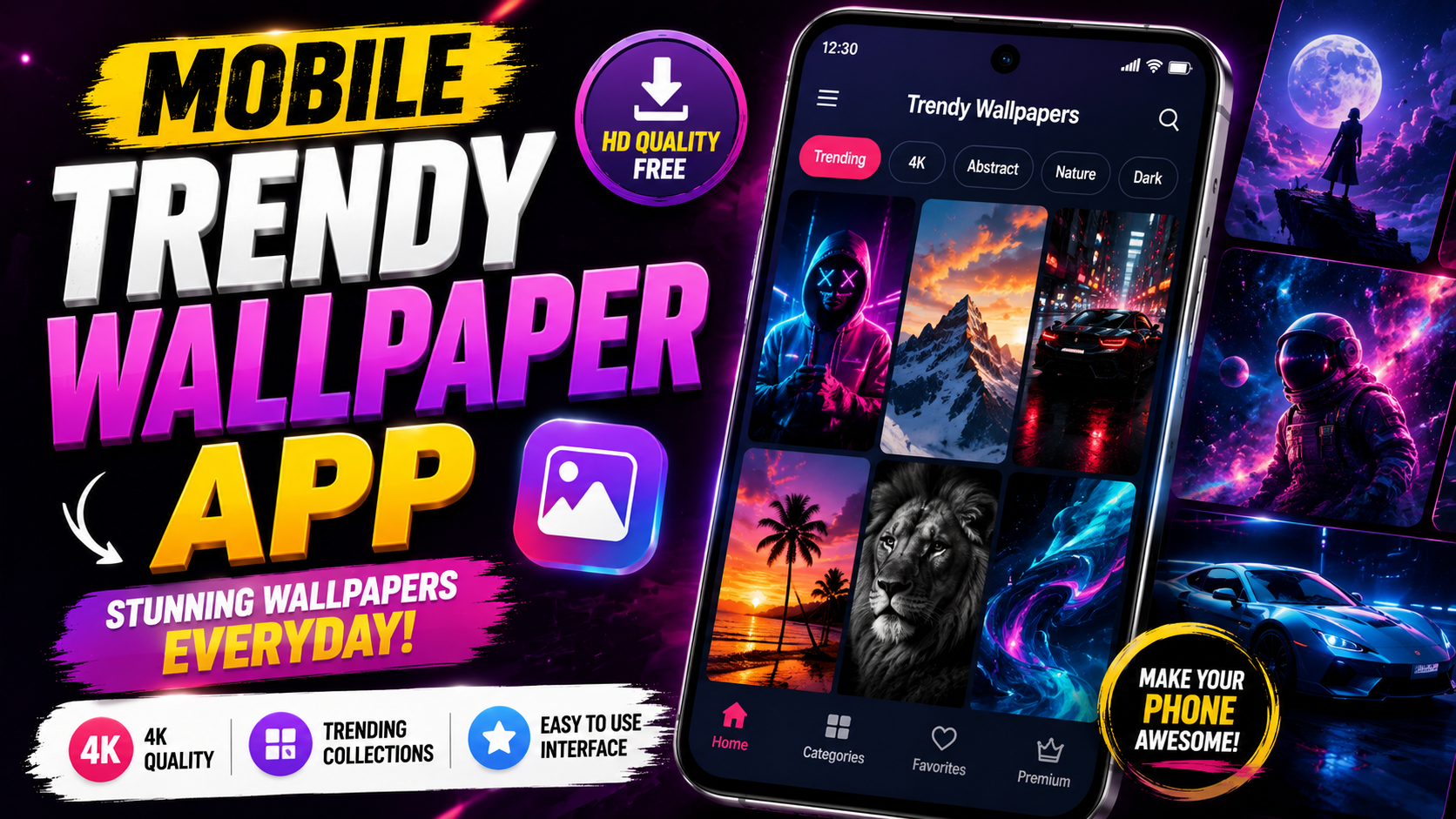
If your phone still has the same default lock screen it shipped with, you’re missing a big chunk of easy customization. Apps like Hyper Lock Screen OS give you trendy wallpapers and lock screen styles in a few taps but only if you set them up correctly and avoid a few common mistakes.
This tutorial walks through how to use the Hyper Lock Screen OS wallpaper app on Android, what to expect on iOS, and how to keep your phone fast, private, and battery friendly while you experiment with new looks.
What the Hyper Lock Screen OS App Actually Does
Based on the Play Store listing (com.appiolab.hyperlockscreenos), this app is designed to:
- Provide a library of modern, trendy wallpapers for your lock screen.
- Mimic a clean OS style lock screen layout often inspired by newer operating systems.
- Let you switch themes and wallpapers without digging through system menus.
It’s mainly a personalization tool: it doesn’t magically improve your phone’s performance, but it can make your lock screen feel more current and coordinated with your app icons and widgets.
Because lock screen apps sit on top of your system, they usually need certain permissions and may impact battery life if misconfigured. We’ll cover both in detail below.
Who This Wallpaper App Is Best For (and Who Should Skip It)
This kind of lock screen + wallpaper app is most useful if you:
- Enjoy trying different aesthetics (minimal, neon, gradient, abstract, etc.).
- Want a single place to change both lock screen background and style.
- Have an Android phone with a plain or outdated UI and want a fresher look.
You may want to skip or limit use if you:
- Have an older or budget device where every bit of RAM and battery matters.
- Already use a heavy launcher, live wallpapers, and many widgets (adding more may slow things down).
- Are very strict about privacy and prefer to stick only to stock system UI.
As with any customization app, it’s about trade offs: more style vs. some extra resource usage and permission complexity.
Important Safety and Download Notes
For lock screen and wallpaper apps, where you get the app matters just as much as what the app does. Downloading from random file sharing sites or official app version pages can expose you to malware, adware, or hidden trackers.
- Use the official store listing for Android: Google Play URL provided by the creator: https://play.google.com/store/apps/details?id=com.appiolab.hyperlockscreenos
- Do not search for cracked, modded, or premium unlocked variants of the app.
- Check permissions during install lock screen apps should not need access to your contacts, SMS, or microphone for basic wallpaper features.
If a permission looks unrelated to wallpapers or lock screen functionality, either deny it or stop the installation and research why it’s requested.
Official App Listing
The open on google play button opens the Google Play listing related to Mobile Trendy Wallpaper App. Check the developer name, permissions, reviews, and update date before installing.
How to Set Up Hyper Lock Screen OS on Android
Steps may vary slightly depending on your Android skin (Samsung, Xiaomi, OnePlus, etc.), but the overall flow is similar.
1. Install from Google Play
- Open the Google Play Store on your phone.
- Search for Hyper Lock Screen OS or paste the package URL: com.appiolab.hyperlockscreenos.
- Check the developer name (errorz opy according to the user information) to avoid lookalike apps.
- Tap the install button and wait for installation to complete.
2. Grant the Right Permissions (But Only the Necessary Ones)
On first launch, the app will likely ask for:
- Display over other apps / Draw over other apps required so the lock screen UI can appear when your screen wakes.
- Run at startup so your custom lock screen loads after a reboot.
- Access to photos / media for saving and using wallpapers, especially if you import your own images.
Careful points:
- If it asks for location, contacts, SMS, or call logs, pause and double check why. These are not necessary for basic lock screen wallpaper features.
- On some Android versions, you may need to disable battery optimization for the app; otherwise, the system might kill it in the background, causing the stock lock screen to reappear occasionally.
3. Apply a Trendy Lock Screen Theme
- Open the Hyper Lock Screen OS app.
- Browse through the available themes or wallpaper categories (e.g., neon gradients, abstract shapes, minimalist clock styles).
- Tap a design to preview it. Most apps show how the clock, notifications, and wallpaper will look together.
- Hit the Apply or Set Lock Screen button.
- Lock your phone and press the power button again to test your new look.
If you don’t see the new lock screen, check:
- That the app has Display over other apps permission enabled in system settings.
- Your phone’s built in lock screen settings some brands offer their own lock screen style that may conflict with third party ones. You may need to set them to default or none for style.
How to Reduce Battery Drain and Lag
Trendy wallpapers are fun until your battery starts draining faster than usual. A few tweaks can keep things under control:
- Avoid heavy live wallpapers on low end phones. Static or gently animated images consume less CPU/GPU.
- Pick darker themes if you have an AMOLED display (many Samsung, OnePlus, and Pixel models). Dark pixels use less power.
- In the app settings, look for:
- Animation intensity or effect level set to low or medium.
- Update frequency for dynamic wallpapers avoid change every minute; hourly or daily is more reasonable.
- Disable any extra lock screen widgets or news feeds you don’t use.
After applying a new setup, monitor your battery usage for a day under normal use. In Android’s battery settings, check if the wallpaper app is suddenly one of the top consumers; if so, dial back effects or switch to a lighter theme.
Using Trendy Wallpapers on iOS (What’s Actually Possible)
The provided app package is Android only. iPhones and iPads don’t allow third party apps to fully replace or override the system lock screen the way Android does.
However, you can still get a similar stylish look on iOS:
- Use an iOS wallpaper app that provides HD images and lock screen ready designs.
- Save the wallpaper to your Photos library.
- Go to Settings > Wallpaper > Add New Wallpaper (or tap and hold on the lock screen in iOS 16+).
- Select the image, then customize clock font, color, and widgets using Apple’s built in editor.
Tip: Look for images with clean top areas so your clock and notifications remain readable. Busy designs often make the lock screen hard to use in bright light.
Common Mistakes to Avoid With Lock Screen Wallpaper Apps
- Enabling too many similar apps: Running multiple lock screen or always on display apps at once can cause flickering, double locks, or random crashes. Keep only one active.
- Ignoring notification visibility: Some themes look clean but hide or shrink notification text too much. Test with a message and email to ensure you can read them at a glance.
- Allowing every permission blindly: Grant just what’s required. If an update suddenly asks for extra access, read the changelog and check recent reviews.
- Forgetting backup: If you love a particular wallpaper or setup, save or screenshot it. After app updates, some older themes may disappear.
Privacy and Security Tips for Wallpaper & Lock Screen Apps
A lock screen is where your notifications, potentially including partial messages and email subjects, are shown. Be selective about which apps you give control here.
- Check the developer profile (errorz opy) on Google Play for other apps and reviews. Unknown one off developers aren’t automatically bad, but deserve extra scrutiny.
- Read a few recent user reviews to see if anyone reports suspicious behavior (unexpected ads, redirects, or data usage spikes).
- In Android settings, review Notification content on lock screen. Consider hiding sensitive content if you’re unsure how the app displays it.
- Avoid entering any passwords or personal data directly into a third party lock screen app. Your device PIN/password should still be handled by the system, not by the wallpaper app.
Quick FAQ
Does using Hyper Lock Screen OS replace my system lock screen security?
Typically no. These apps sit on top of the system UI but your actual PIN, pattern, or biometric unlock is still controlled by Android. Always set your main screen lock in Settings > Security, not only in the app.
Can I use my own photos as wallpapers in this app?
Most wallpaper apps allow importing your own images. Look for an My photos or Gallery section. You’ll need to grant storage or media access for this to work.
Why did my phone suddenly revert to the default lock screen?
Common causes are battery optimization killing the app, the app being updated or uninstalled, or a permission being revoked. Re open the app, re apply your theme, and if necessary, exclude it from battery optimization in settings.
Is it safe for kids or teens to use these wallpaper apps?
Functionally,








