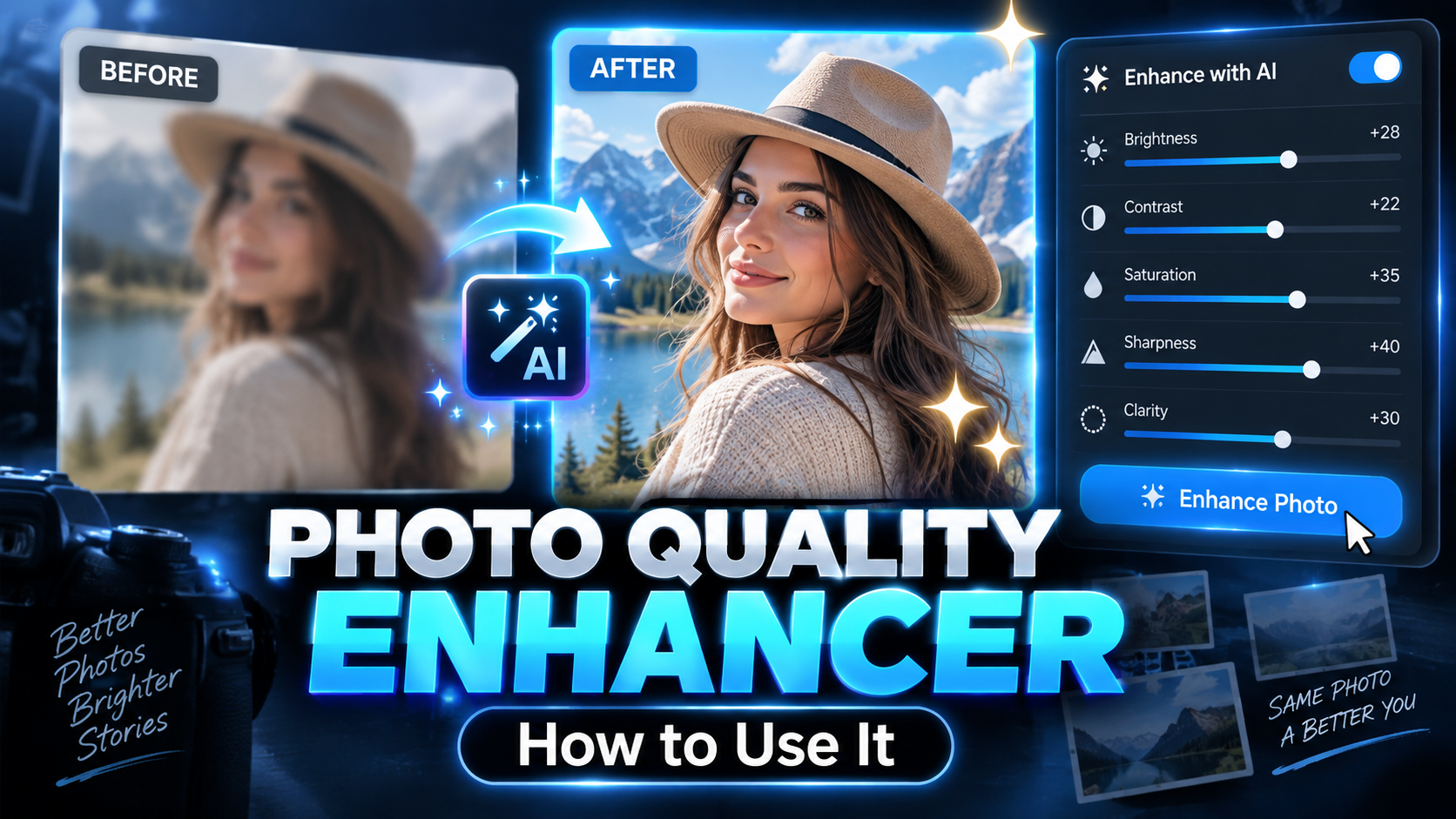
The most common mistake with any photo enhancer is sliding everything to 100 and wondering why faces start to look plastic. The second mistake is uploading private photos to a random site without checking who owns the data.
This guide walks through a practical way to use modern image enhancement tools to clean up noisy, blurry, low‑resolution photos, while avoiding overprocessing and privacy headaches.
What a Photo Quality Enhancer Can (and Cannot) Fix
Most AI‑based enhancers focus on four things:
- Noise reduction: smoothing grain from high ISO or low‑light shots.
- Sharpening / detail recovery: making edges and textures clearer.
- Upscaling: increasing resolution (e.g., from 1,000px to 4,000px wide).
- Color and tone correction: fixing faded, flat or tinted images.
There are limits:
- If the subject is severely out of focus, tools can only guess detail.
- Very compressed images (e.g., tiny social media thumbnails) may stay soft.
- Even good AI can create artifacts fake texture, weird eyes, or halo edges.
Think of enhancement as polishing an image you already have, not magic reconstruction.
Choosing the Right Type of Enhancing Tool
Enhancers fall into three broad categories:
| Type | Where it runs | Good for | Trade‑offs |
| Built‑in phone editor | Camera / gallery app | Quick fixes, casual users | Few advanced controls, limited upscaling |
| Desktop software | Windows / macOS | Bigger batches, more control, pro work | Paid licenses, steeper learning curve |
| Online AI enhancers | Browser, any OS | Occasional use, old photos, no install | Upload required, size limits, privacy concerns |
For sensitive content (family photos, IDs, client images), a local desktop or mobile app is usually safer than a free website that stores uploads.
Step 1: Start With the Best Version of Your Photo
Before touching any sliders, locate the highest quality file you have:
- Use the original camera file (often .JPG, .DNG, .HEIC), not a screenshot of it.
- Avoid images that have already been compressed by messaging apps where possible.
- If scanning prints, scan at a minimum 300 dpi and avoid harsh auto filters on the scanner.
Import that file into your chosen enhancement tool via Open, Import, or by dragging it into the app window.
Step 2: Pick the Right Enhancement Mode
Most tools offer simple presets or modes such as:
- Standard / General good starting point for most photos.
- Low light / Night stronger noise removal with more careful sharpening.
- Portrait / Face optimized for skin and eyes.
- Art / Illustration preserves lines in drawings or graphics.
Use these guidelines:
- For people photos, choose a portrait/face aware mode if available. It usually keeps eyes sharper and skin smoother.
- For landscapes and buildings, avoid portrait modes; they can smear fine textures like leaves or bricks.
- For scanned documents, pick a mode that emphasizes text clarity over noise smoothing.
Step 3: Adjust Noise Reduction and Sharpness Together
Noise and sharpness are a balancing act:
- Too much noise reduction → waxy skin, smeared textures.
- Too much sharpening → grainy edges, halos around subjects.
A safe workflow:
- Zoom to 100% or 200% to judge detail accurately. Anything lower can hide problems.
- Increase noise reduction slowly until grain is mostly gone but subtle texture (hair, fabric, skin pores) is still visible.
- Add sharpening until edges look crisper, then back off slightly if halos or jagged outlines appear.
- Toggle the before/after view (most apps have this) every few seconds to avoid getting used to an overdone look.
If your tool has an AI strength slider, avoid maxing it out. Staying around 40 70% often looks more natural than 100%.
Step 4: Upscale Only as Much as You Really Need
Upscaling is useful when you need to print larger or crop tightly, but every jump in resolution increases processing time and potential artifacts.
Consider:
- For social media: 1,920 px on the long side is usually enough.
- For small prints (10×15 cm / 4×6): ~2,400 3,000 px on the long side is fine.
- For A4 / letter prints: ~3,500 4,000 px on the long side gives more margin.
Many enhancers offer preset options like 2x, 4x upscaling. If your original is already high resolution, only upscale if:
- You plan a big print, or
- You need room to crop in post production.
Upscaling a very small source (e.g., 400×400 px) to 8x will usually look AI generated rather than truly detailed. Start with 2x and check the result.
Step 5: Fix Color, Contrast, and Faces Carefully
Once the technical cleanup is done, polish the overall look:
- Color cast: Use white balance or Auto color to correct heavy yellow/blue tints from indoor lighting.
- Contrast / clarity: Slight increases can bring back depth but watch for crushed shadows and blown highlights.
- Face refinement: Many AI tools let you sharpen eyes or smooth skin separately. Keep changes subtle; zoom in to check for unnatural eyes or over smoothed cheeks.
For old family photos, try a gentle approach: too much contrast can wipe away soft details that matter more than technical perfection.
Step 6: Export Safely and Keep the Original
When you’re happy with the preview, export a copy:
- Format: Use JPG or HEIC for everyday sharing; use PNG or TIFF if you need maximum quality for further editing.
- Quality level: 80 90% JPG quality is usually a good balance of size and detail.
- Naming: Add a suffix like _enhanced or _v2 instead of overwriting the original.
Always keep the untouched source file. If you change your mind about the editing style or get a better tool later, you’ll be glad you saved it.
Common Mistakes to Avoid
- Uploading private images to untrusted sites: For ID cards, children, or client work, prefer offline tools or services with clear, strict privacy policies.
- Over smoothing skin: It looks impressive on first glance but dated and artificial later. Aim to keep pores and subtle texture visible.
- Ignoring artifacts: Always check eyes, hairlines, text, and repetitive patterns. AI sometimes invents strange details there.
- Working from a screenshot: Every screenshot adds compression. Track down the original file when possible.
- Exporting at tiny sizes: Some apps default to optimized for sharing, which can over compress images. Verify export resolution and quality each time you use a new tool.
Privacy and Safety Tips
- Check data retention: Some online tools delete files after processing; others may store them for training. Look for an explicit deletion policy.
- Avoid shady cracked enhancers: Pirated or modified apps are a frequent source of malware and hidden trackers.
- Turn off auto upload features (e.g., cloud backups) if you’re editing legally sensitive material.
- Strip metadata on export if you don’t want location or EXIF data shared. Many apps have an export without metadata option.
If you’re interested in related workflows, it’s worth reading broader guides on safe AI tools, Android photo apps, and privacy settings for cloud backups.
Quick FAQ
Can a photo enhancer fix motion blur?
Mild motion blur can sometimes be reduced, especially on faces, but heavy streaking is rarely recoverable. Try dedicated deblur or motion modes if your tool has them, but keep expectations








