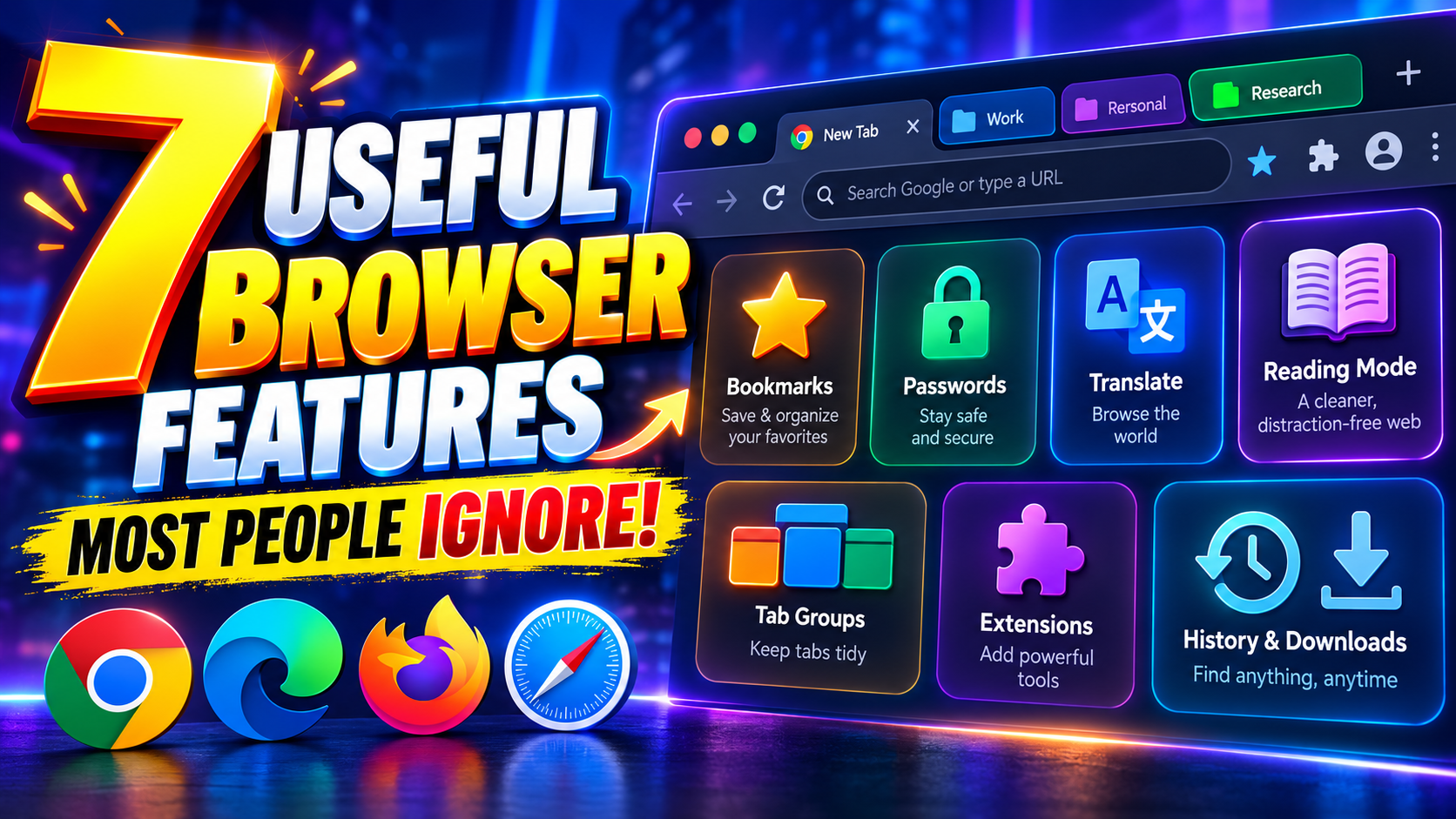
Many people treat their browser like a simple address bar: type, click, drown in tabs. Modern browsers can actually manage your chaos, protect privacy, and save real time if you know where to look.
This guide focuses on practical browser features that work in Chrome, Edge, Firefox, Safari, and other modern browsers. The exact menus differ a bit by device and version, so treat paths as a starting point, not pixel perfect instructions.
1. Tab Groups: Turn 20 Random Tabs into Organized Workspaces
Reader problem: Too many tabs open, can’t find anything, afraid to close them.
What tab groups do: Let you bundle related tabs (e.g., Work, Travel, Shopping) and collapse them so your tab bar stops looking like a barcode.
How to create a tab group (desktop)
- Chrome / Edge: Right‑click a tab > Add tab to new group. Give it a name and color.
- Firefox: Use Container Tabs (similar idea but also isolates cookies and logins). Install Firefox Multi Account Containers from the official add‑ons store.
- Safari (macOS): File > New Tab Group with X Tabs or New Empty Tab Group.
Once grouped, click the group name (or colored circle) to collapse/expand all tabs in that group.
Practical ways to use tab groups
- Work vs personal: Keep one group for your job tools, another for personal browsing. Collapse Personal during work hours.
- Trip planning: Group flight search, hotels, maps, and guides into a Japan Trip group instead of leaving them scattered.
- Temporary research: Make a Today group for research tabs you plan to close by the end of the day.
Common mistake: Treating tab groups like permanent storage. If a group hasn’t been opened in weeks, bookmark it and close it. Huge unused groups still eat memory.
2. Reading Mode: Strip the Noise from Long Articles
Reader problem: Articles cluttered with sidebars, autoplay videos, and layout shifts that make text jump.
What reading mode does: Shows just the main article text and images in a clean layout. Great for focus and accessibility.
How to enable reading mode
- Edge: Look for the Enter Immersive Reader icon in the address bar on news or article pages.
- Firefox: Click the Reader View icon in the address bar (it looks like a page).
- Safari: Click the Reader button on supported pages.
- Chrome: May show Reader mode under Settings > Accessibility on some builds. Otherwise, you can test Chrome’s experimental reading mode via flags, but that can change across versions.
In reading mode you can usually:
- Increase font size for eye comfort.
- Switch background (light, dark, sepia).
- Have the page read aloud on some browsers.
Good use cases: long documentation, how‑to posts, news articles, and essays.
Limitations: Interactive content (forms, dynamic charts) may not show correctly. Switch back to normal view when you need full page functionality.
3. Profiles: Keep Work, Personal, and Guest Browsing Separate
Reader problem: Mixed logins, wrong account auto‑filling, and recommended content leaking between work and personal life.
What profiles do: Create separate browser environments with their own history, bookmarks, extensions, and sign‑ins.
Why profiles matter
- Privacy at home: Use a separate profile for kids so your work services and saved passwords don’t appear.
- Context switching: Work profile = work email, project tools, and extensions. Personal profile = messaging apps, shopping, and streaming.
- Testing: Developers and marketers can use a Clean profile to see how a site behaves for new users.
How to create a browser profile (desktop)
- Chrome / Edge: Click your profile icon (top right) > Add or Add profile. Follow prompts to create a local or signed‑in profile.
- Firefox: Use the Profile Manager (about:profiles) for advanced setup, or Firefox’s containers for lighter separation.
- Safari: Recent macOS versions include Profiles under Safari > Settings > Profiles where available.
Important caution: Profiles are separate but not encrypted vaults. If someone can access your user account on the device, they may still reach those profiles.
4. Built In Password Manager and Passkeys
Reader problem: Reusing the same few passwords and forgetting them constantly.
Most modern browsers include a basic password manager and support for passkeys (passwordless sign‑in using your device). They’re not as full‑featured as dedicated password managers, but they’re dramatically safer than reused passwords in a notebook.
Key things to do
- Turn on password saving: In settings look for Passwords or Autofill & Passwords. Enable save + autofill only on your own devices.
- Check password health: Use built‑in checks (e.g., Check passwords, Password Monitor) that warn about known leaks or weak passwords.
- Enable passkeys when offered: Some services (Google, PayPal, major banks) now offer passkeys. Follow their on‑screen steps to bind login to your phone or security key instead of a traditional password.
Common mistakes to avoid:
- Saving banking or company admin logins on shared or work‑issued devices you do not control.
- Leaving your device unlocked in public while your browser autofill can open critical sites in one click.
- Mixing personal logins into a shared family profile.
5. Built In Screenshot and Web Capture Tools
Reader problem: Struggling to capture an entire page, not just the visible area, or installing random extensions for basic screenshots.
Several browsers now include built‑in capture tools, which are safer than third‑party extensions you don’t fully trust.
Examples
- Firefox: Right‑click on the page > Take Screenshot. You can capture the visible area or the full page.
- Edge: Use Web capture from the toolbar or the … menu > draw the region or choose full page, then copy or save.
- Mobile browsers: Many mobile browsers let you capture scrolling screenshots (e.g., Full page in iOS Safari after a regular screenshot, depending on OS version).
Practical uses:
- Documenting error messages to send to IT or support.
- Saving booking confirmations in case the site emails are delayed.
- Capturing reference layouts or design ideas.
Privacy reminder: Screenshots can capture addresses, order numbers, or private chats. Blur or crop before sharing.
6. Quick Share, Send to Device, and Continue on Phone
Reader problem: Emailing links to yourself just to open them on another device.
Browser ecosystems now include send to device features that push tabs between your phone, tablet, and computer that use the same account.
How it usually works
- Sign into the same browser account (Google, Microsoft, Apple, or Firefox account) on all your devices.
- On a page you want to move, use the share icon or right‑click the tab and look for Send to your devices, Send tab to device, or similar wording.
- On your other device, a notification appears with that tab.
Great for: Sending long reads from PC to phone, or directions from phone to desktop before printing or planning.
Check first: Confirm which devices are linked in your account’s security or devices section. Remove old phones or shared machines you no longer use.
7. Extensions and Add Ons (But Choose Carefully)
Reader problem: Installing random extensions that slow down browsing or spy on activity.
Extensions are powerful, but they also have deep access to pages you visit. Treat them like installing apps on your phone: limited and intentional.
Safe extension habits
- Use official stores: Chrome Web Store, Microsoft Edge Add‑ons, Firefox Add‑ons, or Safari Extensions from the App Store. Avoid direct downloads from unknown sites.
- Check permissions: If a simple color picker extension wants access to Read and change all your data on all websites, pause and reconsider.
- Audit regularly: Once a month, open your extensions/add‑ons page and remove anything unused.
Examples of genuinely handy extension types:
- Trusted password manager clients (from the official password manager provider).
- Ad blockers or script blockers from well‑known projects, where allowed by local laws and site policies.
- Note‑taking or read‑later tools from reputable brands.
FAQ: Short Answers
Do all these features exist on every browser?
No. Names and locations vary, and some features (like experimental reading modes) may move or vanish between versions. If you can’t find an option, update your browser and check its official help pages.
Will using these features make my internet faster?
They mainly improve usability and focus, not raw speed. However, features like reading mode and ad blocking can make pages feel lighter and load more smoothly by hiding or blocking some content.








