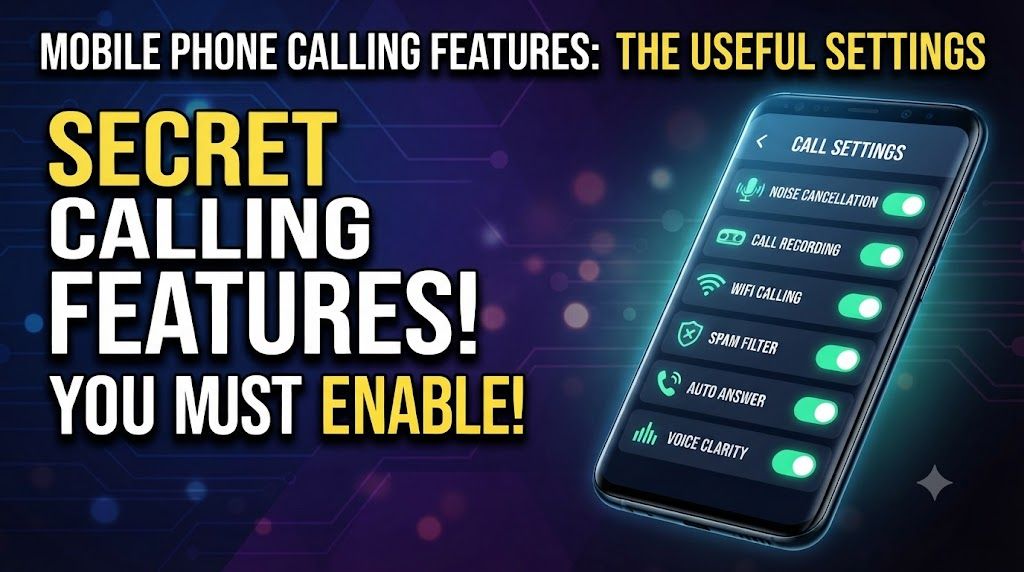
If you only open the dialer, tap a number, and hit the green button, you’re leaving a lot of helpful tools unused. Modern mobile phones pack in smart calling features that can reduce spam, improve call quality, protect your privacy, and make work calls less stressful.
This guide walks through the core calling features you’ll see on most Android phones and iPhones, how they typically work, what can vary by device or carrier, and which settings are actually worth turning on.
1. Caller ID and Call Blocking
What caller ID really does
Caller ID shows the number or name of the person calling you. On many phones and carriers, you’ll also see Spam likely or Scam suspected labels for known junk callers.
Typical controls you’ll find:
- Show my caller ID: Decide if people you call see your number.
- Caller ID & spam protection / Silence unknown callers: Let the phone app screen obvious spam or send unknown numbers straight to voicemail.
- Block numbers: Manually stop certain numbers from reaching you.
How to check these settings
Names of menus differ, but you’ll usually find them here:
- Android (typical): Phone app > ⋮ three dots > Settings > Caller ID & spam or Blocked numbers.
- iPhone: Settings > Phone > Show My Caller ID, Silence Unknown Callers, and Call Blocking & Identification.
Common mistake: Enabling Silence unknown callers and forgetting about it. You’ll miss legitimate deliveries, new contacts, and verification calls if you never check voicemail.
Practical tip: Instead of blocking every unknown number, let calls go to voicemail and only add numbers to a block list once you’re sure they’re spam.
2. Call Forwarding, Voicemail, and Do Not Disturb
Call forwarding options
Call forwarding sends incoming calls to another number. This is handy if your phone is low on battery, coverage is poor, or you’re using two phones (e.g., work and personal).
Common forwarding modes:
- Always forward: Every call goes to another number.
- Forward when busy: If you’re already on a call.
- Forward when unanswered: If you don’t pick up.
- Forward when unreachable: Phone is off or out of service.
Where to find it varies:
- Android (typical): Phone app > Settings > Calling accounts or SIM settings > Call forwarding.
- iPhone: Settings > Phone > Call Forwarding (may depend on carrier).
Risk: Forgetting you have full time forwarding enabled. You might think your phone is broken when calls never ring locally.
Voicemail basics
Many carriers now offer visual voicemail inside the Phone app. Others still rely on a dial in voicemail service.
- Check your voicemail greeting and keep it short and clear.
- Review voicemail notifications so they don’t get disabled or muted.
Do Not Disturb vs. full silence
Do Not Disturb (DND) is more flexible than just turning your ringer off:
- Allow calls from favorites only.
- Let **repeat callers** (e.g., two calls within 15 minutes) break through in emergencies.
- Schedule DND for nights or focus hours.
Set this up in your system Sound or Focus settings so important contacts can always reach you.
3. Wi‑Fi Calling and VoLTE (HD Voice)
Wi‑Fi Calling
Wi‑Fi calling routes calls over your Wi‑Fi connection instead of mobile signal. It’s useful in buildings with poor cellular coverage but solid broadband.
How to enable (typical):
- Android: Settings > Network & Internet or Connections > Mobile network > Wi‑Fi Calling.
- iPhone: Settings > Phone > Wi‑Fi Calling > toggle on.
Note: Some carriers require you to register an emergency address for Wi‑Fi calls. This is important for accurate emergency services location.
VoLTE / HD Voice
Voice over LTE (VoLTE) keeps your calls on the 4G/5G data network, which usually means better audio quality and the ability to use data while on a call.
Look for options like 4G Calling or VoLTE calls under mobile network settings. On many phones it’s enabled by default now.
4. In‑Call Controls: Mute, Speaker, Hold, and More
The standard in‑call buttons are simple but often misused:
- Mute: Others can’t hear you, but you can hear them. Useful when typing or talking to someone in the room.
- Speaker: Moves audio to the loudspeaker. Great for group listening, but be careful in public places.
- Keypad: For entering PINs, menu options, or extension numbers.
- Hold: Pauses both sides; the other person hears silence or hold music depending on carrier.
- Add call / Merge: Create a three‑way call or small conference.
Common mistake: Confusing mute with hold. Mute only hides your microphone. The other side doesn’t know you muted unless you tell them.
Practical habit: Before joining important calls, do a quick test call to check where the mute and speaker buttons are on your specific phone interface.
5. Call Recording: Laws, Limits, and Safer Alternatives
Some Android phones offer built‑in call recording in the Phone app. iPhones don’t include native call recording. In many regions, recording calls is restricted or must follow strict consent rules.
- In some places, both parties must consent to recording.
- In others, only one party (you) needs to know, but company policies can still forbid it.
- Several phone makers and apps have removed or limited call recording to comply with local laws.
Safer approach: If you need a record of a conversation (e.g., customer support instructions), ask if they can send a summary by email or SMS, or take written notes instead of secretly recording.
6. Spam Blocking and Caller ID Apps
Most phones now include some level of spam detection, but you can often improve it:
- System spam protection: Enable Filter spam calls or equivalent in your default Phone app.
- Third‑party apps: Some apps maintain large spam databases and can auto‑block robocalls.
Risks with third‑party caller ID apps:
- They may upload your contacts to their servers to improve their database.
- Free versions often show aggressive ads or request broad permissions.
- Quality and privacy policies vary a lot by developer.
Prefer apps with clear privacy policies and positive, recent reviews from real users. If your phone’s built‑in spam protection is good enough, avoid installing extra apps at all.
7. Dual SIM and Work Personal Separation
Many Android phones, and some iPhones with eSIM, allow two lines on one device. This lets you keep a work and personal number without carrying two separate phones.
Key settings to check:
- Default calling SIM: Choose which number is used by default, or ask every time.
- Per‑contact SIM preference: Some phones let you assign a default SIM for specific contacts.
- Ringtones per line: Use different tones for work vs. personal calls.
For boundaries, combine dual SIM with scheduled Do Not Disturb so work calls don’t interrupt your evenings unless truly urgent.
8. Quick Setup Checklist
If you only tweak a few things, focus on these:
- Turn on caller ID & spam protection in your Phone app.
- Review Do Not Disturb / Focus rules so important contacts can always ring through.
- Enable Wi‑Fi calling if your coverage is weak but Wi‑Fi is strong.
- Set a clear voicemail greeting and make sure voicemail notifications are active.
- Test where mute, speaker, and add call buttons are during a call.
- Think twice before installing extra caller ID apps; start with the built‑in tools first.








