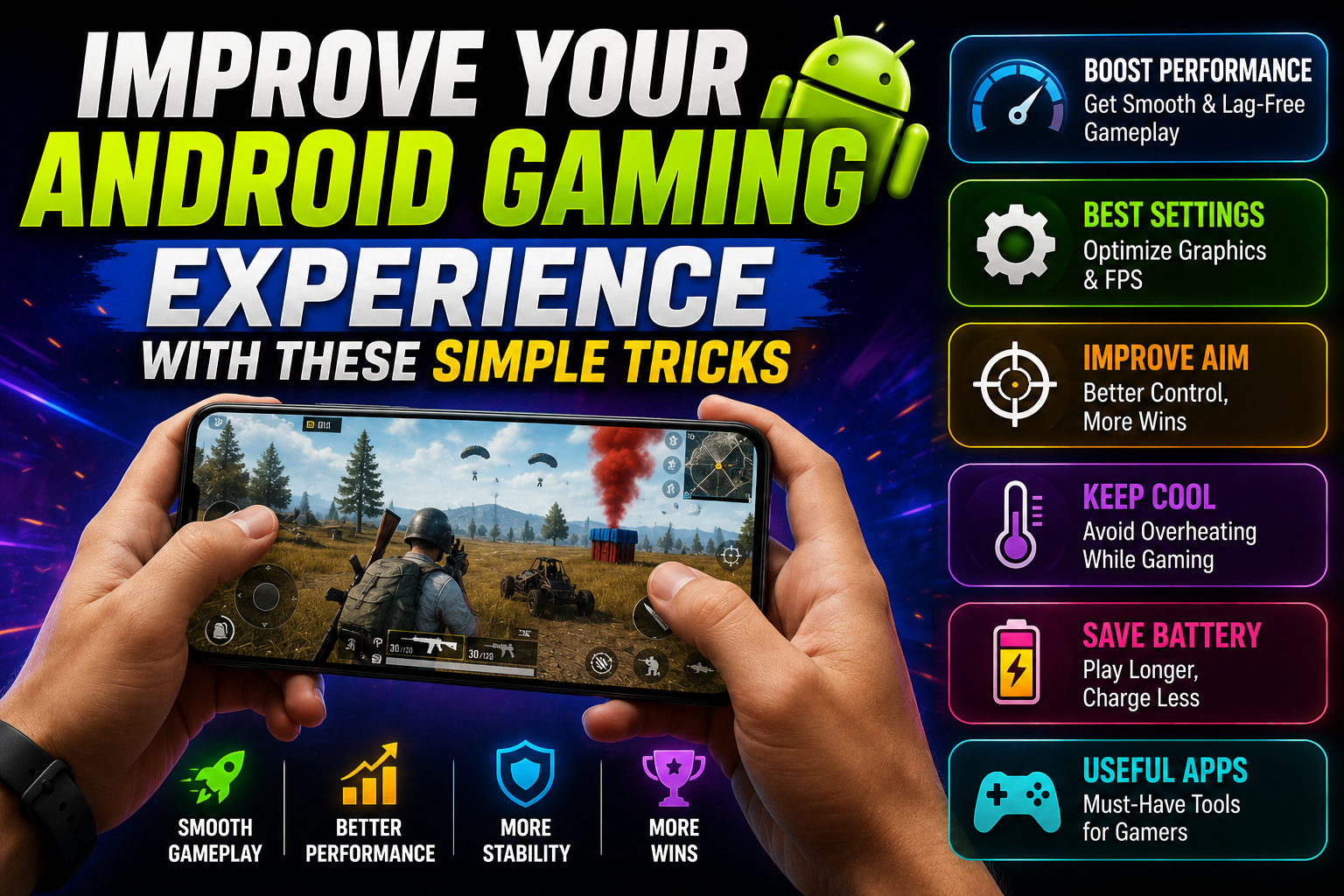
Hello friends, today we are going to try something useful with this topic of mobile gaming. If your favorite Android games lag, drain your battery too fast, or just feel less smooth than they should, you are not alone. Many phones are powerful enough for modern games, but a few wrong settings or habits can quietly ruin the fun.
This guide will help you improve your Android gaming experience with simple tricks that do not require root access or risky tweaks. You will learn how to use built in tools like Game Mode, tune graphics for your device, and manage notifications so intense matches do not get interrupted at the worst moment.
The tips here are for everyday players, not just hardcore gamers. Whether you play BGMI, Call of Duty Mobile, Genshin Impact, Mobile Legends, or casual puzzle games, you will find realistic settings and examples that match how people actually use their phones. You do not need to be a tech expert to follow along.

Many of the improvements come from options already inside Android and popular brands like Samsung, Xiaomi, OnePlus, and Realme. We will also mention when a feature name can change between brands, so you know what to look for on your own device before installing random third party boosters from the Play Store.
Related Resource
The DOWNLOAD NOW button above opens the file page related to Improve Your Android Gaming Experience With These Simple Tricks. It is placed here so you can access the mentioned resource directly from the article.

1. Use your phone’s gaming mode correctly
Almost every major Android brand includes some form of gaming mode. Common names include Game Launcher, Game Space, Game Turbo, Game Mode, or similar. These tools usually let you block calls and notifications, lock brightness, and sometimes increase CPU or GPU priority for the current game.
Open your device settings and search for game or game mode. Once inside, add your main games to the list manually. Many people think the phone optimizes all apps automatically, but often games must be added first. Then enable performance or competition mode only for the titles that actually need it, such as shooters or racing games.
Case example. A mid range device with a Snapdragon 7 series chip may run Call of Duty Mobile more smoothly once added to Game Mode with performance mode on, while a simple 2D puzzle game can stay on balanced mode to save battery.
2. Balance graphics, frame rate, and battery
Most modern games include in game settings for graphics and frame rate. The highest option is not always the best choice, especially on budget or older phones. A stable game at medium settings often feels better than a beautiful game that stutters every few seconds.
Use this simple approach when you want to improve your Android gaming experience.
- First, set graphics to medium and frame rate to high if available.
- Play for 5 to 10 minutes and watch for frame drops or overheating.
- If the phone stays cool and smooth, raise graphics one step.
- If it stutters or gets hot, keep graphics lower and keep frame rate high.
In competitive games like BGMI or Free Fire, prioritize frame rate over visual details. Being able to see enemies smoothly and react faster is worth more than extra shadows and reflections.
3. Turn on useful system tools and turn off the wrong ones
Some Android settings quietly affect performance in games. Here are simple adjustments that usually help without causing problems for normal use.
Quick performance tips
- Disable battery saver while gaming, since it often slows the processor.
- Keep at least 3 to 5 GB of free storage so the system has room for updates and temporary files.
- Uninstall or disable heavy apps you never use, especially social apps that run in the background.
- Close heavy apps such as video editors or screen recorders when you start a serious gaming session.
On some brands, there is also an option called performance mode or high performance under battery settings. You can try enabling this before long matches, but remember to switch back later because it can drain battery and generate heat.
4. Improve network stability for online games
Lag and packet loss ruin more matches than low frame rates in many online titles. Even with a powerful phone, bad network conditions can make enemies teleport or shots fail to register. Simple network habits can make a big difference.
WiFi versus mobile data
| Connection type | Best for | Typical issues | Tips |
|---|---|---|---|
| Home WiFi | Long sessions and heavy downloads | Congestion from other devices, weak signal in some rooms | Play closer to the router, avoid streaming 4K on TV during ranked matches |
| Mobile data 4G | Casual online play, average ping | Signal drops, speed changes when traveling | Stay in a spot with strong signal bars, avoid elevators or basements |
| Mobile data 5G | Low latency in supported areas | Coverage gaps, extra battery usage | Use when coverage is strong, otherwise switch back to 4G for stability |
Turn off downloads and app updates during matches, especially on shared WiFi. Many launchers and game services download large patches in the background. You can usually pause them from the Play Store or the vendor game hub while you play.
5. Fix controls and touch response
Many people blame the phone when the real problem is control layout or sensitivity. Almost every big game offers detailed control customization that is worth ten minutes of your time.
Steps to tune touch controls
- Open the game settings and look for controls or sensitivity.
- Test aim sensitivity in the training area, not in live matches.
- Increase sensitivity slowly until you can track moving targets without overshooting.
- Move important buttons, like fire or jump, to spots your thumbs reach comfortably.
Example. In PUBG style games, shifting the fire button slightly upward on the right side can prevent accidental touches when you rotate the camera. Small adjustments like this can change your win rate much more than a new phone case or random accessory.
If your device supports higher touch sampling rate, it is usually enabled automatically at higher refresh rates like 90 or 120 Hz. Set your display refresh rate to high in system settings if your battery can handle it. This often makes swipes and aiming feel more responsive.
6. Manage temperature and long sessions
Heat is one of the biggest hidden enemies of mobile performance. When a phone gets too hot, the system often reduces CPU and GPU speed to protect the hardware. This throttling causes instant frame drops, even if the game settings have not changed.
Common sense steps help more than fancy cooling accessories in most cases.
- Remove very thick or rubbery cases before long gaming sessions.
- Avoid playing under direct sunlight, which heats both the phone and your hands.
- Take a 3 to 5 minute break every 30 to 40 minutes to let the device cool down.
- Do not charge your phone from a fast charger while gaming since it adds heat.
Short case study. A user with a three year old mid range phone reported constant stutter after 20 minutes of Genshin Impact. By dropping graphics from high to medium and avoiding charges during play, average device temperature dropped a few degrees and frame stability improved enough to make the game enjoyable again.
7. Be careful with third party game boosters
The Play Store is full of apps that promise instant performance boosts with one tap. Some only clear background apps, which Android already does when needed. Others may show aggressive ads or request unnecessary permissions such as contact access or notification reading.
If your device has an official game booster or game mode, prefer that first. It integrates with system resources and usually receives updates from the vendor. Only consider third party tools from well known developers with clear privacy policies and high recent ratings, and always read reviews that mention your particular device series.
Conclusion
You do not need an expensive flagship phone to improve your Android gaming experience. Most players see a big jump in comfort and performance simply by tuning game graphics, using built in gaming modes correctly, and respecting limits around heat and network stability.
Start with one or two games you play most often. Add them to your phone’s gaming tool, adjust graphics to favor smooth frame rate, and fix your control layout. After a few sessions, you will know if you can push the device harder or if medium settings are the sweet spot. Small, careful tweaks beat risky hacks every time.
FAQ
How can I reduce lag in Android games quickly?
Close heavy background apps, disable battery saver, switch to a stable WiFi network, and lower in game graphics one step. These changes usually show instant results.
Is it safe to use performance mode all the time?
It is usually safe but not ideal. Constant performance mode can increase heat and battery wear. Better to enable it only during gaming sessions or demanding apps.
Do RAM cleaner apps help gaming on Android?
Most RAM cleaners are not necessary, and some even slow the system. Android manages memory on its own. Use the built in app manager to close problematic apps instead.
Should I play on 120 Hz or save battery on 60 Hz?
If your phone and games support 90 or 120 Hz and you enjoy fast titles, the smoother feel is worth it when you have enough battery. For long trips, dropping to 60 Hz saves power.
Can using a Bluetooth controller improve gameplay?
For racing, platformers, and some shooters, a good Bluetooth controller can feel more precise than touchscreen controls. Just check that your games support controller input before buying.
Thank you for reading. If you found these tips helpful, stay connected with this blog for more latest tech news, useful Android apps, AI tools, and practical mobile gaming updates.