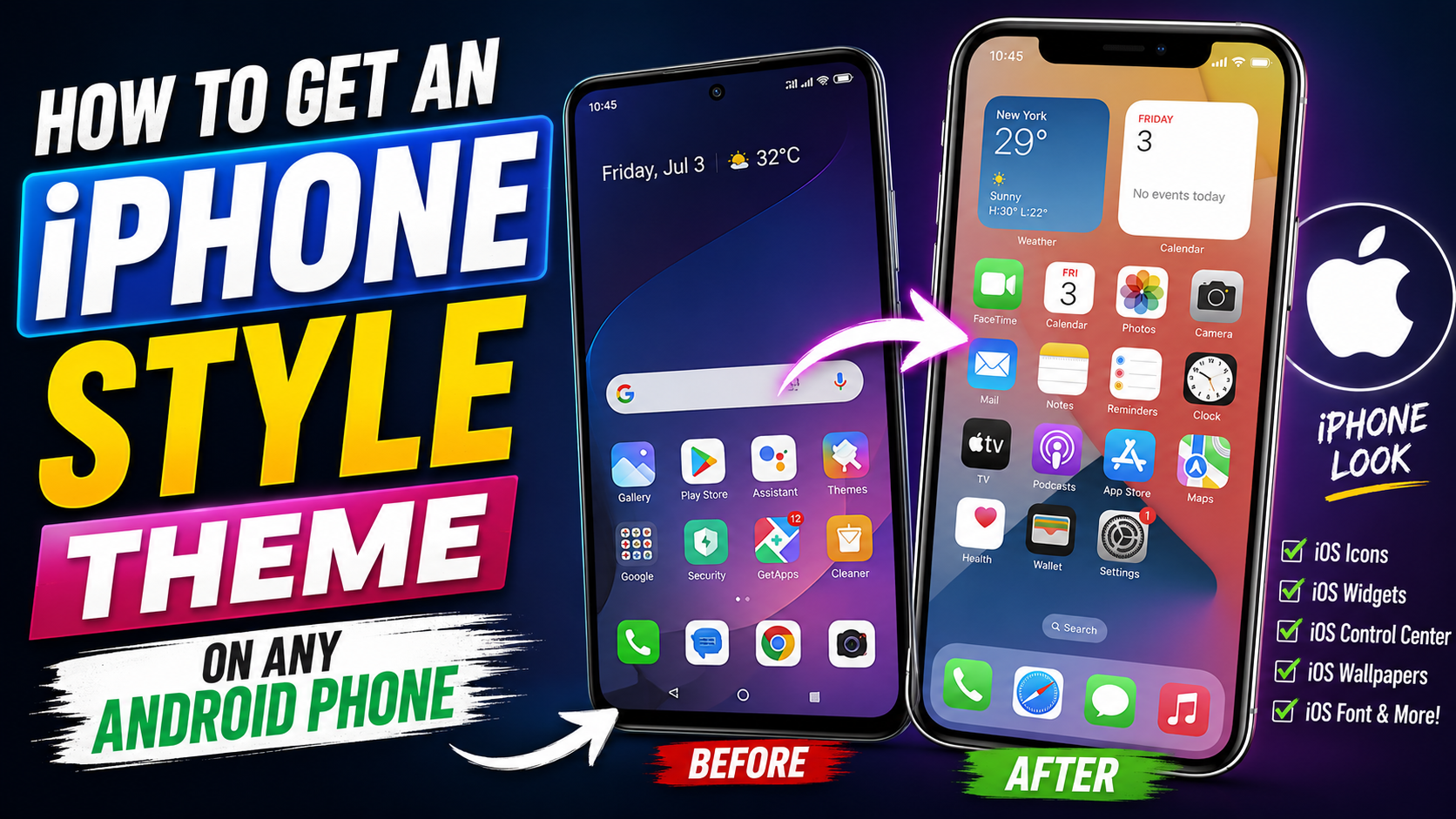
Hello friends, today we are going to try something useful with a topic many people search for. You like the clean iPhone look but you already use an Android phone and do not want to switch. The good news is you can copy most of that iOS style using a few safe apps and some simple settings.
This guide will show you how to get an iPhone style theme on Android without rooting your device. You will learn how to set up an iOS style home screen, icons, control center and lock screen using trusted launchers and tools that are available on Play Store in most regions.
This tutorial is for users who know basic Android settings but are not power users. If you can install an app, change a wallpaper, and give permissions when asked, you are ready for this. I will also point out where cheaper or older phones might lag so you can avoid turning your device into a slow mess.
We will focus on a practical setup that you can keep for daily use. No complicated mods, no risky APK sites, and no promises that every single iOS animation will be identical. Instead you get a stable and familiar layout that feels close to iPhone, with examples and a small case study of a typical budget phone.
Related Resource
The Download Game button above opens the related resource for How To Get An iPhone Style Theme On Any Android Phone. It is included so readers can reach the mentioned page directly.
What you can and cannot copy from iOS
Before changing anything, it helps to know the limits. Android can copy the visual parts very well, but it cannot fully change the core system behavior. You can get a similar home screen grid, rounded icons, dock, swipe gestures and even an iOS style control center. What you cannot fully copy is the exact system settings layout or Apple only services.
Also, each Android brand adds its own layer. A Samsung phone with One UI might behave a bit differently from a Xiaomi or Motorola device. That is normal. The tools listed here try to hide those differences but you might see some original menus when you dive into deeper settings.
Step 1: Pick a safe iOS style launcher
The launcher is the app that controls your home screen and app drawer. To get an iPhone style theme on Android you should swap your default launcher with one that copies the iOS layout. Look for launchers that are well rated, updated recently, and available directly from Google Play Store.
When you test a launcher, check three things. First, whether it shows full screen pop up ads on the home screen. Second, how much RAM it uses on your particular device. Third, if gesture navigation still works smoothly. If the phone feels slow or shows intrusive ads, uninstall and try another option.
| Launcher feature | What to look for | Why it matters |
|---|---|---|
| Home layout | iOS like grid, no app drawer, dock at bottom | Gives the immediate iPhone style look |
| Ads and tracking | Minimal ads, clear privacy policy | Less distraction and fewer privacy risks |
| Performance | Smooth scrolling, low battery drain | Keeps budget phones usable all day |
| Customization | Icon size, grid size, hide app names | Lets you tune layout closer to iOS |
Step 2: Apply an iOS style icon pack
An iPhone style theme on Android only looks convincing if the icons match. Many launchers include their own icon packs, but you can also install separate iOS style packs from Play Store. After installing, open your launcher settings and apply that pack to all apps. You might still see a few unmatched icons, which is normal when apps are not supported yet.
For example, popular social apps like WhatsApp, Instagram, YouTube and TikTok are usually covered by good icon packs. Some local banking or government apps might still use their default icon. If that annoys you, hide those icons inside folders on the second page so they are less visible.
Step 3: Add an iOS style control center
One of the most loved parts of iPhone is the pull down control center with quick toggles and brightness slider. On Android, this is handled by separate apps that draw a panel over the screen. These apps need some permissions such as appearing on top and access to certain toggles like WiFi or Bluetooth.
When you install a control center app, take a moment to read the permission list and the developer page. Avoid apps that ask for contact access or SMS if they only claim to show quick toggles. After setup, choose the trigger area, for example swipe from top right edge, and disable it in full screen games so it does not interrupt your play sessions.
Step 4: Match wallpaper, widgets, and lock screen
The background and small details finish the look. You can download wallpapers that look similar to recent iOS versions and set them for both home and lock screen. Many launchers also let you hide app names under icons which copies the clean Apple style grid.
Widgets are where Android and iOS differ more. Some launchers offer fake iOS style clock or weather widgets. Others let you place your own text and icons to imitate the style. Pick only the widgets you really use, for example a small clock and a calendar row. Too many widgets will slow down animations on older phones.
Case study: budget Android with 4 GB RAM
Imagine a user with a two year old budget phone that has 4 GB RAM and a mid range processor. They want an iPhone style theme on Android but they also play games like Free Fire and keep WhatsApp open all day. If they pick a heavy launcher plus several background apps, the phone will start reloading apps each time they switch.
A better approach for that user is to pick one light iOS style launcher, a single icon pack, and skip the live lock screen or heavy widgets. They can still use an iOS style control center but they should turn off advanced effects like blur and shadows. This way the phone keeps the fresh look but stays responsive for messaging and gaming.
Common mistakes to avoid
Many people search for modded iOS launchers on random websites because they want more features for free. The risk is that these APK files may include hidden tracking or unwanted ads. It is safer to stay inside Play Store or at least stick to developers with a long history and clear support information.
Another common mistake is enabling every feature at once. If you turn on gesture navigation, floating ball, custom lock screen, heavy live wallpaper, and control center, older phones will lag. Add features one by one and use the phone for a few hours after each change to see if battery life or performance drops.
Conclusion
Getting an iPhone style theme on Android is mostly about choosing the right combo of launcher, icons, and quick settings tools. If you keep your setup light and stick to trusted apps, you can enjoy a familiar iOS like layout without sacrificing stability or battery life.
The best path is simple. Install a solid iOS style launcher from Play Store, apply an icon pack that matches your taste, add a clean control center panel, then fine tune wallpapers and widgets. Test everything for a day, remove any app that feels heavy or shows annoying ads, and you will have a daily driver setup that feels fresh and comfortable.
FAQ
Is using an iPhone style launcher safe for my Android phone
It is usually safe if you download from Play Store and check reviews. Avoid launchers from unknown sites and be careful with ones that need unnecessary permissions.
Will an iPhone style theme slow down my phone
It can slow down older or very cheap phones if the launcher is heavy or uses many animations. Pick a light launcher, limit widgets, and turn off blur effects if you feel lag.
Can I get the exact same iOS lock screen on Android
You can get a similar look with third party lock screen apps, but it will not be identical. Some features like native Face ID style animations are reserved for Apple devices.
Do I need to root my phone for an iOS style theme
No, rooting is not needed. Modern launchers and control center apps work on normal non rooted phones using standard Android permissions.
Will this affect my phone warranty
Using a third party launcher or icon pack does not usually affect warranty because you are not changing system files. You can always switch back to the default launcher in settings.
Thank you for reading this guide. If you found it helpful, stay connected with this blog for more latest tech news, useful Android apps, AI tools, and practical setup tips.








