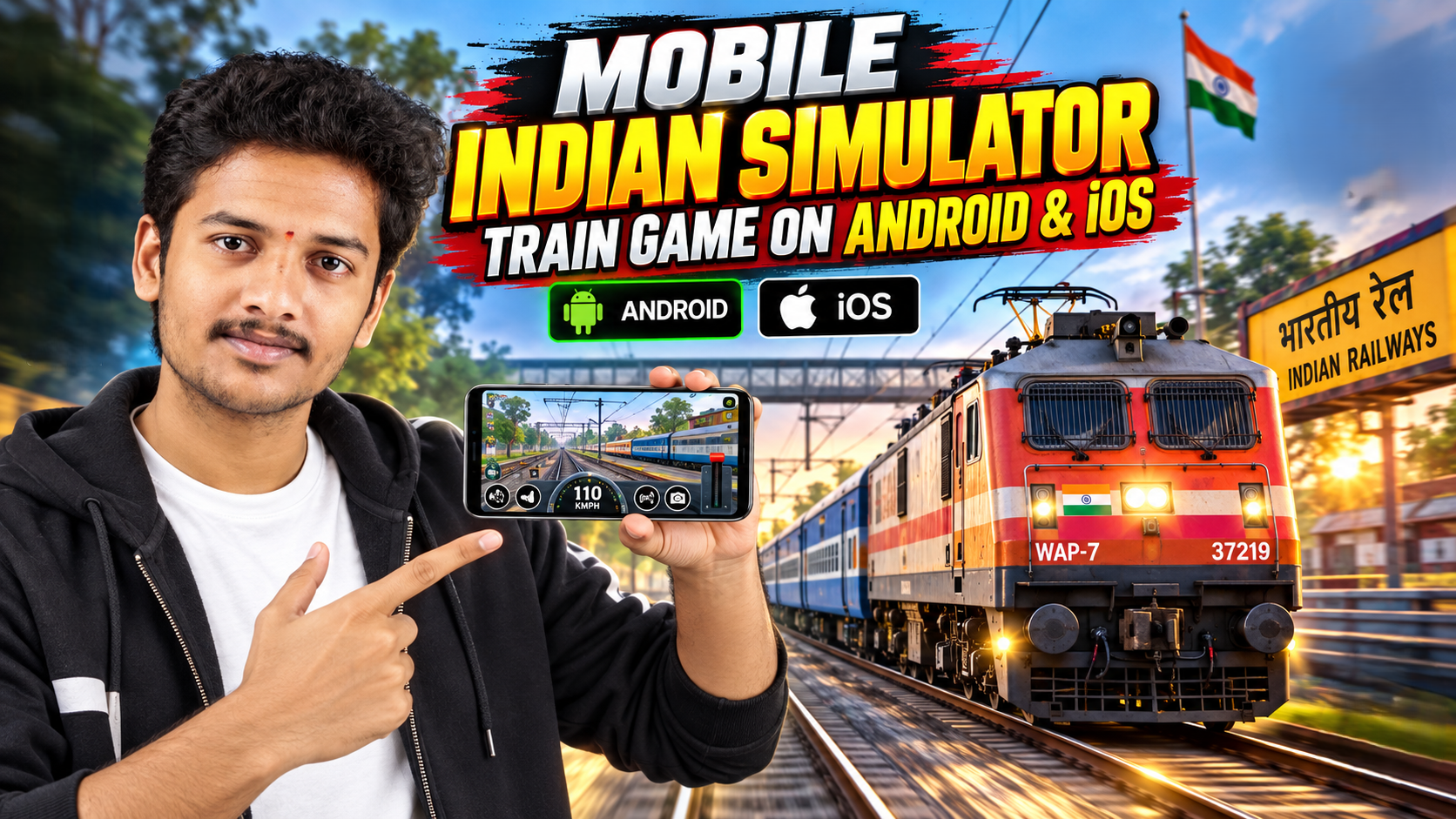
Many people install an Indian train simulator on their phone, run it once, and then uninstall it because there are too many buttons. The problem usually isn’t the game itself it’s jumping in without a basic setup and a bit of context.
This guide focuses on typical Indian style train simulator games on Android and iOS: titles that use Indian Railways inspired routes, liveries, and stations. Details vary by game, but the setup flow, core controls, and common mistakes are surprisingly similar.
1. Know What Type of Indian Train Game You Installed
Indian train game can mean very different things on mobile. Before changing settings, figure out what you actually installed:
- Full simulator: Focus on realistic driving, signals, braking distance, and speed limits. Often uses 3D cab view, long routes, and weather/day night cycles.
- Arcade style train game: Shorter missions, fewer controls, more forgiving physics. Good for quick play and younger players.
- Management or tycoon game with Indian theme: May focus more on network building and scheduling than on hands on driving.
If your screen is packed with levers, signal icons, and HUD text, you likely have a simulator style game. That’s what this guide mainly covers.
2. Safe Install and First Launch Checks
Before touching the throttle, make sure the game is set up safely and won’t spam you with things you don’t want.
Install only from official stores
- Android: Use Google Play Store.
- iOS: Use Apple App Store.
Avoid third‑party APK sites or mod builds that promise free coins or unlocked trains. These often bring malware, adware, or banned accounts, and they frequently break after each game update.
Permissions to check on first launch
- Storage/Photos: Often used for saving settings or screenshots. You can usually allow this.
- Location, Contacts, Microphone: Most train sims don’t need these. Deny unless there is a very clear reason.
- Notification spam: If you only play occasionally, consider limiting notifications so you’re not pushed into daily login ads.
3. First Time Setup: Graphics, Controls, and Camera
Spending five minutes here usually makes the difference between a stuttery mess and a smooth drive.
Graphics settings that actually matter
- Frame rate: If there is a 30/60 fps toggle, try 30 fps on older or budget phones to keep things stable.
- Overall quality (Low/Medium/High): Start with Medium. If the phone heats up or battery drops fast, step down to Low.
- Shadows and reflections: These are often the heaviest options. Turning them down usually improves performance a lot while still looking fine on a small screen.
Controls: Make driving comfortable for your hands
Most Indian train sims offer one or more of these:
- On screen sliders/levers: For throttle and brake. Good for precise control, but can be fiddly on small phones.
- Tap buttons: + and to increase or decrease throttle/brake steps. Easier for beginners.
- Gesture zones: Swipe up/down or left/right to change speed. Less common, but can be comfortable once learned.
Look for a Controls or HUD section in settings and check:
- If you can switch between slider and buttons.
- If you can move critical controls (throttle, brake, horn) away from phone edges where accidental touches are common.
- If there is a left‑handed mode.
Camera: Fix the view before the first run
Most games provide:
- Cab view: Most immersive; lets you see signals realistically.
- Chase or external view: Good for screenshots and kids; easier to see the whole train.
- Trackside / cinematic: Use for replays, not for serious driving.
For learning signals, start in cab view. External cams are fun once you know what each HUD icon means.
4. Basic Indian Train Driving Workflow
Different games have different UI, but the core loop is usually similar:
- Check the starting signal. Red = don’t move. Yellow = caution, be ready to brake. Green = proceed within speed limits.
- Release brakes. Some games separate parking brake and service brake. Make sure both are off before adding power.
- Apply throttle gradually. Jumping from 0 to max almost always causes wheel slip, harsh acceleration, or penalties. Move one step at a time and watch the speedometer.
- Stick to speed limits. HUD usually shows the current limit and upcoming changes. Exceeding limits can reduce XP, coins, or fail the mission.
- Start braking early before stations. Long, heavy trains need distance. Begin gentle braking well before the platform marker. Adjust as you see how quickly the train responds in that game.
- Stop within the marked zone. Many Indian sims show green or white markers on the platform. Stopping too early or too late can lower your score.
Once stopped, some games ask you to open/close doors manually. Keep an eye on door icons or timer bars.
5. Common Mistakes New Players Make (and Fixes)
- Ignoring tutorial missions: Skipping the built‑in tutorial is tempting, but most Indian sims explain signals and HUD there. Do at least the first few missions.
- Running on max graphics by default: Many games auto‑set graphics based on optimistic assumptions. If you see stutter or overheating, drop shadows/quality before assuming this game is bad.
- Overusing the horn: It’s fun, but some games penalize constant honking. Also, it can be annoying for people around you if you’re playing in public.
- Late braking into stations: New players brake like they’re driving a car. Treat the train like a heavy freight: start early, use gentle braking, and learn how your loco behaves.
- Burning real money on cosmetics early: Many games push premium cabs, skins, or liveries. Play a few hours first to see if you’ll stick with the game before buying anything.
6. Privacy, In‑App Purchases, and Kids
Most Indian train simulators are free‑to‑play with ads and optional purchases. A few checks reduce surprises:
- Check the age rating on the store listing if younger kids are playing. Even safe games may show unrelated ads.
- Turn off in‑app purchases or require authentication (PIN, Face ID, fingerprint) at the OS level if a child uses the device.
- Look for an ad‑free option. Some games offer a one‑time purchase to remove forced video ads; that can be more comfortable if you play regularly.
- Read the privacy policy briefly to see if the game uses third‑party trackers or personal data beyond analytics.
You can also periodically clear the game’s cache (on Android) if it starts to feel bloated or misbehaves, but avoid deleting app data unless you’re okay with losing your progress.
7. Quick FAQ: Indian Train Simulators on Mobile
Do these games use real Indian Railways data?
Many use inspired routes, liveries, and station names rather than fully licensed content. Treat them as approximations, not exact replicas.
Can I play offline?
Often yes, but some titles need an initial online login or use online ads and events. Expect limited features or no rewards while offline.
Why does my phone get hot while playing?
3D train sims render long views, multiple coaches, and scenery. Reduce graphics, shorten sessions, and avoid charging while playing to lower heat.
Is controller support available?
A few mobile train sims support external controllers, but many are touch‑only. Check the settings or store description don’t assume support.
How do I take good screenshots of my trains?
Switch to an external or cinematic camera when safe (e.g., while parked at a station), hide HUD if the game allows, and then capture. On Android/iOS, use the system screenshot shortcut. Crop out personal notifications before sharing.








