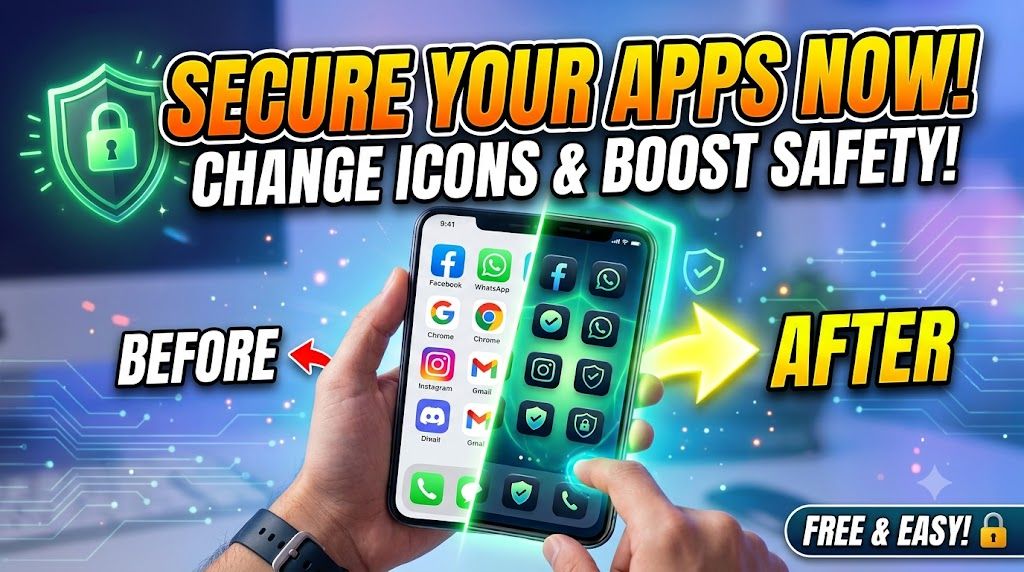
Hi guys, in this article, I’m going to explain an app that I personally use and find very useful. I mainly use this application for a simple safety and privacy purpose on my smartphone.
For example, if I have Instagram installed on my phone and someone else takes my phone and opens what appears to be Instagram, I don’t want my personal Instagram account to be visible to them. This is where this application becomes useful.
After installing the app from the Play Store and opening it, you can select an app such as Instagram and customize its app name and icon. You can then make it look like another app, such as WhatsApp. So, even though the icon and name appear to be Instagram, opening it can launch WhatsApp instead.
Similarly, you can configure multiple apps so that one app opens another app instead. For example, Instagram can be made to open WhatsApp, or WhatsApp can be made to open Facebook. You can also change the icon and title according to your preference.
This guide breaks down how mobile safety icon apps work, what they can and can’t do on Android and iOS, and how to set one up without quietly giving away more data than you meant to.
The Real Problem These Apps Try to Solve
Most people don’t know at a glance if:
- Real time protection from their antivirus is running
- VPN or secure Wi‑Fi is on
- System security options like Play Protect or Find My Device are active
- App permissions are getting out of control
Mobile safety icon apps try to simplify this by giving you:
- A custom icon (often a shield or lock) that changes color or style based on a security score
- One tap shortcuts to important safety settings
- Notifications or widgets that highlight riskier conditions (e.g., open Wi‑Fi, no screen lock)
The catch: how useful this is depends entirely on where the app comes from and what permissions it asks for.
What a Mobile Safety Icon App Can (and Can’t) Change
On Android
On modern Android versions, a safety icon app can usually:
- Add its own icon and widgets to your home screen
- Show status overlays (e.g., a floating icon when you’re on public Wi‑Fi)
- Update its icon appearance based on checks it runs in the background
- Link to Android’s built in security pages (Security & privacy, Play Protect, Find My Device)
It usually cannot:
- Replace every system icon in the status bar
- Control other apps’ security settings directly
- Guarantee that your phone is malware free
On iOS (iPhone and iPad)
iOS is more locked down. Without jailbreaking (which is not recommended), a safety icon app can:
- Offer its own app icon and optional widgets
- Display its own internal security status when you open it
- Redirect you to relevant iOS settings pages (e.g., Privacy, Location Services)
It generally can’t:
- Change built in system icons in the status bar
- Run full device scans like a desktop antivirus
- Access deep system logs the way Android apps sometimes can
Key Features to Look For (Before You Install Anything)
When you search the app stores for a mobile safety icon app, you’ll see a mix of serious tools and cosmetic launchers. To avoid the junk, carefully check:
- Developer name: Prefer known security vendors or developers with multiple reputable apps.
- Last updated date: Security apps that haven’t been updated in a year or more are a red flag.
- Permissions requested: A status widget doesn’t need full contact access or SMS reading rights.
- Monetization: Heavy ads or aggressive cleaner/booster language often signal low‑quality apps.
Basic Setup Workflow on Android
The exact screens differ by app, but most Android mobile safety icon tools follow a similar pattern:
1. Install from the Official Store Only
Use Google Play or your device manufacturer’s official store. Avoid APK sites that promise pro or mod versions with extra unlocks. Those are a common source of malware.
2. First Launch and Permission Review
On first open, the app might ask for:
- Accessibility service: sometimes used to read basic screen state or show overlays. Decline if there’s no clear reason.
- Notification access: used by some apps to read security related notifications (antivirus, VPN, OS alerts).
- Location or Wi‑Fi info: needed only if it warns about unsafe networks.
Only grant permissions that match clearly explained features. If the app can’t explain why it needs access, don’t enable it.
3. Configure the Icon Behavior
Most safety icon apps let you choose how the icon reacts. Common options:
- Color coded states: Green (basic protections on), yellow (some recommended options off), red (important protections off).
- Tap actions: Open the app’s dashboard, toggle a VPN, or jump to system Security settings.
- Placement: Home screen widget, floating overlay, or notification bar icon.
Start with the least intrusive mode (e.g., a small notification icon) so it doesn’t clutter your screen or drain battery.
4. Enable Only the Checks You Care About
Typical checks you may see:
- Screen lock set (PIN, pattern, fingerprint)
- Play Protect or built in malware scanner status
- Developer options / USB debugging status
- Unknown sources / sideloading allowed
- Connected Wi‑Fi security (open vs. encrypted)
If you never sideload apps, for example, you can disable that check to avoid noisy warnings.
Using a Safety Icon on iOS (What’s Realistic)
On iPhone, a safety icon is usually just:
- An app icon that shows a static shield/lock graphic
- One or more home screen widgets that summarize your current risk level
- Shortcuts that jump you into Privacy, Location, or Password settings
Setup is typically:
- Install the app from the App Store.
- Open it once, complete any onboarding and allow basic permissions (e.g., notifications).
- Long press the home screen > tap the + icon > add the app’s widget in your preferred size.
- Customize what the widget shows (e.g., password reuse warnings, VPN status, tracking settings).
Don’t expect iOS apps to replace system icons in the status bar; that’s by design.
Common Mistakes People Make With Safety Icon Apps
- Trusting the icon more than the OS. A green shield from a third‑party app doesn’t override official Android/iOS warnings.
- Granting too many permissions. Some cosmetic security apps are actually data hungry personalization tools.
- Using them instead of real protection. These apps are indicators, not full security suites. You still need basics: updates, screen lock, app store discipline, backups.
- Ignoring battery and performance. Constant overlays or network checks can keep your phone awake more often.
Privacy and Safety Tips
- Stick to official stores. If an app tells you to uninstall the store version and install a special version from their website, skip it.
- Avoid cleaner bundles. Many security + booster + cleaner apps add little value and push heavy ads.
- Review permissions quarterly. On Android, check Settings > Security & privacy > Privacy > Permission manager (wording can vary). On iOS, open Settings > Privacy & Security.
- Check data collection policies. Any app that constantly scans your device or network should have a readable privacy policy.
Quick FAQ
Do I actually need a mobile safety icon app?
No, it’s optional. Think of it as a dashboard layer on top of built‑in security. It’s useful if you like visual reminders and shortcuts, but it doesn’t replace OS updates, good passwords, or cautious downloading.
Is it safe to let these apps run in the background?
It depends on the developer and permissions. Background checks can be reasonable, but avoid apps from unknown publishers that want broad access to contacts, messages, or call logs without a clear need.
Why doesn’t my iPhone show a changing safety icon in the status bar?
iOS limits what third‑party apps can put in the status bar. You can use widgets and notifications instead, but full icon replacement isn’t supported.
My safety icon app keeps warning me even though I feel safe. What should I do?
Open the app’s settings and turn off checks that don’t match your use case. If the warnings are still noisy or confusing, uninstall it and rely on your OS’s built in security dashboard instead.
Can these apps detect every virus or spyware?
No. At best, they can integrate with an antivirus engine or highlight risky settings. For serious protection, use a reputable mobile security suite from a known vendor, keep your OS updated, and avoid sideloading unknown apps.








