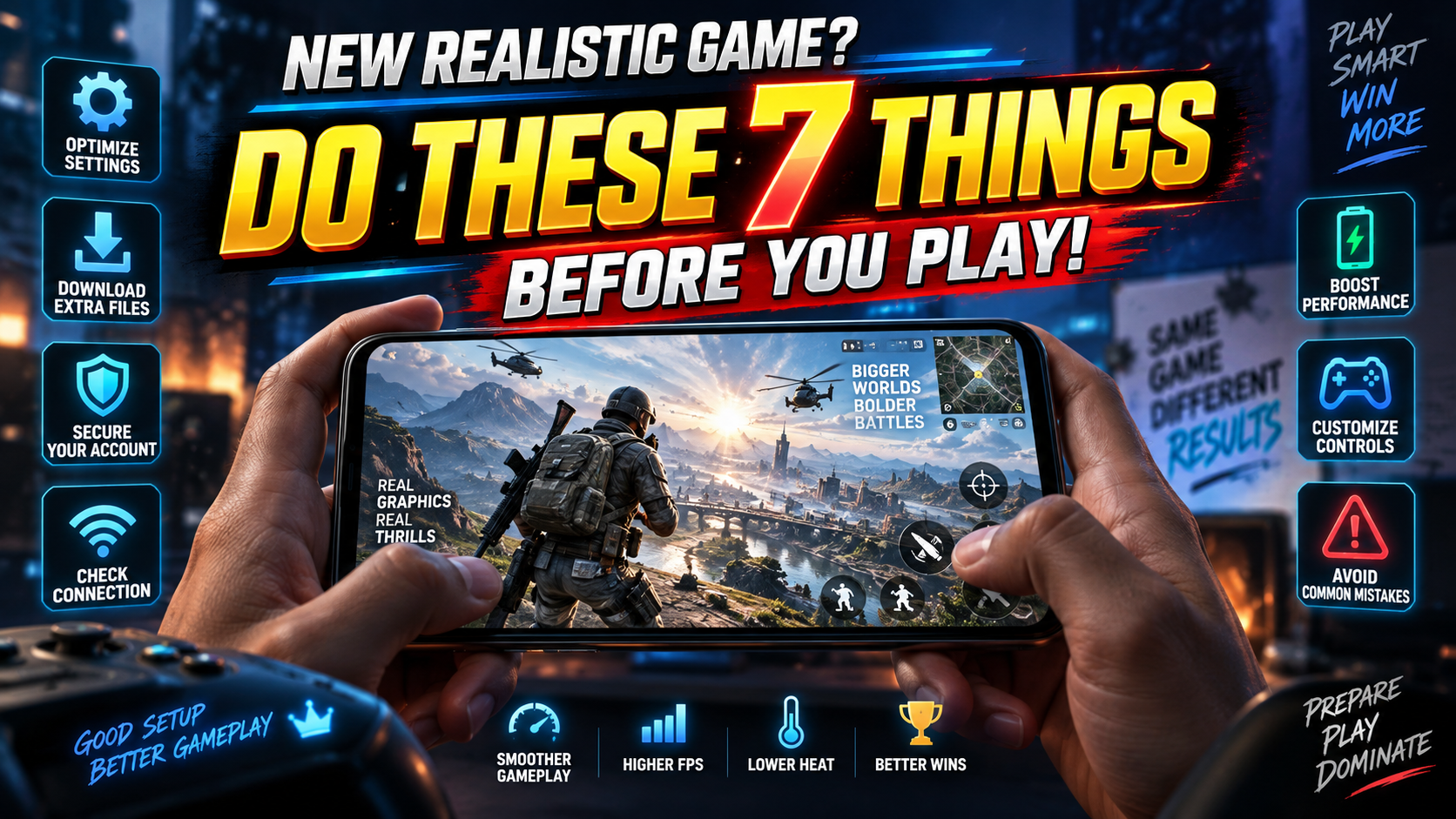
Most people install a new realistic mobile game, tap Start, and then wonder why the phone gets hot, the battery melts, and the controls feel impossible. The visuals are rarely the real problem the setup is.
This guide walks through a sensible first‑hour checklist that works for almost any realistic 3D game on Android or iOS: racing, shooters, open‑world, sports, or simulators.
1. Check What Kind of Realism the Game Actually Offers
Games use realistic in very different ways. Knowing which type you installed helps you pick the right settings and expectations.
- Visual realism: Detailed 3D graphics, reflections, shadows, weather, realistic animations. These are heavy on GPU and battery.
- Physics realism: Cars that handle properly, bullets with drop, characters with weighty movement. CPU and physics settings matter more here.
- Simulation realism: Complex rules and systems (fuel consumption, damage, ball physics, weapon recoil). Often has more sliders in the settings menu.
Open the game’s Settings or Options menu and skim for terms like Graphics, Quality, Frame Rate, Physics, Motion Blur, Realistic Mode, Simulation Mode. That tells you where to focus adjustments in the next steps.
2. Start With a Safe Graphics Baseline (Don’t Trust Auto)
Many games auto‑detect your device and crank everything to High or Ultra to impress you. That often leads to micro‑stutters and a hot phone after a few minutes.
Before playing seriously, open the Graphics section and set a manual baseline:
- Overall Quality: Start at Medium, not High/Ultra, unless you’re on a recent flagship phone.
- Frame Rate (FPS):
- On mid‑range or older phones: pick 30 FPS for stability.
- On newer devices (90 Hz/120 Hz screens): you can try 60 FPS, but watch temperature and battery.
- Resolution: If the game offers Low/Medium/High or Standard/HD, start at Standard/Medium. You’ll barely notice the difference on a small screen, but performance will.
- Disable heavy extras at first: Turn off or set to low: shadows, reflections, bloom, motion blur, depth of field. Add them back later if performance is good.
Play a single match, race, or mission with these baseline settings. If the phone stays reasonably cool and nothing stutters, slowly raise one setting at a time (for example, turn shadows to Medium only, test again).
3. Fix the Controls Before You Build Muscle Memory
Realistic games often expect more precise control: tiny steering corrections, careful aiming, timing of throttle and brake, or directional swipes. The default layout is rarely ideal for every hand size or device.
On‑Screen Controls
- Control scheme: Look for options like tap, tilt, joystick, buttons, or steering wheel. Try each in a short practice mode before picking one.
- Sensitivity: For aiming or steering, start at lower sensitivity than default. Increase only if you feel too slow to react.
- Button layout: Many games let you drag and resize buttons.
- Move frequently used actions (shoot, brake, sprint) to where your thumbs naturally rest.
- Make tiny buttons slightly larger to reduce accidental mis‑taps.
External Controller (Gamepad)
If the game supports controllers, it can dramatically improve realistic driving or aiming:
- Pair your Bluetooth controller via System Settings > Bluetooth first.
- Open the game and look for a Controller or Gamepad menu.
- Remap key actions like accelerate, brake, reload, and camera control to comfortable buttons.
Spending 10 minutes here prevents frustration later, when your brain has already adapted to a bad layout.
4. Use the Right Camera and Assist Settings
Realistic visuals can actually make the game harder to read if the camera is badly configured.
- Camera view:
- Racing: try chase camera or hood view first. True cockpit view looks cool but can be overwhelming on small screens.
- Shooter: most games offer FOV (field of view). A slightly wider FOV lets you see more around you, but can make targets appear smaller.
- Camera shake and motion blur: Turn these off or lower them. They look cinematic but often cause motion sickness and make gameplay less readable.
- Gameplay assists: For realism‑heavy titles, look for:
- Steering assist, braking assist, traction control (racing)
- Auto‑aim, aim assist (shooters)
- Try medium assists at first, then reduce as you get comfortable.
5. Protect Your Battery and Phone Temperature
Realistic games put continuous load on your CPU and GPU. That’s why the phone gets warm and the battery bar suddenly starts dropping.
To avoid long‑term damage or throttling:
- Watch heat: If the back of the phone becomes uncomfortable to touch, pause and let it cool for a few minutes.
- Avoid playing while charging: Especially with fast chargers. Heat + full load is harder on the battery.
- Close background apps: Swipe away heavy apps (social media, video streaming) before a long session.
- Use Performance or Game mode carefully:
- Some phones have Game Booster or Performance Mode. It may improve FPS but increases power draw and heat.
- Use it only if you understand the trade‑off and monitor temperature.
- Lower frame rate for longer sessions: If you want to play for an hour or more, 30 FPS with medium graphics is usually better than 60 FPS ultra on a phone.
6. Turn Off Distracting HUD Elements (But Keep the Important Ones)
Realistic games often pack the screen with information: mini‑maps, damage indicators, speedometers, quest logs. On a small display, that can hide visual detail and hurt performance.
Visit the HUD / Interface section if the game has one:
- Keep: Health/armor bar, ammo or stamina, lap/time counter, basic map.
- Reduce or hide: Floating damage numbers, overly large quest text, cosmetic overlays, or constant popup tips once you know the basics.
- Opacity and size: If supported, lower opacity slightly and reduce size of static elements so you can see the game world more clearly.
7. Privacy, Network Use, and In‑App Spending
Highly realistic games are often big online titles, with accounts, friends lists, and cosmetic stores. It’s worth doing a quick safety pass before you connect everything.
- Account linking:
- Link to a platform account (Google, Apple, or console account) only if you’re okay tying progress to that identity.
- Avoid linking every social profile unless you need social features.
- Permissions:
- On first launch, the game might request access to contacts, microphone, photos.
- Grant only what makes sense. Most realistic games only really need storage and network.
- Data usage: High‑fidelity textures and online assets can eat mobile data. Prefer Wi‑Fi for first‑time downloads and major updates.
- In‑app purchases:
- Check if there’s a starter pack or subscription being pushed aggressively. You don’t need it to learn the basics.
- If kids use the device, enable purchase authentication in Google Play or the App Store.
Quick FAQ: Realistic Mobile Games
Do I need a flagship phone for realistic mobile games?
No. Many titles scale down well. You may need to use medium/low graphics and 30 FPS, but gameplay can still feel good on mid‑range hardware.
Why does my realistic game stutter after a few minutes?
Likely heat and throttling. Lower your graphics preset, turn off extra effects, and avoid playing while charging. Close background apps and test again.
Is 60 FPS always better than 30 FPS?
It feels smoother, but it also uses more power and can create more heat. For competitive shooters and racing games, 60 FPS helps; for slow simulators, 30 FPS is usually fine.
Should I trust performance booster apps from third parties?
Usually not. Many add ads, track usage, or do things Android/iOS already handle. Prefer your phone’s built‑in game mode instead of random booster apps.
Where can I learn more about tuning specific games?
Search for guides that name your exact game and device class. You can also check other articles on this site about Android game settings, controller setup, and mobile privacy for more targeted tips.








