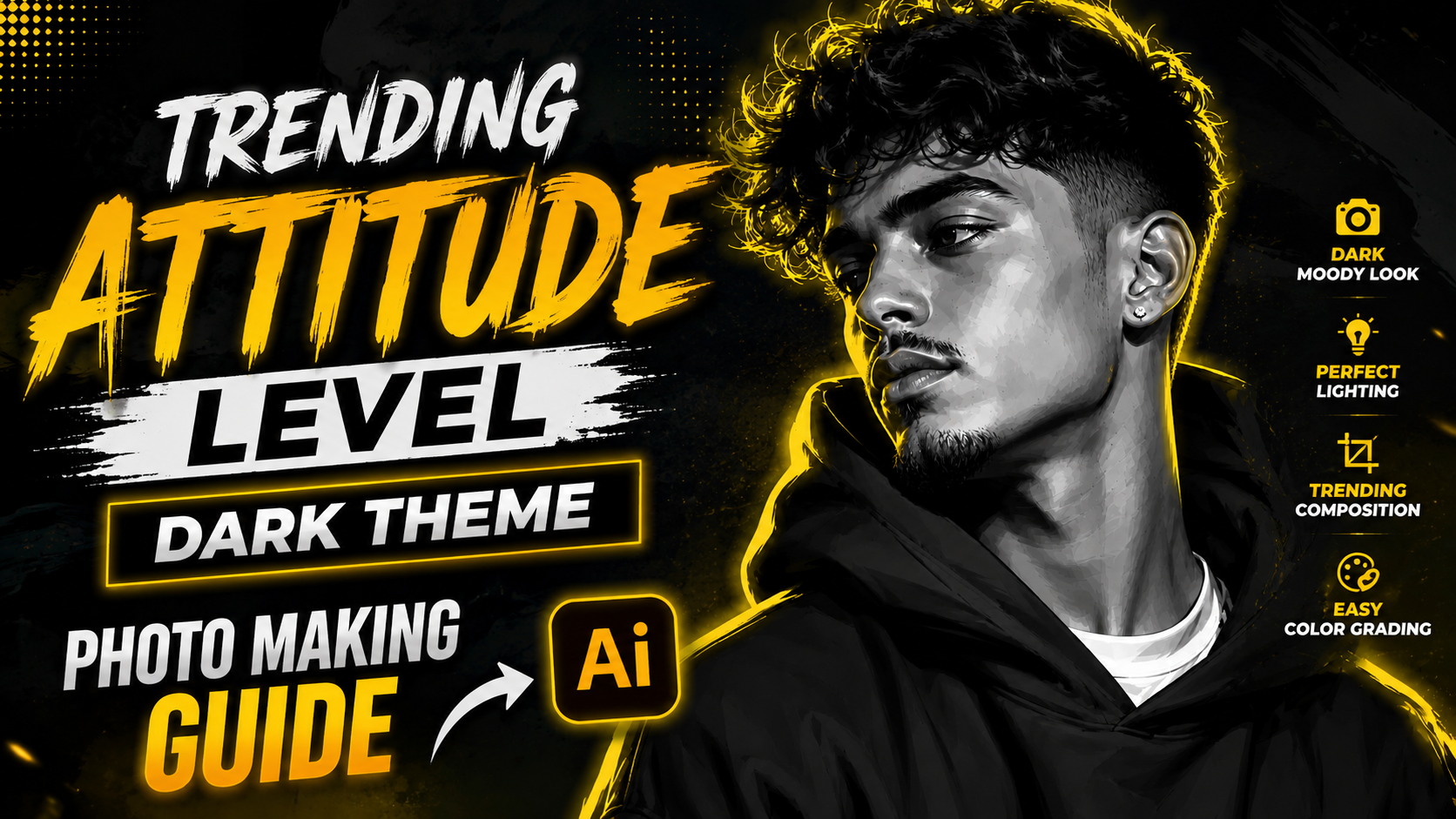
Hello friends, today we are going to try something useful with this topic. You keep seeing moody, low light portraits with strong attitude on Instagram and Reels, but when you edit your own photos they often look flat or just too dark. This guide explains how to actually build a trending attitude dark theme photo look instead of guessing sliders in your app.
In this post you will learn how to plan the shot, which mobile apps usually work better, and what settings create drama without destroying detail. We will look at a complete workflow from raw click to final post, with simple examples. You can follow this even if you only use a basic Android or iOS phone camera.
This guide is for creators who like dark vibe portraits, street shots, gaming style selfies, and mysterious backgrounds. If you are aiming at Reels covers, WhatsApp DP, or thumbnails with attitude, the same rules apply. You do not need paid presets to start, just a bit of control over light, shadows, and color.
Many people search for special attitude level dark theme photo apps or magic filters. The truth is that most popular looks are a mix of lighting, framing, and a few repeatable edit steps. We will still mention useful apps and simple LUT or preset options, but the focus stays on a repeatable method you can use in any editor.
Related Resource
The Photo Prompt button above opens the related resource for Trending Attitude Level Dark Theme Photo Making. It is included so readers can reach the mentioned page directly.
What people usually mean by a trending attitude dark theme photo
When someone says trending attitude dark theme photo, they usually want three things together. First, a low key lighting style where the background is mostly dark and the subject pops. Second, a confident or mysterious pose that sends a strong feeling even before any caption. Third, a modern color grade, often cool shadows with warm skin, or a slight teal and orange mood.
The look should feel dark but still clean. You can still see details in hair, face, and clothes. Noise is controlled. Skin tone is not completely gray. The edit looks intentional, not like a night photo that went wrong. Keeping this target in mind helps when you move sliders in the app.
Quick checklist before you click the photo
Most dark theme edits fail because the original shot has zero direction. Use this simple checklist before you open any editing app.
- Choose a background that is already darker than the subject, like a shadowy wall, parking area, staircase, or inside room with one window light.
- Light the face from one side only using window light, a table lamp, or a phone flashlight bounced off a wall to avoid harsh spots.
- Wear darker clothes with one bright element such as white shoes, silver chain, or colored glasses to catch highlights.
- Keep the phone steady, ideally prop it against something or use a cheap tripod, so low light shots do not blur.
- Ask the subject to hold a calm but confident pose, chin slightly down or side look, no forced smile.
If you start with this type of base shot, any decent editor can push it into a stylish dark theme quickly. If you start from a bright messy background, you will fight with masks and noise for a long time.
Apps that work well for dark theme attitude photos
You can edit these images in many tools, but a few stand out for mobile users. Always download apps from trusted stores and check recent reviews, because free filters often include heavy ads or quality loss.
| App | Best For | Key Dark Theme Features | Typical Drawbacks |
|---|---|---|---|
| Snapseed | Precise control layer by layer | Curves, Selective, Brush, Lens Blur, Glamour Glow | Interface feels technical for new users |
| Lightroom Mobile | Consistent color grade and presets | Profiles, Color Mix, Curves, Masking for subject | Free version has some limits, sync needs account |
| PicsArt | Social style edits and overlays | Background replace, lens flare, text, stickers | Can push too far into artificial look if overused |
| CapCut Photo editor tools | Thumbnail style attitude looks | Ready made dark filters, vignette, text tools | Less precise for fine color work |
If you are a beginner, start with Snapseed or Lightroom Mobile. They give you control without forcing effects that can look cheap in a dark theme.
Step by step workflow for a clean dark attitude edit
1. Basic cleanup and crop
Open your image and first fix the composition. Crop a little tighter around the face or upper body. Straighten any tilted horizon or door frame so lines look intentional. Remove obvious distractions with healing or clone tool, such as bright spots in the corner or small light sources that break the dark mood.
2. Exposure and contrast foundation
Reduce overall exposure slightly until the background becomes mostly dark but the face is still clear. Increase contrast a bit to give punch. Then open a curves tool. Pull down the lower left part of the curve a small amount to deepen shadows, and very slightly lift the midtones so the face stays readable. Avoid crushing blacks completely or you lose texture in hair and clothes.
3. Control highlights and shadows separately
Reduce highlights slider to keep any light source soft, and lift shadows only a little if the face is too hidden. For attitude portraits a bit of shadow on one eye or side of the face is fine. The goal is mystery, not a passport photo. If the app has local masking, brighten just the face area with a soft brush instead of the whole frame.
4. Color grade for a modern dark theme
Now adjust color. A common style is cool shadows and natural or slightly warm skin. In Lightroom Mobile, use Color Mix and shift blues and aquas slightly towards teal and lower saturation a touch. In Snapseed, try Curves RGB channels, or use a subtle preset then tweak. Reduce overall saturation a little, then bring back orange or red channel to keep lips and skin alive.
Add a bit of clarity or structure around the face and clothes, but keep it moderate. Too much clarity can make skin look rough and cheap in low light.
5. Add attitude with finishing touches
To finish the dark vibe, add a mild vignette so corners fade into black. Increase sharpness a bit only on the subject area. If you use PicsArt or CapCut, you can place a small light leak or neon line behind the subject, but keep opacity low. The face, eyes, and pose must remain the main focus, not the effect.
Real world examples and one mini case study
Example one, a street attitude portrait. You shoot a friend in a hoodie under a bridge at evening, with a single streetlight behind them. In editing, you darken the whole frame, bring down highlights so the lamp does not blow out, then brighten only the face with a radial mask. Cool down the background color, keep skin warm, and add vignette. Result, moody urban look that still feels natural.
Example two, gaming setup selfie. You sit near your monitor with RGB lights. While clicking, keep screen brightness lower and put one smaller lamp near your face. During edit, tone down the busy colors, push blues and greens toward teal and reduce saturation. Lift a bit of magenta in highlights to create a cyber look. The expression stays serious, which supports the attitude theme.
Mini case study, fixing an over dark edit. Imagine you edited a photo too much and it became almost black, with crushed details and heavy noise. Instead of deleting it, reset to original and only apply half of each step. Use exposure and curves gently, keep ISO low when shooting to reduce grain, and avoid stacking multiple contrast boosting filters from different apps. This usually saves the image and looks more premium than an over processed dark filter.
Common mistakes and how to avoid them
- Making the whole frame black so nothing is visible. Always zoom in and check if eyes, lips, and key clothing folds still have detail.
- Pushing saturation and clarity too high, which creates a crunchy and cheap social filter look.
- Using untrusted download sites for presets or apps, which can risk privacy or install clones. Stick to official stores and known creators.
- Ignoring skin tone. Even in a dark theme, skin should not turn green, purple, or strange gray unless that is a very specific artistic choice.
- Exporting in low resolution. In most apps, set export quality to high so your photo stays sharp when you upload to social platforms.
Conclusion
Creating a trending attitude dark theme photo is less about secret filters and more about controlling light, pose, and a few careful edits. If you start with a simple setup, subject brighter than background and a confident expression, apps like Snapseed or Lightroom Mobile can handle the rest. Use curves, subtle color grade, and local brightening on the face to keep the image stylish instead of muddy.
From here, your next step is to pick one reference photo you like on social media and try to recreate it using the workflow above. Keep a backup of the original image, test small changes, and save your favorite settings as presets where your app allows. After three or four practice edits, this dark attitude style will become much faster and more natural for you.
FAQ
Which app is best for trending attitude dark theme photos on mobile
For most users, Snapseed or Lightroom Mobile are best because they offer curves, selective tools, and reliable export quality without forcing heavy effects.
Can I create this look with a basic phone camera
Yes, if you manage light and pose. Use a single light source, keep the background darker, and hold the phone steady. The editor will do the rest.
How do I keep my dark photos from becoming too grainy
Try to shoot with more light than you think and then darken in editing. Avoid maximum zoom, keep ISO low where possible, and do not over sharpen.
Is it better to use presets for dark theme edits
Presets are helpful for speed, but always tweak exposure, skin tone, and contrast by hand. One preset cannot match every face and scene.
What export settings should I use for social media
Use high quality JPG, keep resolution close to the original, and avoid extreme compression. Many apps have a save for social option that works well.
Thank you for reading this guide. If you found it helpful, stay connected with our blog for more latest tech news, useful apps, AI tools, and practical editing updates.








